Getting started in the editor
Select, move, scale and edit text and images with your mouse or your finger.
The editor works the same with a mouse or with your finger: everything you see can be tapped.
The basics
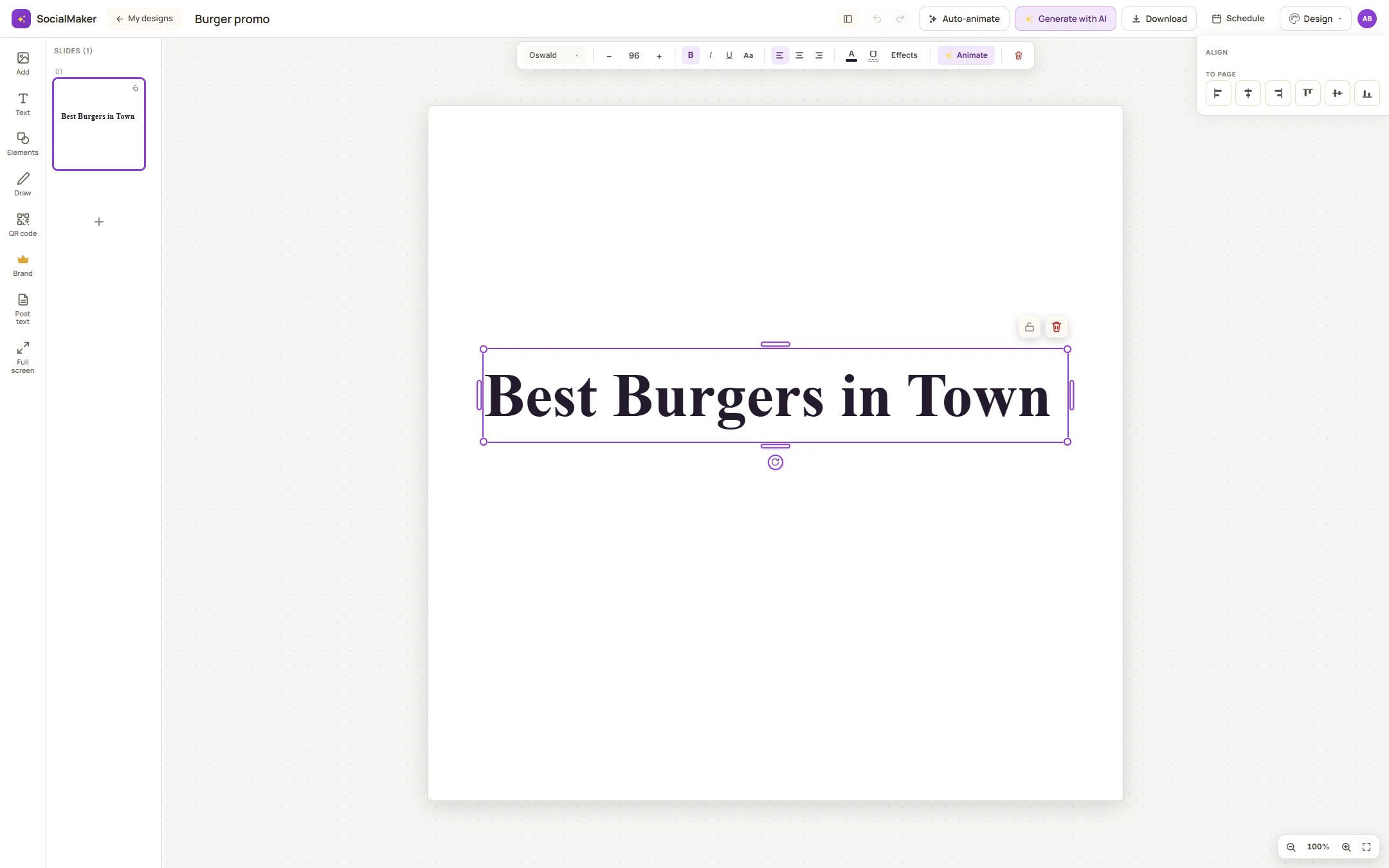
- One tap selects an element; double-tap on a text puts it into edit mode.
- The corner dots scale (on text, they resize the letters); the side dots widen or stretch.
- Above the selected element are the buttons to edit, lock and delete; below, the ones to rotate and move.
- Undo: Ctrl+Z (or the arrow button). Everything saves automatically as you work.
Text
With a text selected, you can change the font, size, color (even word by word), highlight, outline and shadow. You can give a single word a different color to make it stand out.
Images
Select an image to replace it, crop it, apply filters, or remove its background.
Was this article helpful?
You might also like
Remove the background from a photoCut a person or product out of its background with one tap, at no cost.Download as PNG, PDF or videoHow to download your designs to publish or print them, and which format to choose for each case.Animation and musicAnimate your slides with the timeline, choose how long each scene lasts, and add music to export a video.