Facebook auto reply: how to set up automatic replies on Messenger and comments
How to set up automatic replies on Facebook step by step: what Meta gives you for free, how to answer comments on Messenger, and examples to copy.
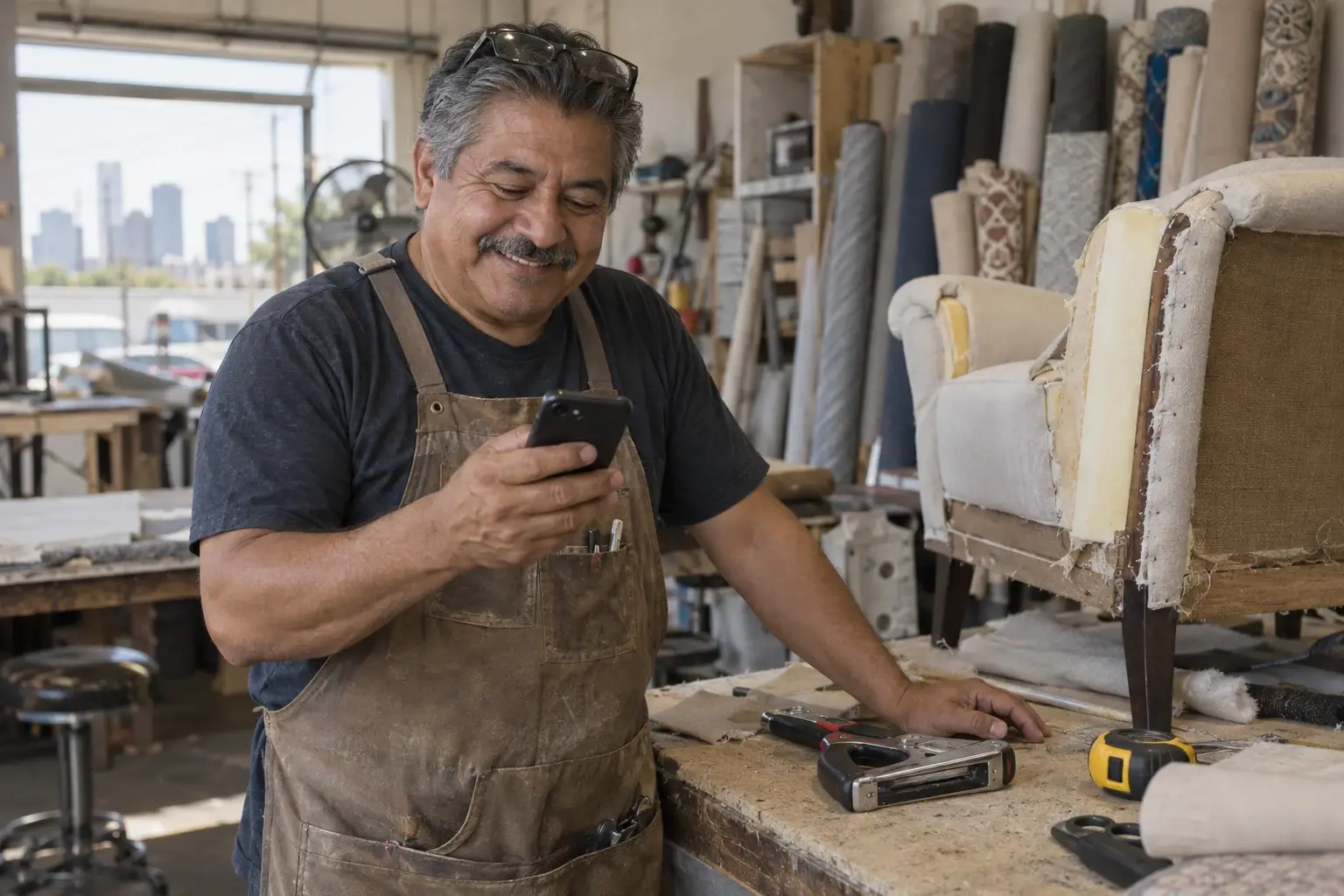
It's 11 PM. On your business's Facebook Page, someone comments “Price?” on the photo you posted this afternoon, and a little earlier someone else messaged you on Messenger asking for a quote. If nobody answers, both of them wait until tomorrow, and in the meantime they can ask someone else.
Automatic replies solve exactly that: the person gets something useful right away (your prices, your hours, your menu or your booking page) and you pick up the conversation when you can. In this guide you'll see what Facebook gives you for free and how to set it up, how to answer comments on Messenger, ready-to-copy messages and the rules that keep you out of trouble.
Animation: from 9 PM to 8 AM, three Messenger messages and one comment on a post arrive at an upholstery shop. Without an automatic reply, each person waits until morning; with one, each gets something useful right away.
MessengerLucy R.9:30 PM Hi, how much to reupholster 6 dining chairs?

Hi! Thanks for messaging Morales Upholstery. Here are our prices and photos of past work; we'll confirm your quote first thing tomorrow.See pricesAutomated reply
Waiting for a replyCommentCarl M.11:05 PM Price? 🙏
Hi! We saw your comment. Tap the button and I'll send you our prices and fabrics.Show meAutomated reply
Waiting for a replyMessengerAnna G.12:40 AM Are you open Saturday?
Hi! We're closed right now. We're open Monday to Saturday, 9 AM to 6 PM. Here's where to find the shop.Get directionsAutomated reply
Waiting for a replyMessengerGeorge P.6:15 AM Do you pick up furniture at home?
Hi! We're closed right now; we open at 9 AM. Send us your address and which piece it is, and we'll confirm.Automated reply
Waiting for a reply
Why it pays to reply fast on Facebook
Facebook is still where a lot of people message businesses. In the US, 71% of adults use Facebook, according to the Pew Research Center (2025), and that rises to 74% among Hispanic adults (Pew).
And people who write expect a quick answer: about three in four consumers expect a reply within 24 hours or sooner, and 73% say they'll buy from a competitor if a brand doesn't respond on social, according to the 2025 Sprout Social Index (survey in the US, UK, Canada and Australia).
What Facebook gives you for free
If you have a Facebook Page (not a personal profile), you already have automatic replies at no cost. They live in Meta Business Suite, under Inbox → Automations, and work for Messenger, Instagram and WhatsApp Business (Meta). Almost all of them can be set up on desktop or in the Meta Business Suite app:
| Automation | What it does |
|---|---|
| Instant reply | Greets people the first time they message you. |
| Away message | Replies when you're not available, on the schedule you choose. |
| Frequently asked questions | Shows the person up to 5 questions to tap, each with its answer. |
| Hours, Location and Contact information | Reply when someone asks for that, with a button to your website if you want. |
| Custom keywords | Reply to messages that contain certain words (up to 5). Desktop only. |
| Comment to message | Sends a private message to people who comment certain words or hashtags on your posts. Desktop only. |
Two details: Meta's help describes Comment to message in two ways (with keywords on one page and with hashtags on another), so check what your account asks for. And if your business or your customers are in Europe or Japan, some won't show up: because of privacy rules, Frequently asked questions, Contact information and Location aren't available there, and Custom keywords may be missing too (Meta).
How to set them up, step by step
Open Meta Business Suite on your computer
Sign in and choose your business Page.
Go to Inbox → Automations
You'll see the automations you already have and whether they're on.
Click “Create automation”
It's at the top right. Pick a template, like Instant reply or Away message. In some accounts the instant reply shows up as Auto reply.
Write your message and choose the channel
Mark where it's used (Messenger, Instagram or both). For the away message, pick your time zone and the days and hours you're not available.
Save and test
Click Save changes. It can take a few minutes to appear. Then ask someone to message your Page to see how it arrives.
- Keywords can only be set up on desktop, allow up to 5 per automation and have to match exactly, including upper and lower case (Meta).
- The keyword reply isn't instant: Meta sends it after 15 minutes, if you haven't answered before then.
- If a template (like the away message) and a keyword are triggered at the same time, only the template is sent.
- The away message has no toggle: it works on its schedule. To turn it off, set yourself as available every day and at all hours (Meta).
- Meta's automatic messages end with “Sent by automated response”.

How to answer Facebook comments on Messenger
Many questions don't arrive on Messenger: they arrive as comments. “Price?”, “info”, “do you ship?”. What works best is answering in public, so the person knows you saw it, and sending them the details privately. According to Sprout Social, 51% of people who reach out publicly expect a public acknowledgement first before moving to a private message (Sprout survey, Q4 2025).
For automatic messages, Meta has a rule: you can send only one private message per comment, within 7 days, and the conversation continues only if the person replies (Meta). That's why that first message should have a button: when they tap it, they've replied, and you can send everything they asked for.
Meta's Comment to message sends the private message and is set up on desktop. With SocialMaker's automatic replies you build both the public reply and the message, from your phone too:
Connect your Facebook Page
In Automations, tap Connect my Facebook Page (if your Instagram is already connected, tap Connect account) and choose your Page. The connection is official: SocialMaker is a Meta Tech Provider and never asks for your password.
Create a comment automation
If you have more than one account, first tap Switch account and choose the Page. Then tap New automation, choose Start from scratch (or a template) and then Comment on a post. It can reply on one post, on all of them, only on new ones or on the next one you publish.
Write the keyword and the public reply
For example, PRICE. Add two or more public replies, like “We just sent you a message on Messenger!”: they take turns, so your Page doesn't repeat the same text every time (up to 2 on the free plan).
Build the Messenger message
A greeting with a button and, when the person taps it, what you promised: your link, your menu, your catalog or the booking card.
Turn it on and test it
Ask someone to comment the keyword from their own account: comments from your own Page don't trigger it. If that person already commented on that post, they won't get another message: test with another account or on another post.
Write your replies in a minute
Add your business name, your hours and, if you want, a link: we'll give you the messages ready to paste in each place.
Write your automatic replies
Hi! Thanks for messaging Morales Upholstery. Tell us what you're craving and we'll get back to you as soon as we can.
Paste it in Meta Business Suite: Inbox → Automations → Instant reply.
Hi! Morales Upholstery is closed right now. We're open Monday to Saturday, 9 AM to 6 PM. Leave us a message and we'll reply as soon as we open.
Paste it in Meta Business Suite: Inbox → Automations → Away message, with your schedule.
Thanks for commenting! We sent you a message on Messenger 📩
Hi! We saw your comment. Would you like to place an order?
The public one goes in the public replies of your SocialMaker automation (or you write it yourself). The Messenger one goes in Meta’s “Comment to message” or, in SocialMaker, as the message that arrives after the button.
Read them before you paste them and change anything that doesn't sound like you. We don't save anything you type here.
Examples to copy
- Price
Hi! Thanks for asking. Here's our updated price list. If you're looking for something specific, send us a photo and we'll help.
- Hours
Hi! We're open Monday to Saturday, 9 AM to 6 PM. How can we help?
- Location
Hi! Here's how to get to our shop. If you're driving, there's parking across the street.
- Shipping
Hi! Yes, we ship. Tell us your city or ZIP code and we'll let you know the cost and how long it takes.
- Food order
Hi! Here's today's menu. You can order from the link or send us your order right here.
- Appointment
Hi! Pick the day and time that work best for you at this link. If you don't see a time that fits, message us and we'll find one.
- Quote
Hi! To give you an exact price, send us a photo and the measurements. We'll get back to you with a quote as soon as we can.
- Out of stock
Hi! That model sold out, but here are the ones that arrived this week. Do you like any of them?
- After hours
Hi! We're closed right now. We'll reply tomorrow from 9 AM. In the meantime, here are our prices.
- Comment: public reply
Thanks for commenting! We sent you a message on Messenger 📩
- Comment: Messenger message
Hi! We saw your comment. Tap the button and we'll send you all the details.
- Promotion
Hi! The promotion runs until Sunday. Here it is with all the details.
Rules that keep you out of trouble
- Only reply to people who messaged or commented. In general, the person has to message you or comment first; automatic replies aren't a way to write to people who never contacted you (Meta).
- Reply while the conversation is fresh. Facebook lets you answer with automatic messages for a while after the person writes; if too much time passes, you can't anymore.
- Respect people who don't want more messages. If someone asks you to stop or blocks you, that's the end of it.
- Don't ask for card details by message. Meta forbids it: if you charge, send a payment link.
- Say it's automatic. Meta's messages already say so at the end, and in some places, like California, disclosing it is required (Meta).
- Give the comment a clear reason. Meta reduces the reach of posts that ask for comments or reactions just for the sake of it (Meta) and doesn't say how it treats “comment PRICE and I'll send you the list”. Use it when you'll really send something useful, not on every post.
- Don't give things away in exchange for comments. Meta's rules forbid offering something of value in exchange for engagement (Meta).
If you want the details, in auto replies without getting blocked we explain what Meta checks and how to avoid problems, and in Instagram auto reply examples you'll find 40 more examples.

Frequently asked questions
How do I set up an automatic reply on Facebook?
In Meta Business Suite, go to Inbox → Automations → Create automation. Choose Instant reply to greet people or Away message for when you're not available, write your message and save.
Can I do it on a personal profile?
No. Meta's automations are for Facebook Pages, Instagram business accounts and WhatsApp Business. If you sell from your personal profile, create a Page for your business.
How do I turn off or change the automatic reply?
In Inbox → Automations, find the automation in your list and use its toggle or Edit. The away message has no toggle: change its schedule.
Why can't I find it in the Facebook app?
Because it isn't there. Use the Meta Business Suite app or your computer.
Does it improve my response time?
No. According to Meta, instant replies and away messages don't count toward your response rate or response time: for that, you have to answer yourself.
Can I reply to comments automatically?
Yes. Meta has Comment to message on desktop, and with SocialMaker's automations you choose the post, the keyword, the public replies that take turns and the message with a button that arrives on Messenger.
How much does it cost?
Meta's automations are free. On SocialMaker, the free plan includes one active comment automation; the rest start with the Starter plan (pricing).

Written byAndros BlandonSocialMaker