See your link in bio analytics
How many people visit your page, which links they tap, where they come from and how often it's shared. On the Pro and Max plans.
In Link in bio, below your page, you'll find its analytics: how many people open it, which links they tap, which network and country they come from and how many times it's shared.
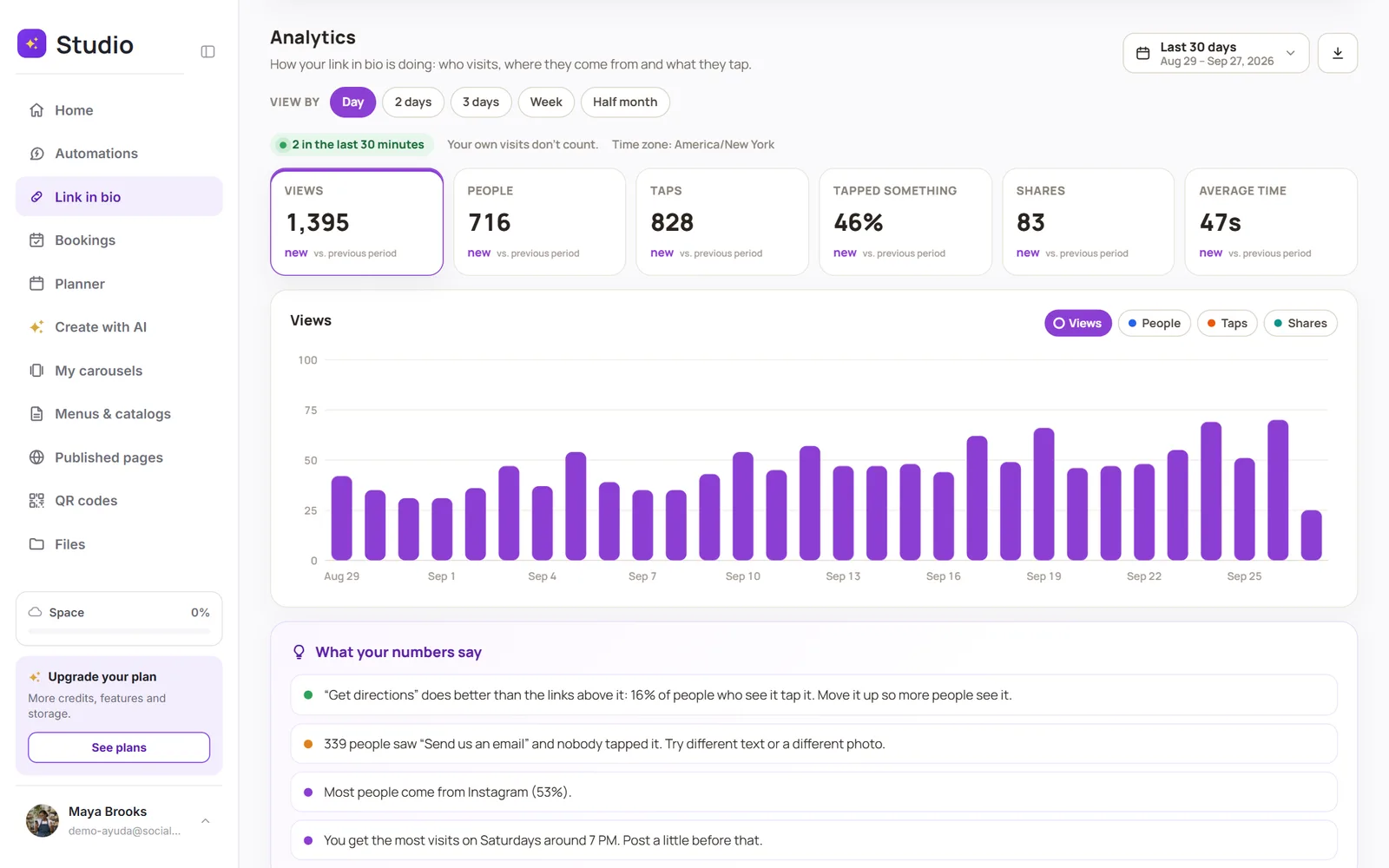
Pick the period
Tap the period button to see today, yesterday, the last 7, 14, 30 or 90 days, this month, last month, the last 12 months or all time. With Pick dates you mark the first and last day on the calendar.
In View by you choose how the chart is grouped: by hour, day, every 2 or 3 days, week, half month or month. Tap one of the numbers at the top to see it on the chart, and move your finger or mouse over it to see each point in detail.
What each number means
- Views: how many times your page was opened.
- People: how many different people opened it.
- Taps: taps on your buttons, photos, cards and videos.
- Tapped something: out of every 100 visits, how many tapped at least one link.
- Shares: times people used your Share button, opened your QR code or pasted your link into a chat.
- Average time: how long people had your page on screen.
Your links: what works and what doesn't
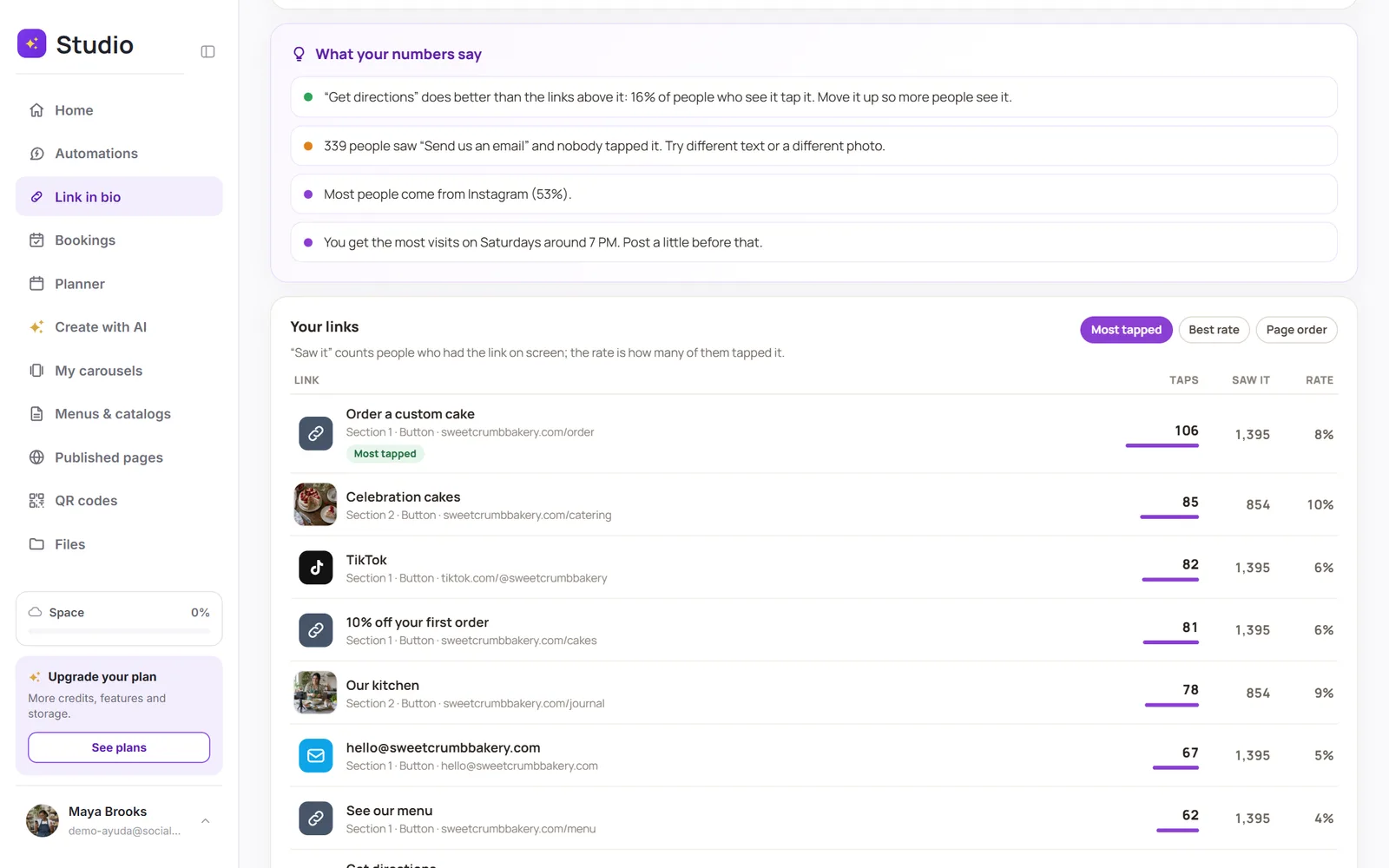
Every button, product or listing shows its taps, how many people saw it on screen and its rate: of the people who saw it, how many tapped it. Sort them by most tapped, best rate or page order.
Where they come from
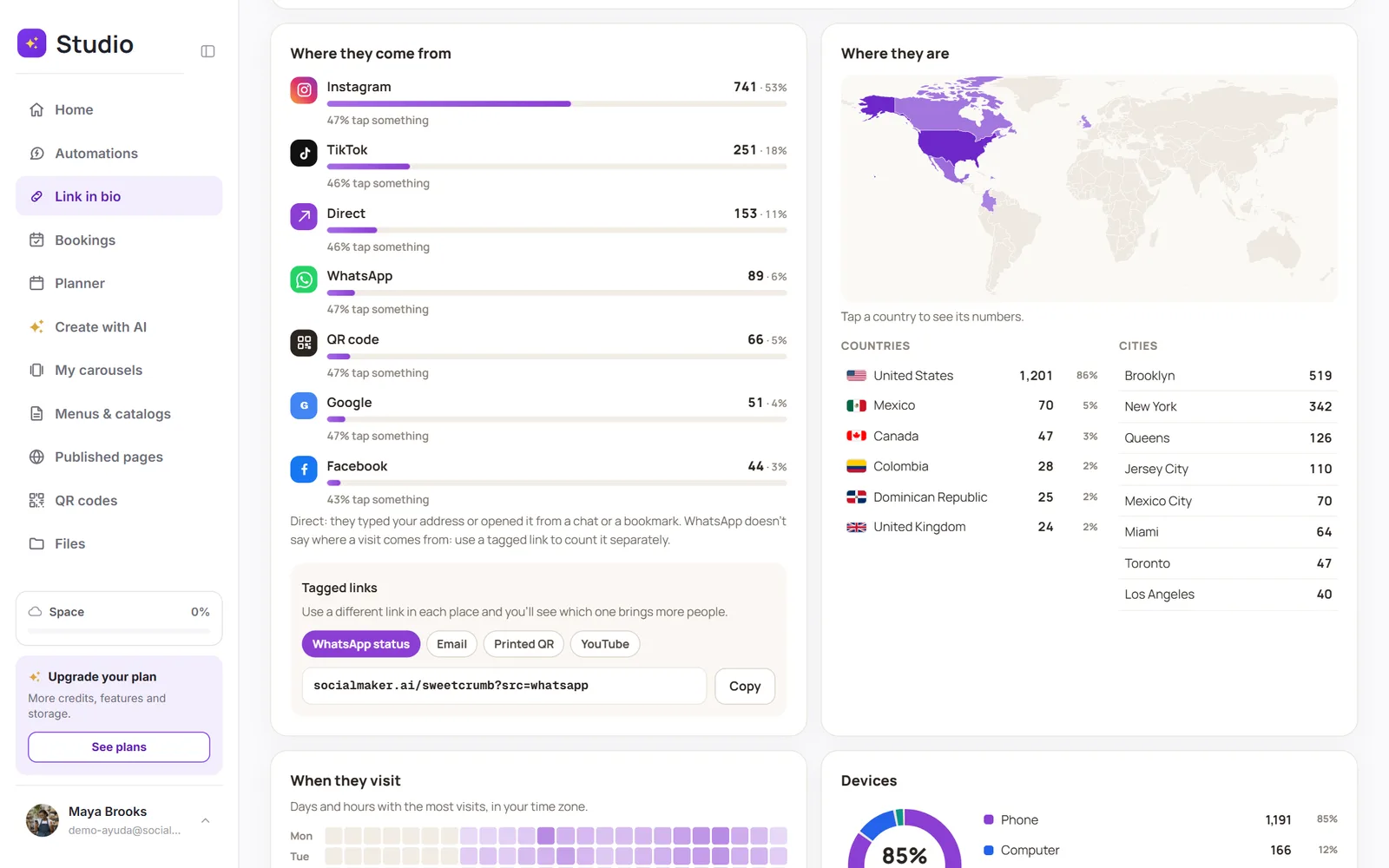
You see whether they come from Instagram, TikTok, Facebook, YouTube, Google, your QR code or other sites, and from which countries and cities. Visits that come from scanning your page's QR code show up as QR code.
When they visit, how far they scroll and how often it's shared
The hours map shows which days and times get the most visits, a handy clue for when to post. How far they scroll tells you what share of visits reaches each section, and Shares adds up your Share button, your QR code and the times someone pasted your link into WhatsApp, iMessage or Telegram.