Edit your link in bio: buttons, photos, products, video and map
How to add WhatsApp or shop buttons, photos with links, products, a video, your map and the booking button.
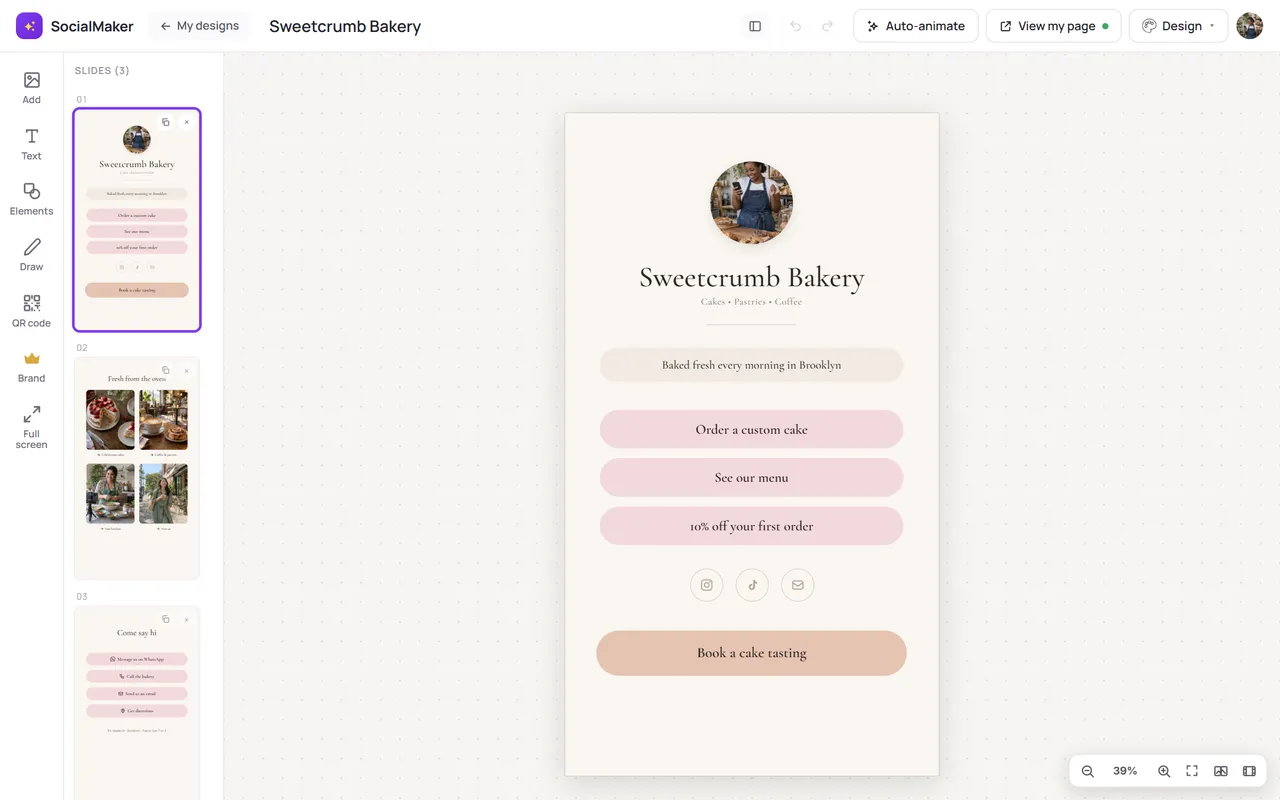
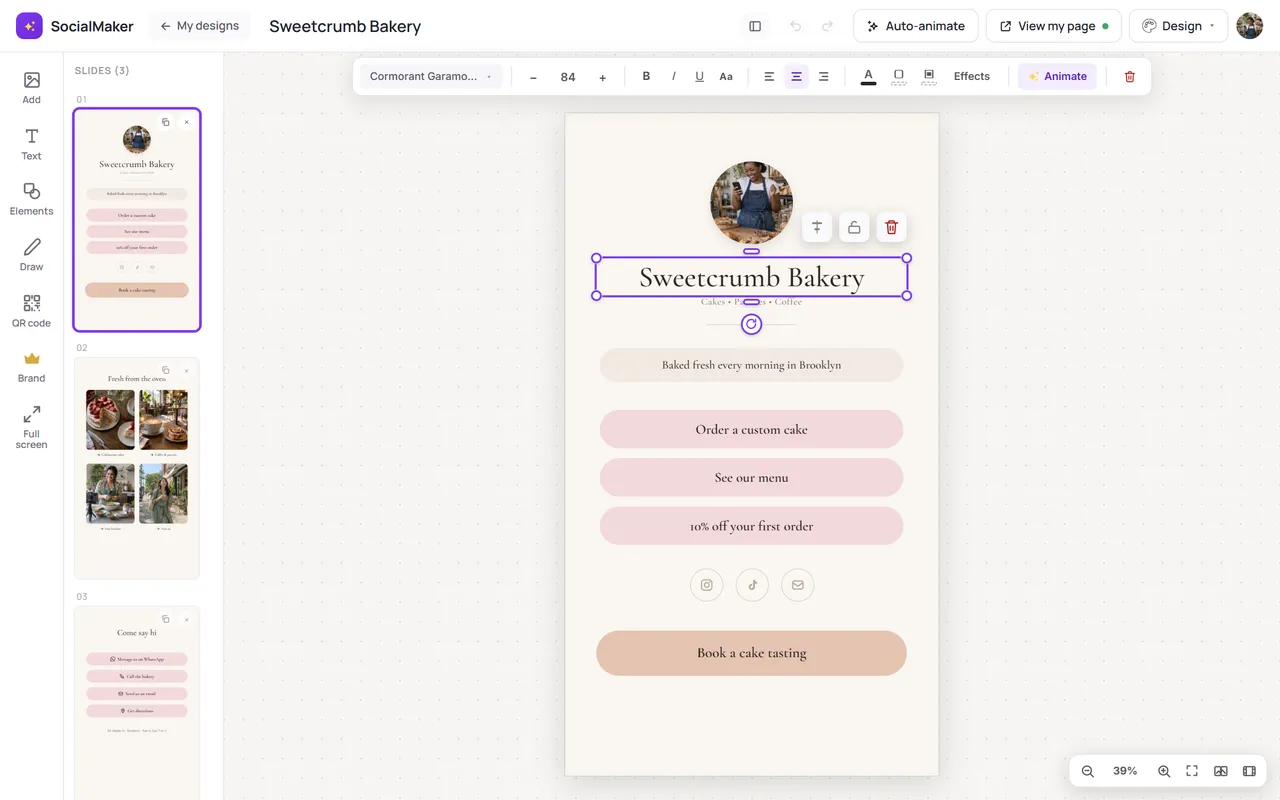
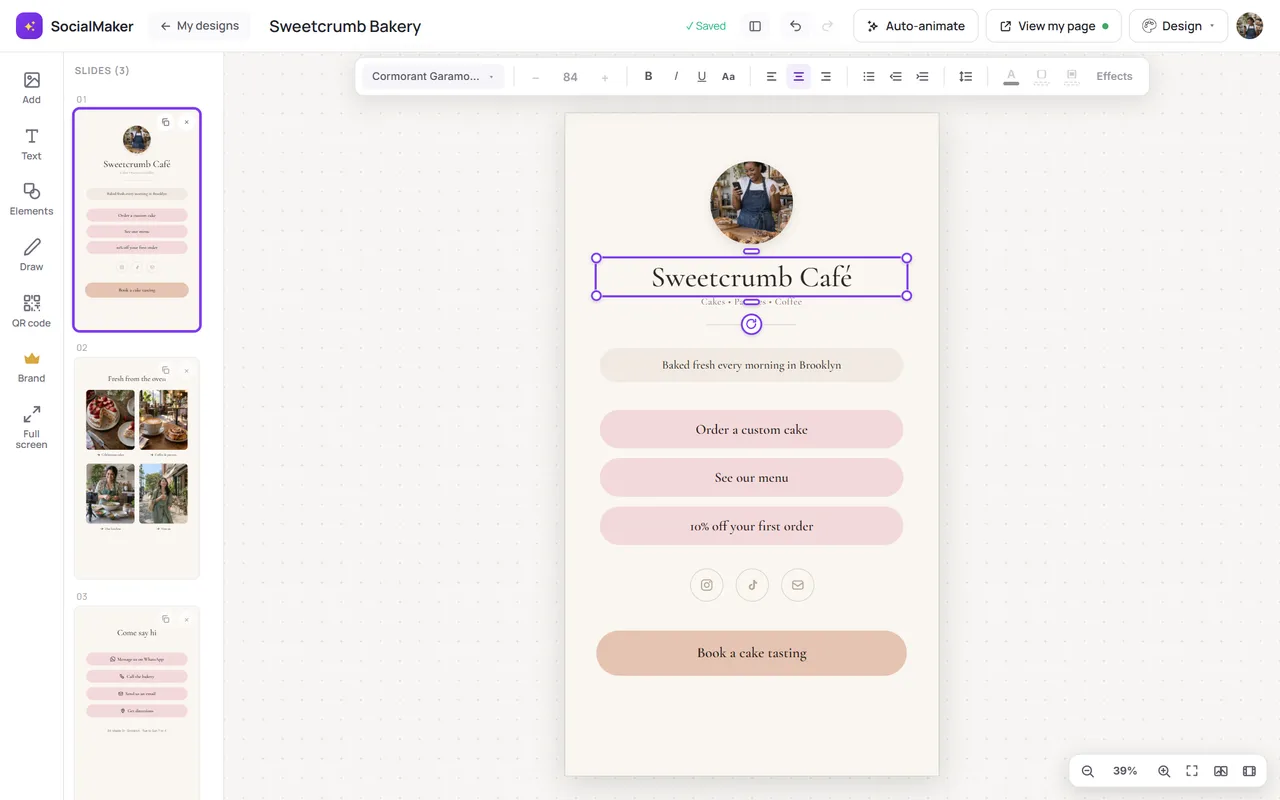
Your link in bio is edited in the same editor as your designs: tap an element and change whatever you want. Changes show up on your page instantly.
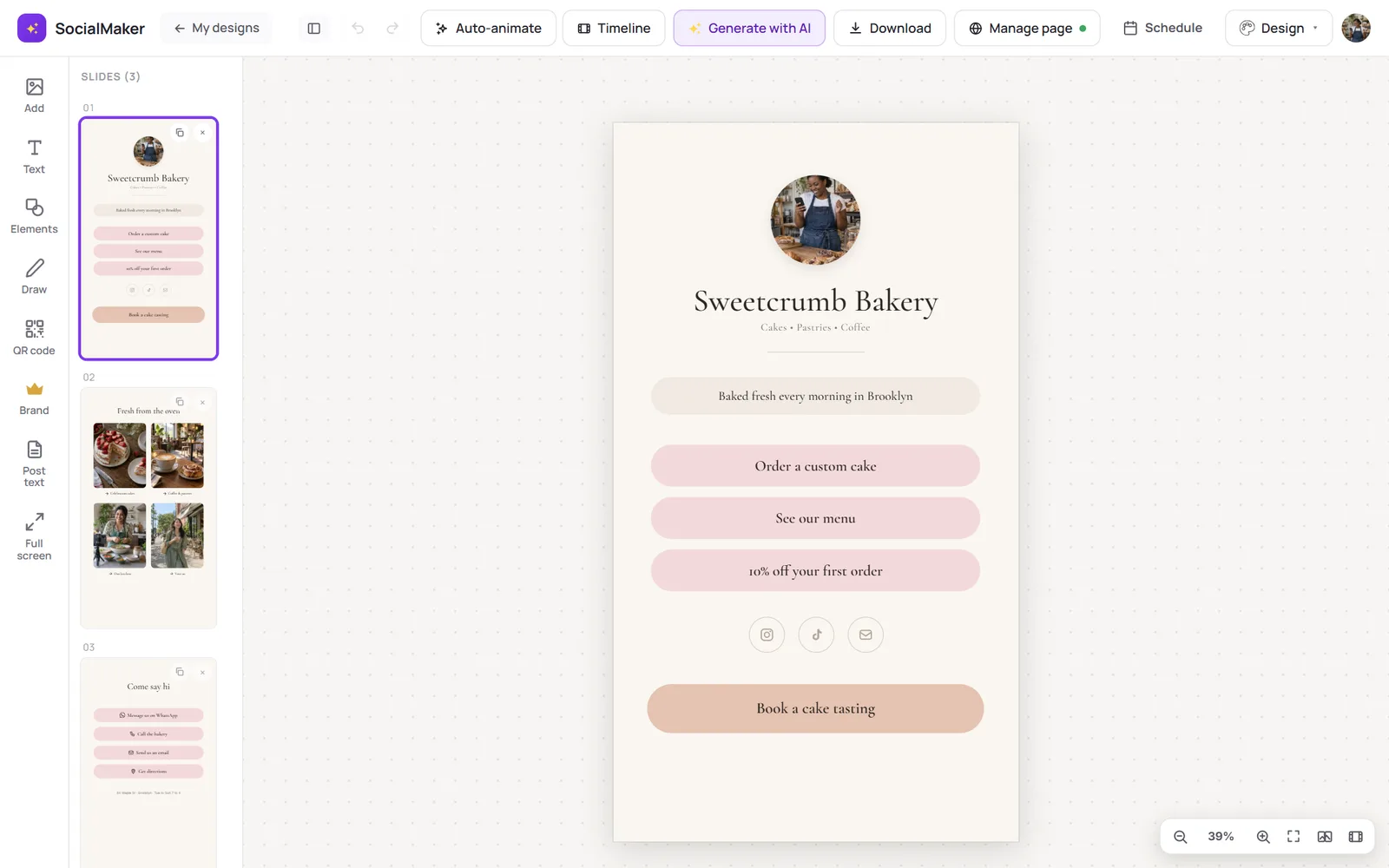
Change a text
Add a text or another element
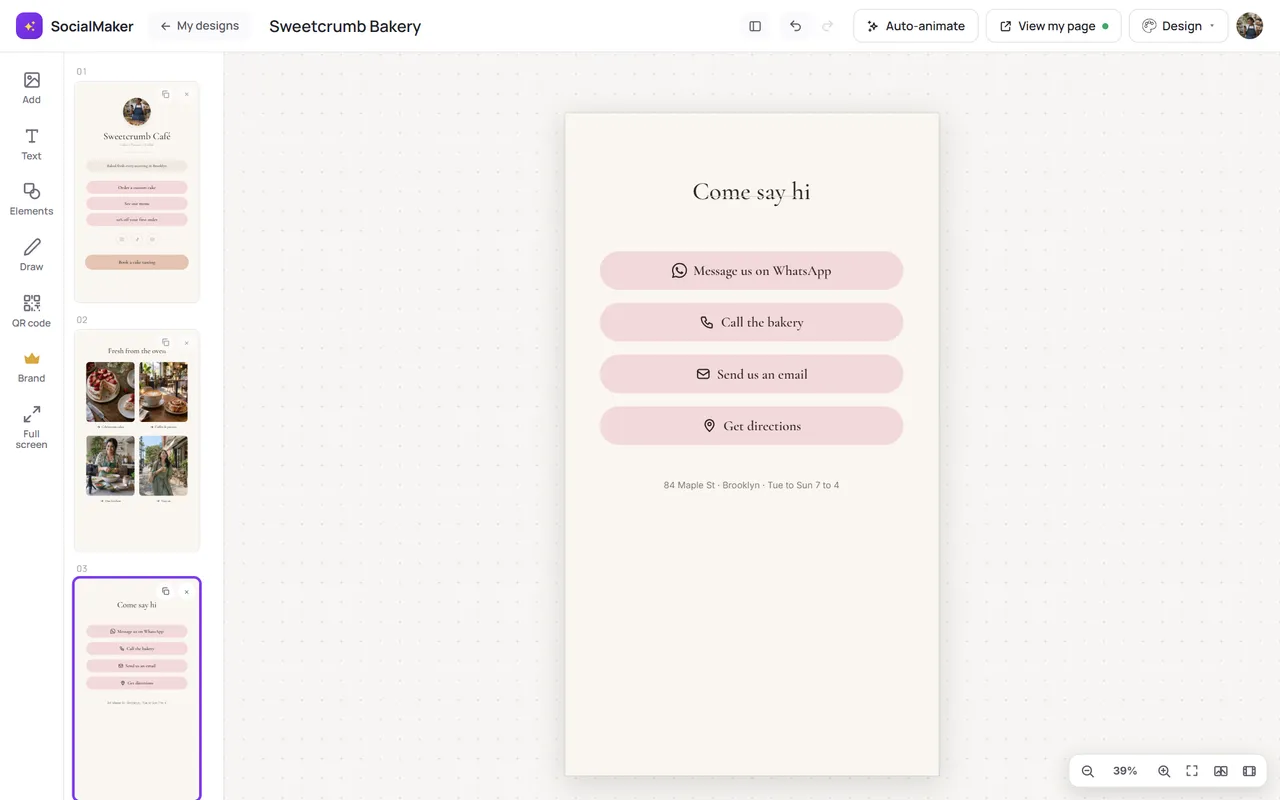
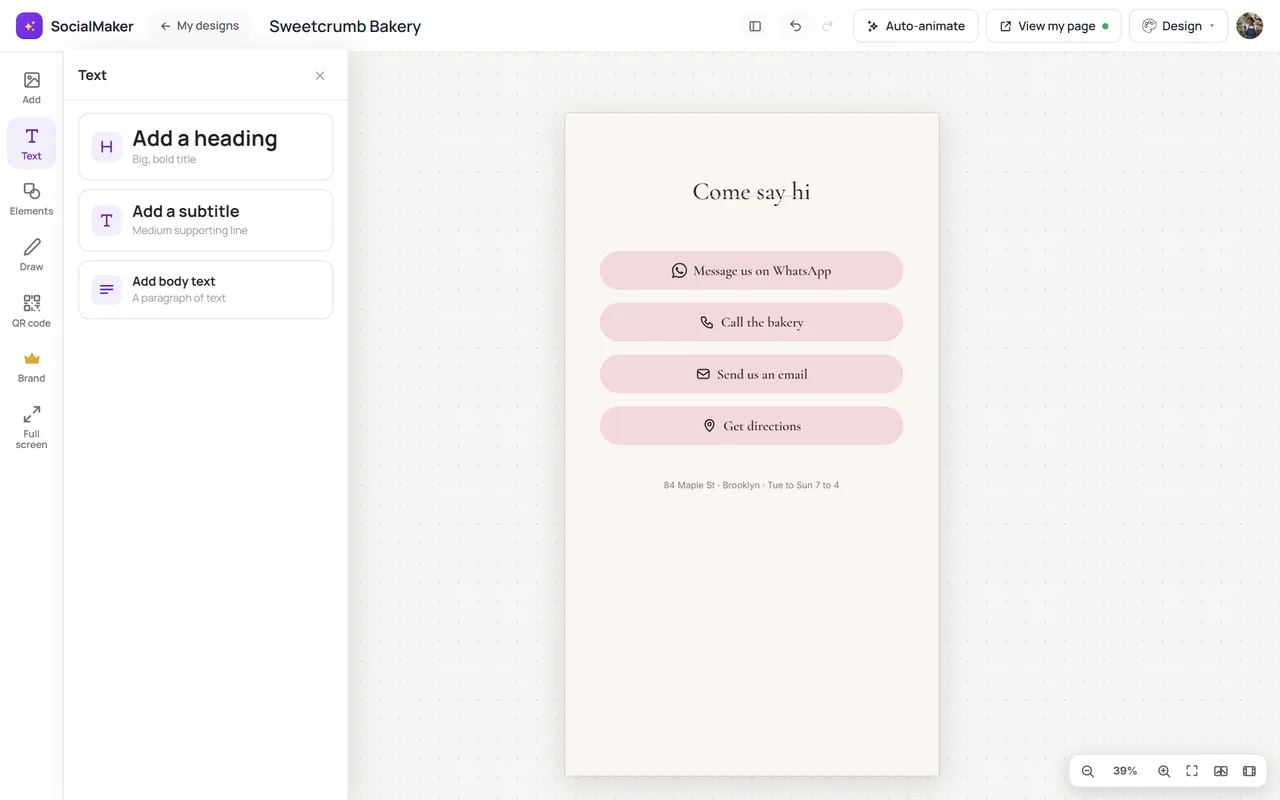
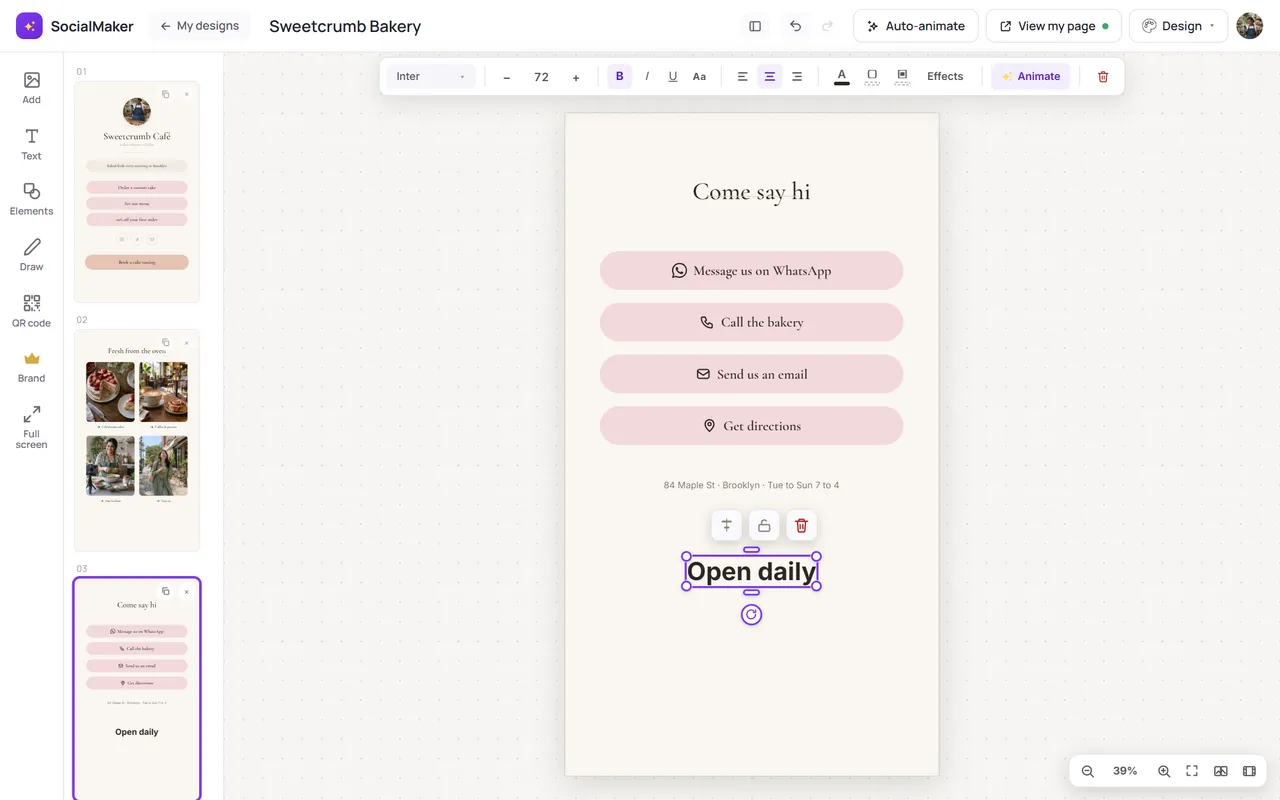
In Add you can also add photos, videos, buttons, icons, shapes and link cards, and in Elements, icons, shapes and emojis. They all work the same way.
Buttons with links
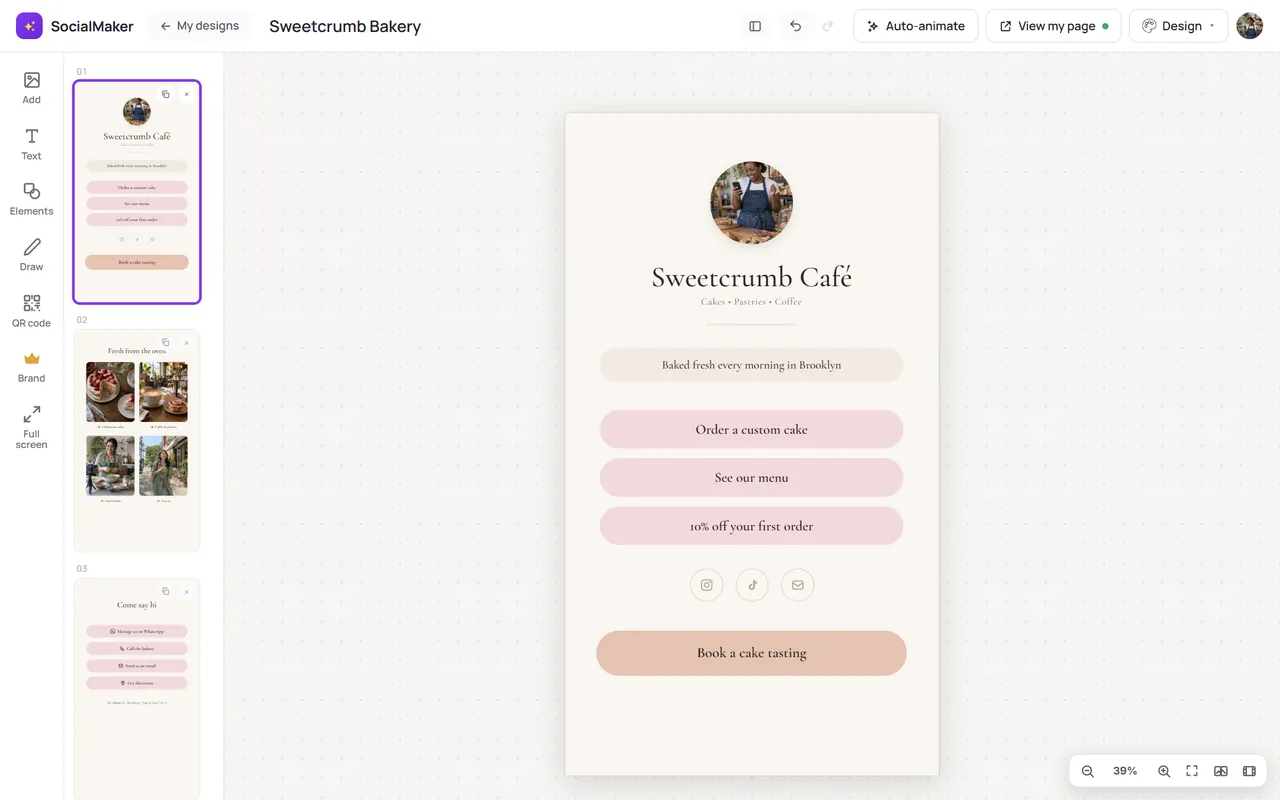
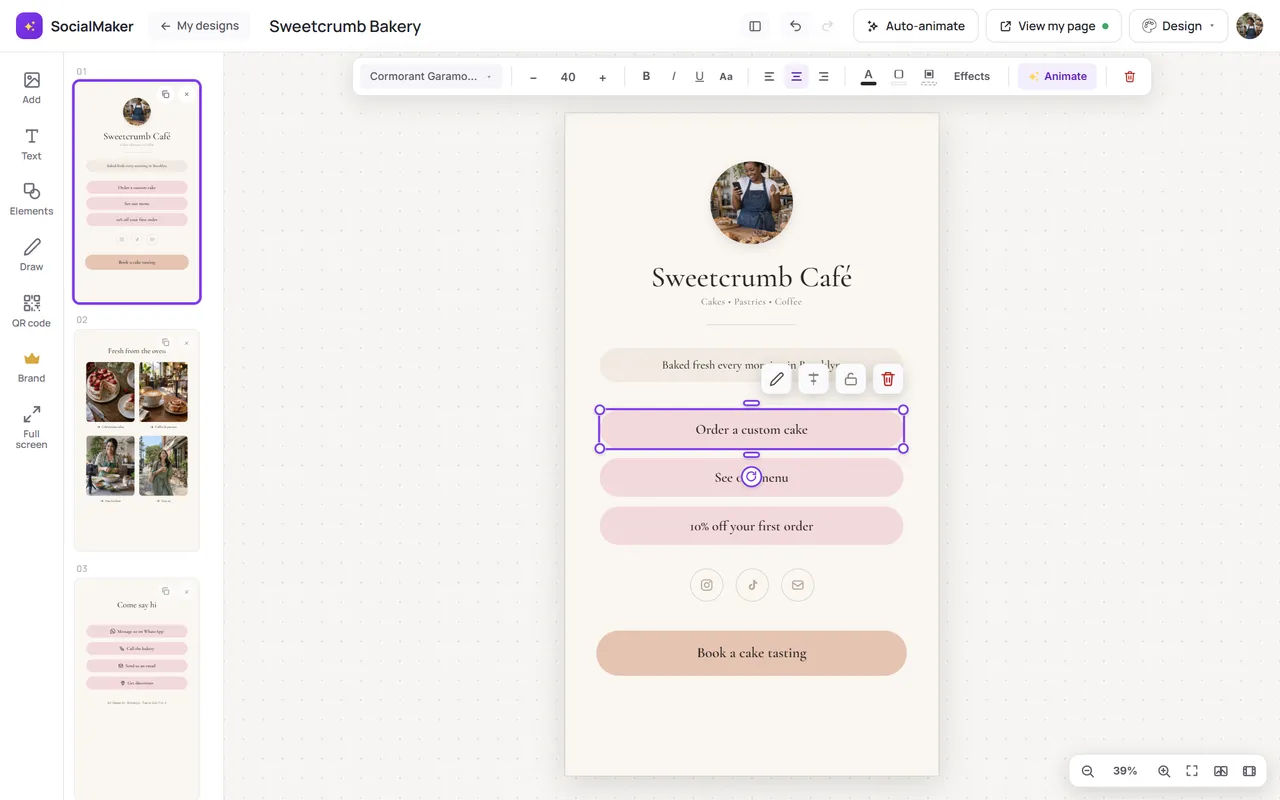
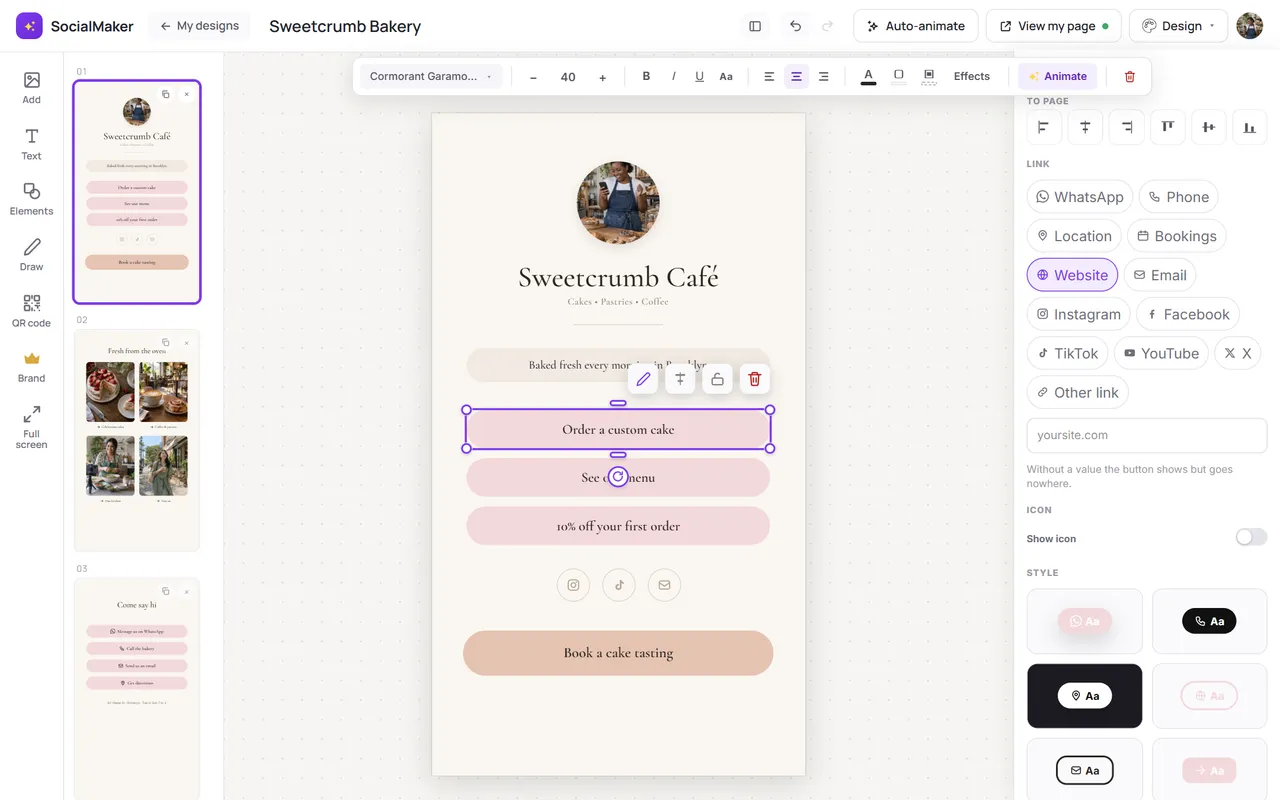
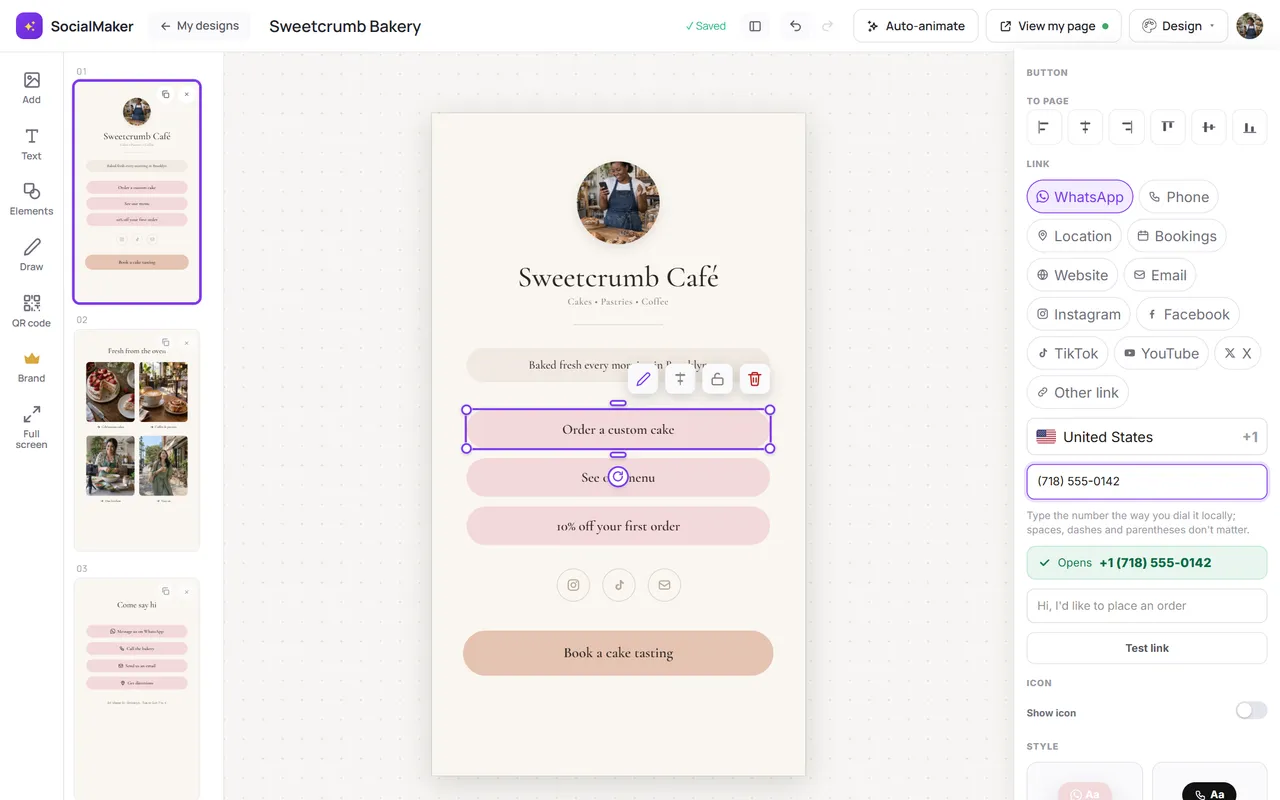
Tap a button and choose where it leads: WhatsApp (choose the country and type the number, which formats itself), Instagram, TikTok, your shop, an email or any link. You can show or hide the icon.
Photos with links and products
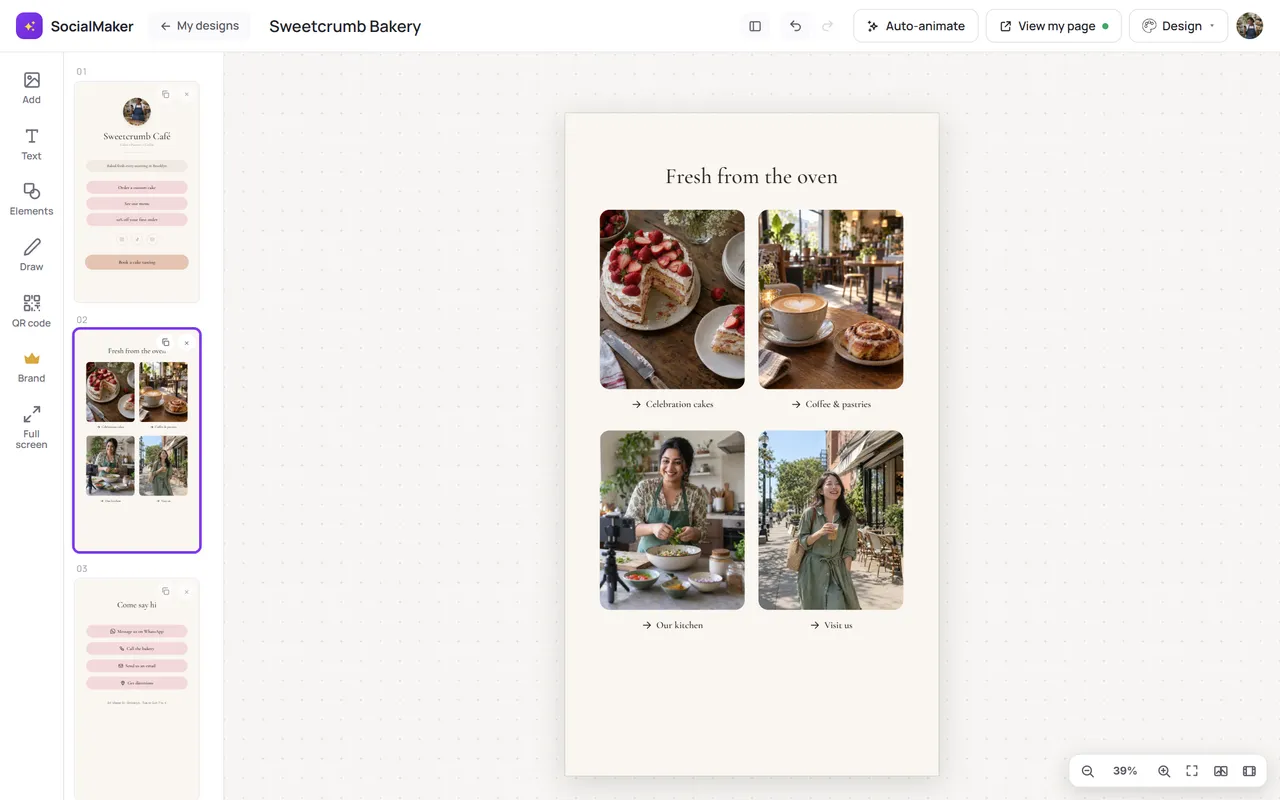
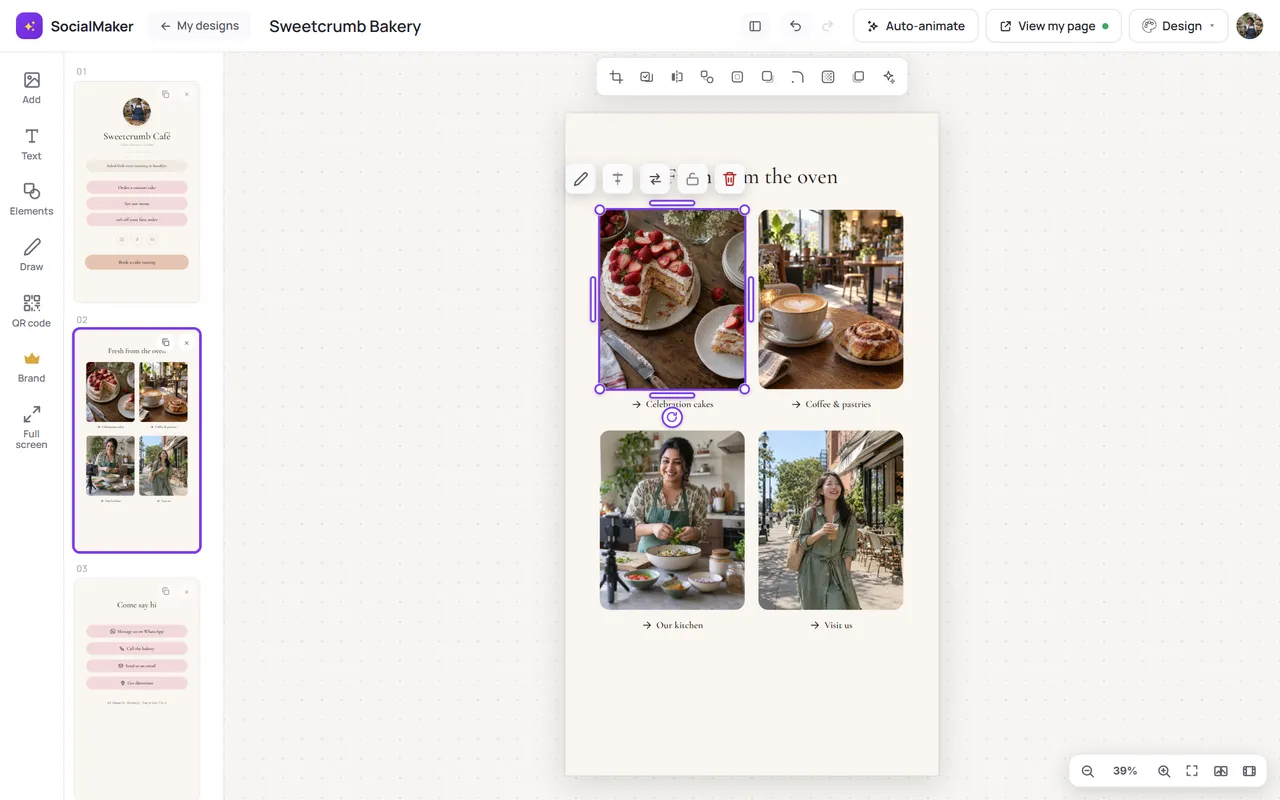
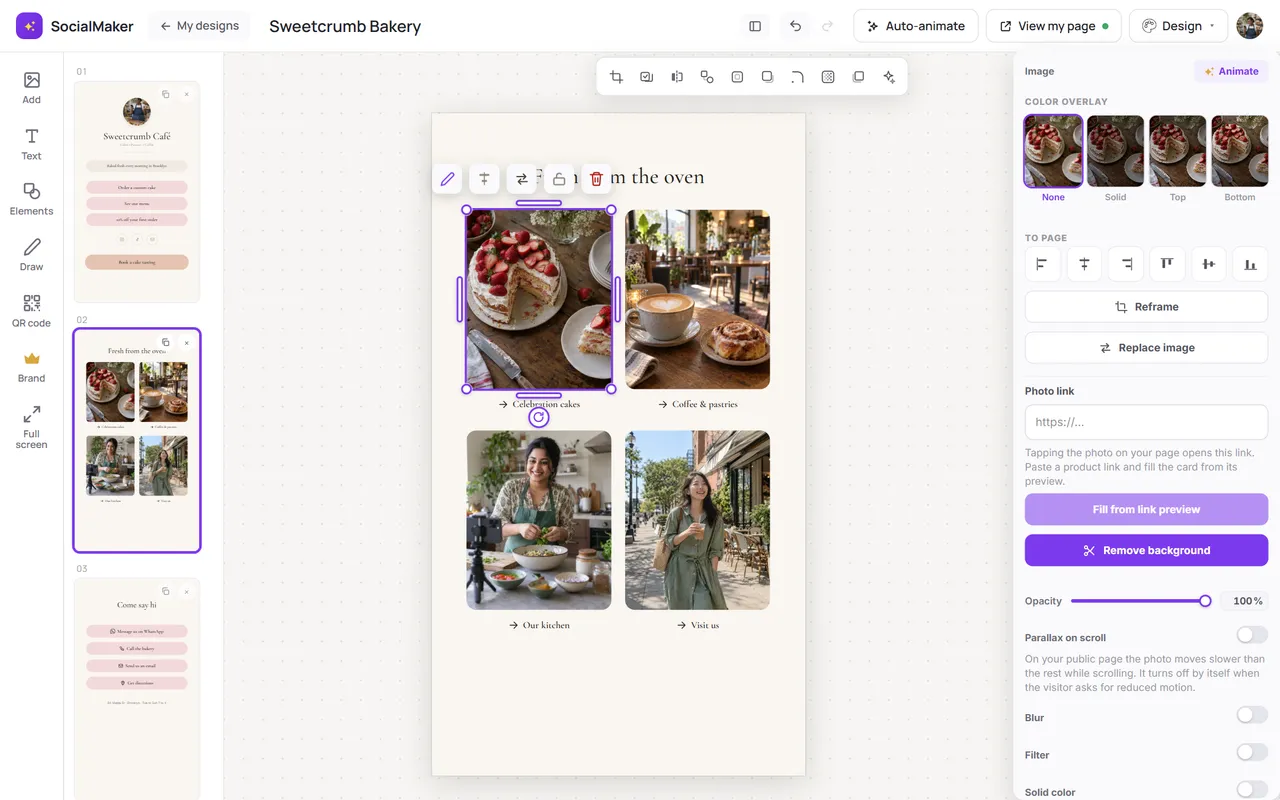
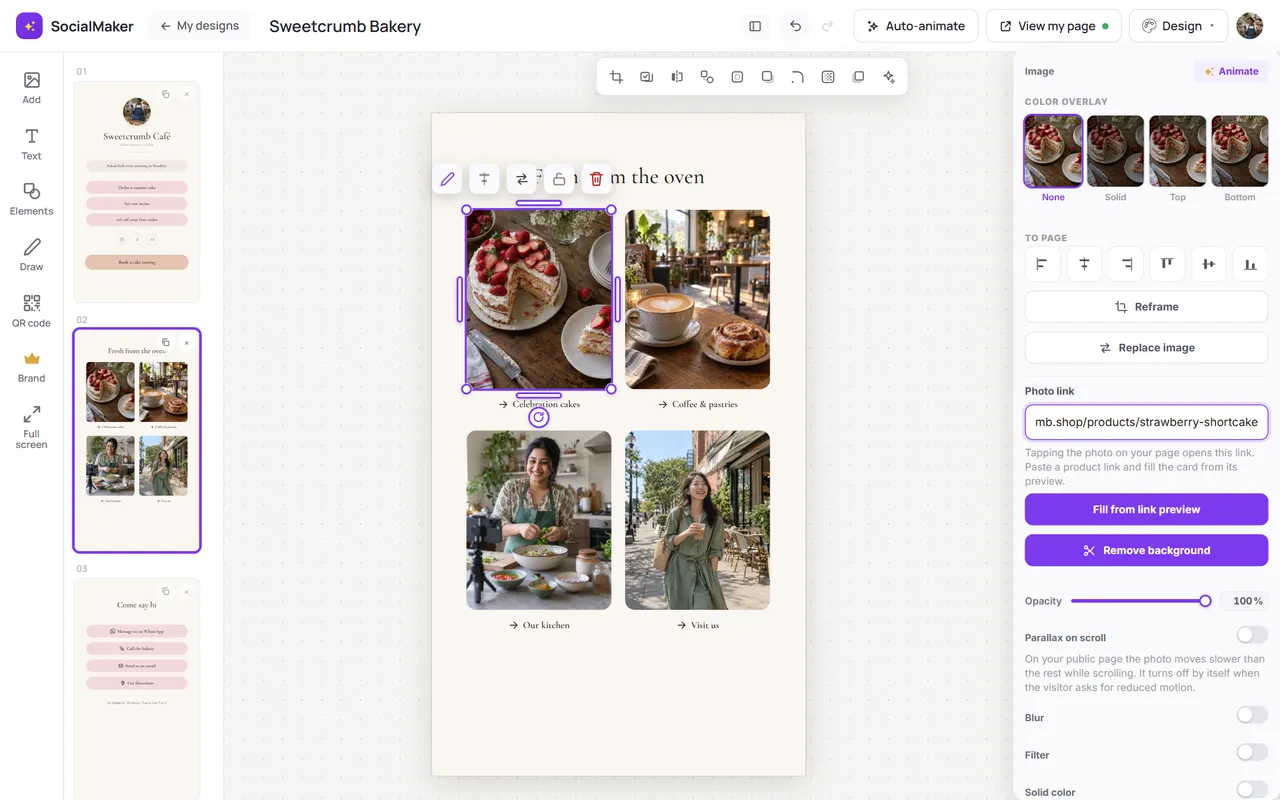
Any photo can lead to a link. If you paste a product link (from your shop or a marketplace), SocialMaker pulls in its photo and name so it looks like a product card.
With a listing link (from your brokerage, your website or a portal) the card also brings the price, bedrooms, bathrooms, size and neighborhood. Some big portals don't let their pages be read: then you get the title and add the photo and price yourself.
Video
In video templates, you can paste a YouTube or Vimeo link, or upload your own file.
Map
Type your address into the location button and tap Generate the map: a real map appears that opens directions on your client's phone.
Booking button
If you use Bookings, the Book button leads to your booking page. You can also point it to another scheduling tool, like Calendly.
Add a section
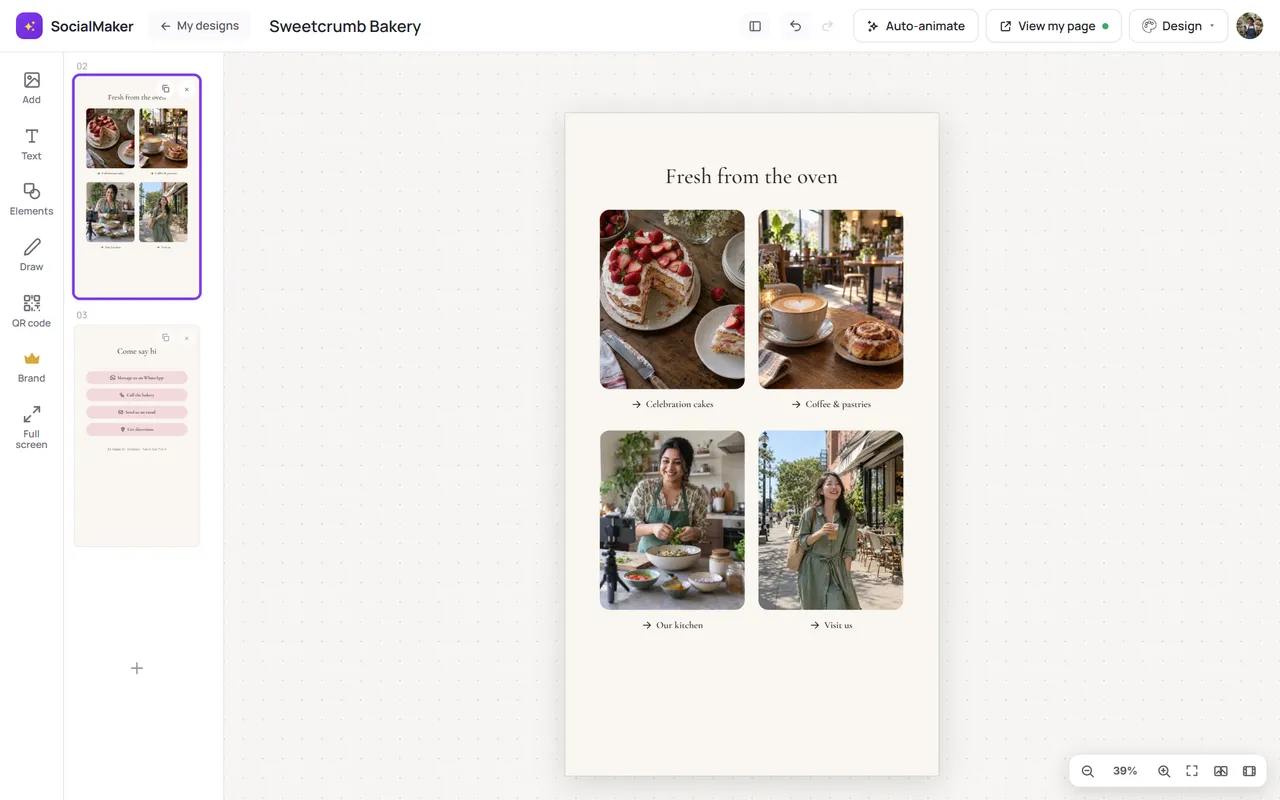
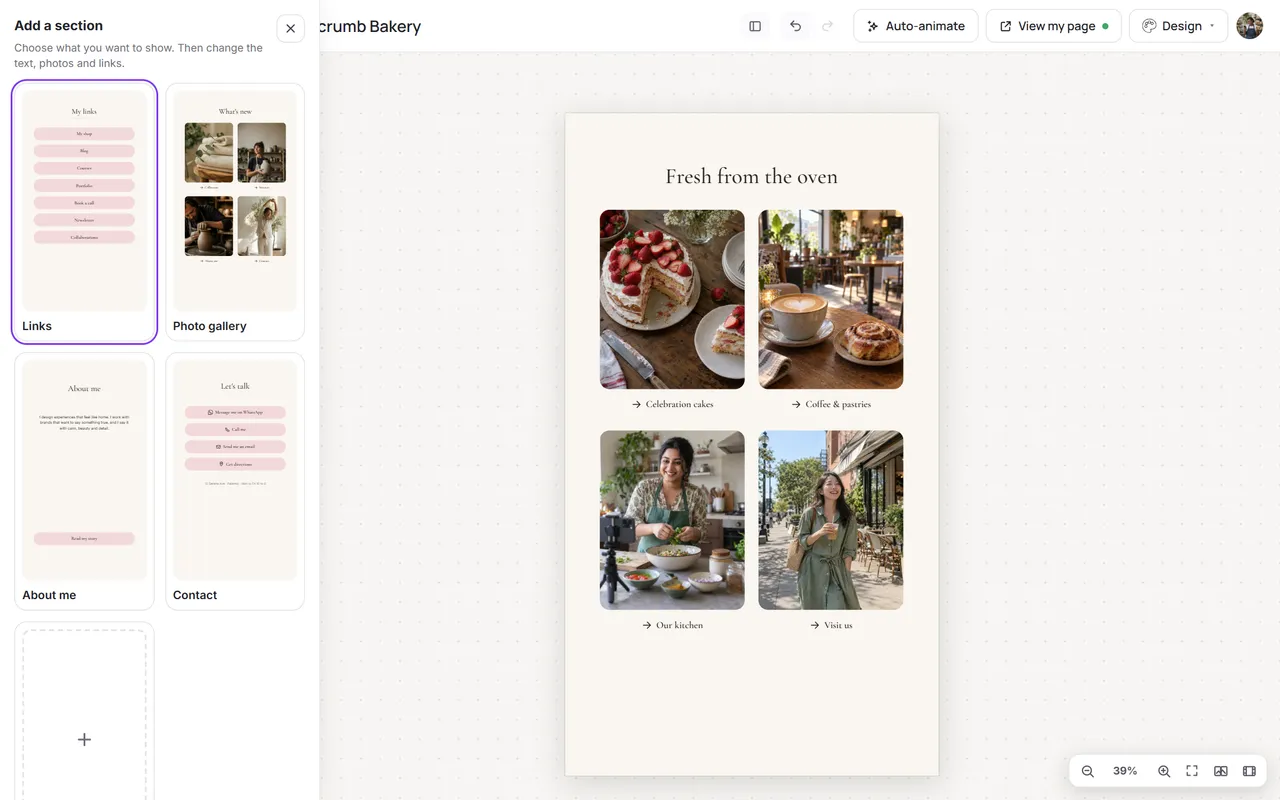
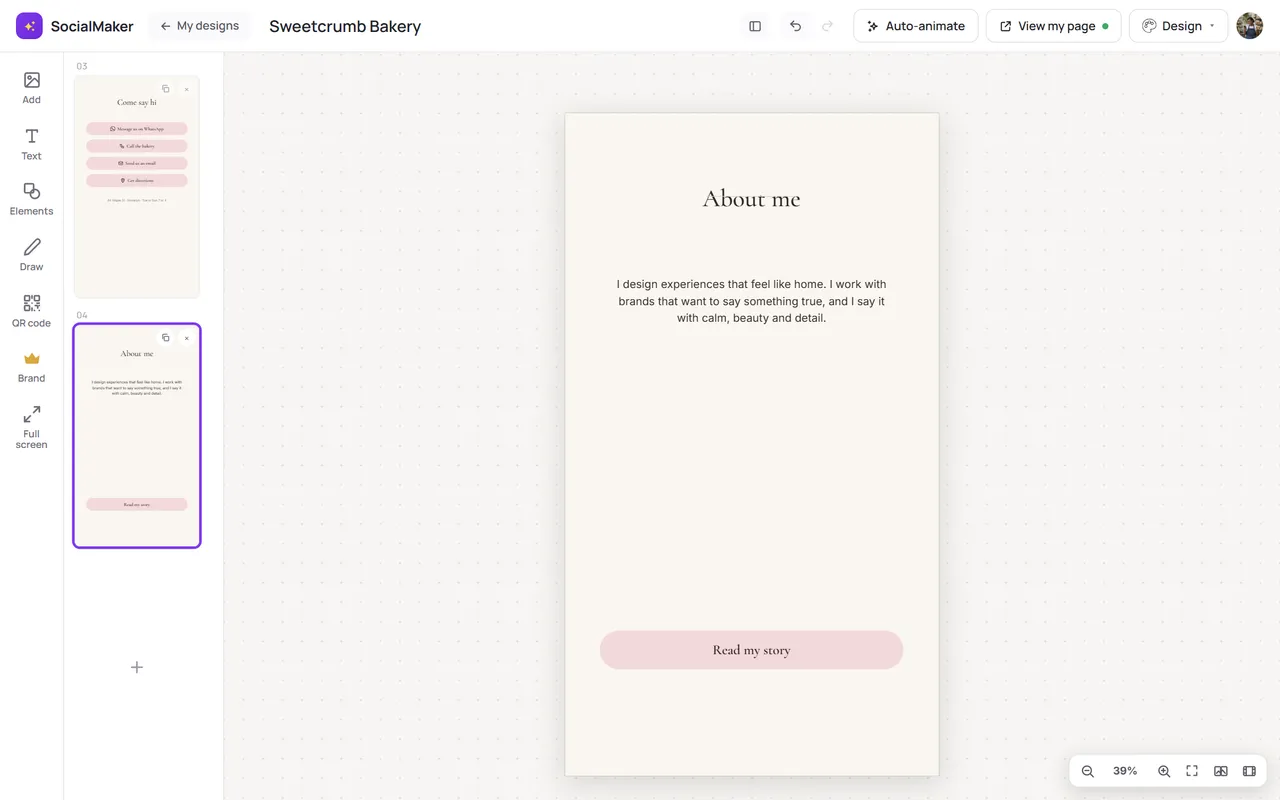
Tap the + in the sections strip (or the ones beside your page) and choose what to add: links, a photo gallery, about me, contact and, in catalog and real estate designs, products and listings. In Real estate designs you choose between the listings grid (4 cards) and the featured listing (just one, large), and in Architecture designs, the same for your work: project grid and featured project. The new section comes with sample text you change like anything else.
Scroll effects
On your public page the big photo can move slower than the rest (parallax) and your texts can have the magazine effect: your name moves slower and fades as it leaves, and headings further down rise and appear as they arrive. Select the photo or the text, tap Animate and use While scrolling the page to turn it on or off. The Giant and Home designs come with it on.
Pause your page
From Link in bio you can Pause your page: anyone who visits will see a neutral notice until you resume it.