WhatsApp templates: create them, get Meta's approval and test them
Templates are the messages Meta approves so you can write to someone first, like an appointment reminder. How to create one with details that change, send it for review and test it on your number.
Your automations don't need templates: they reply to people who message you, within 24 hours. Templates are for the other case: writing to someone first, or writing after 24 hours have passed, for example to remind them of an appointment. WhatsApp requires Meta to approve them before you use them.
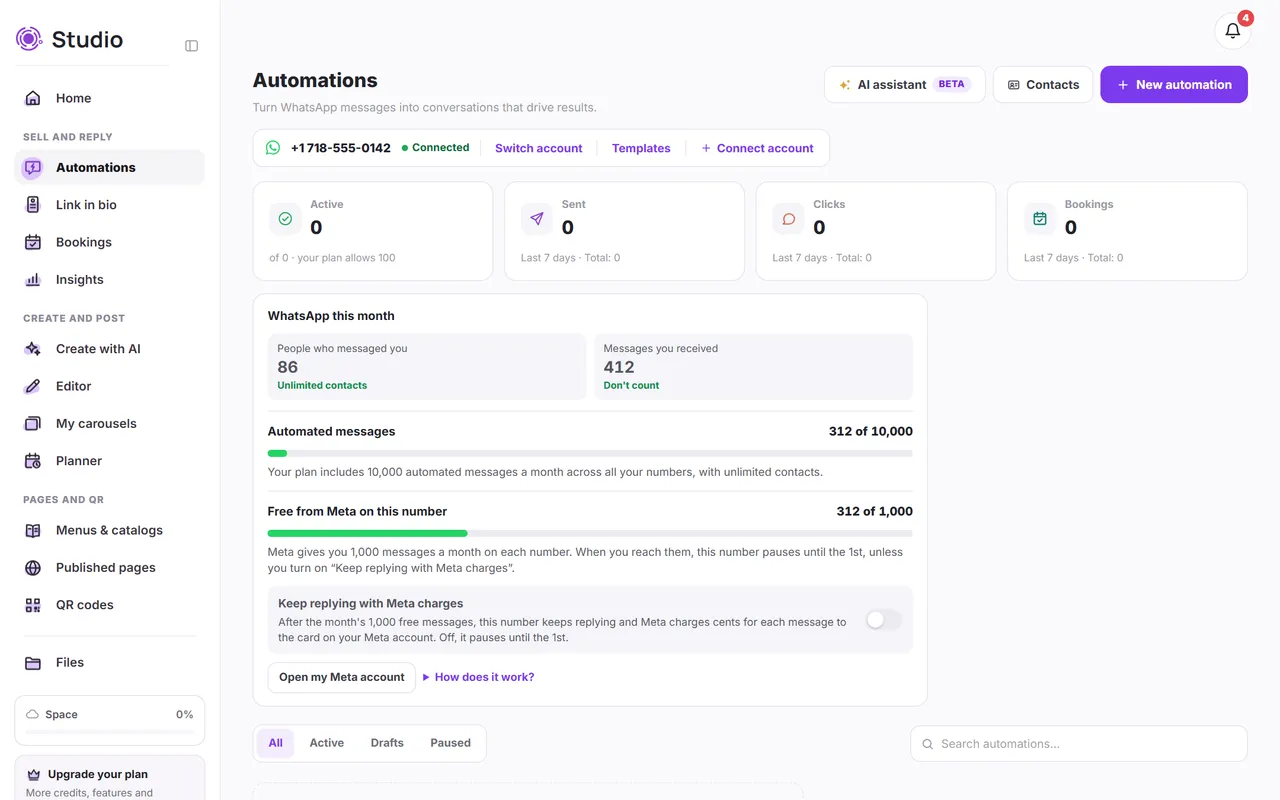
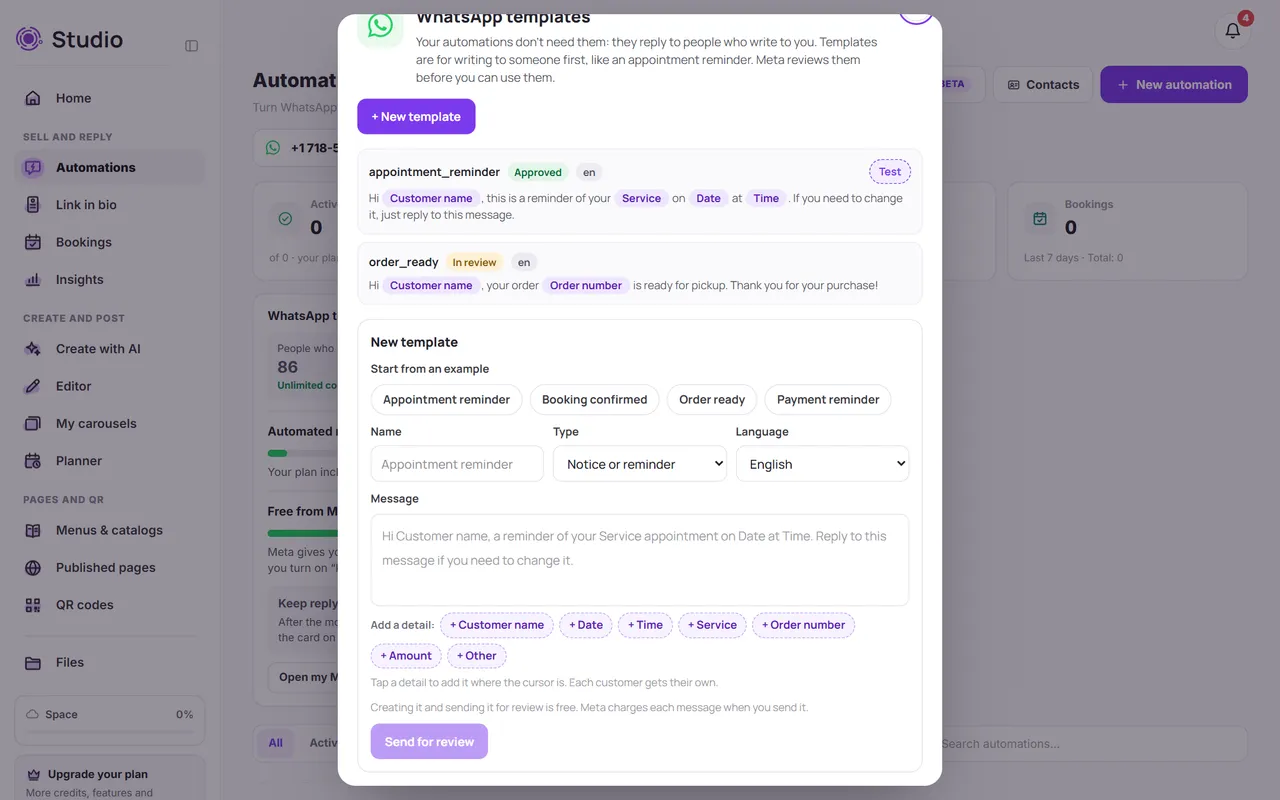
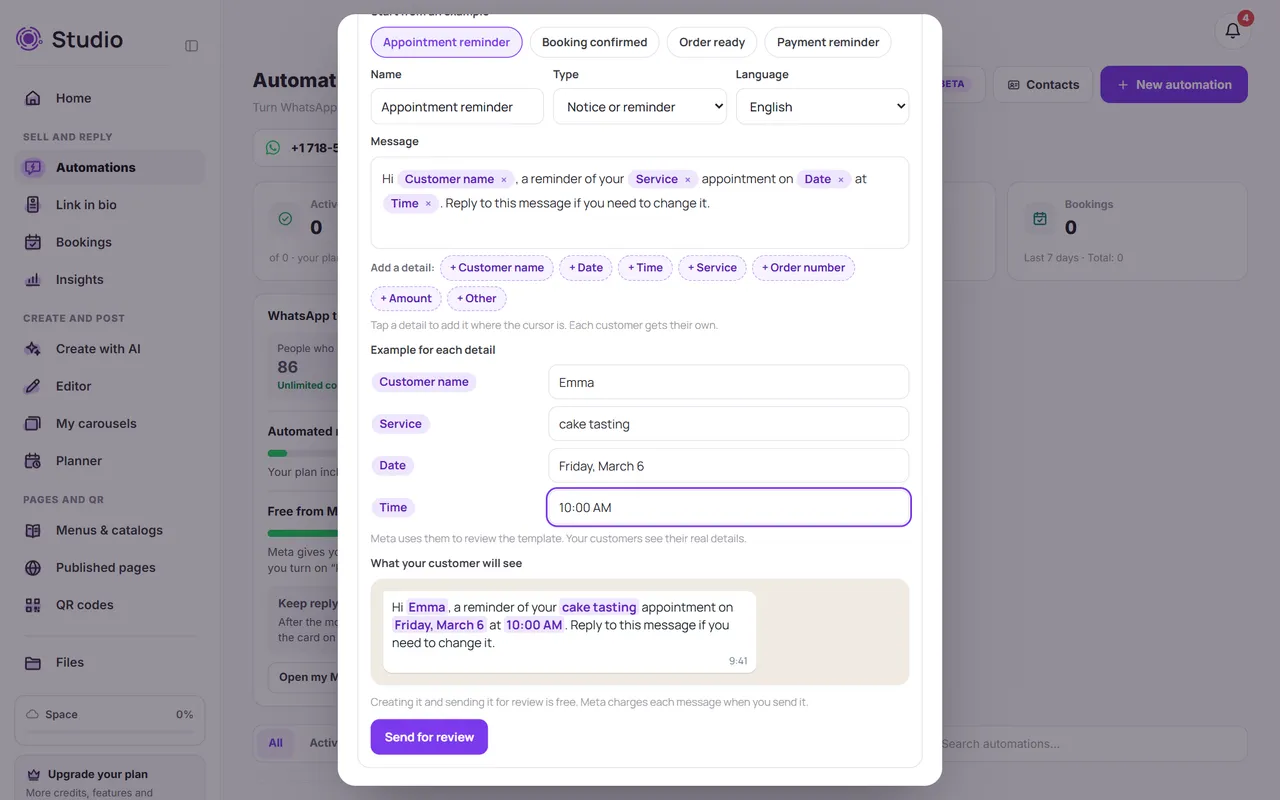
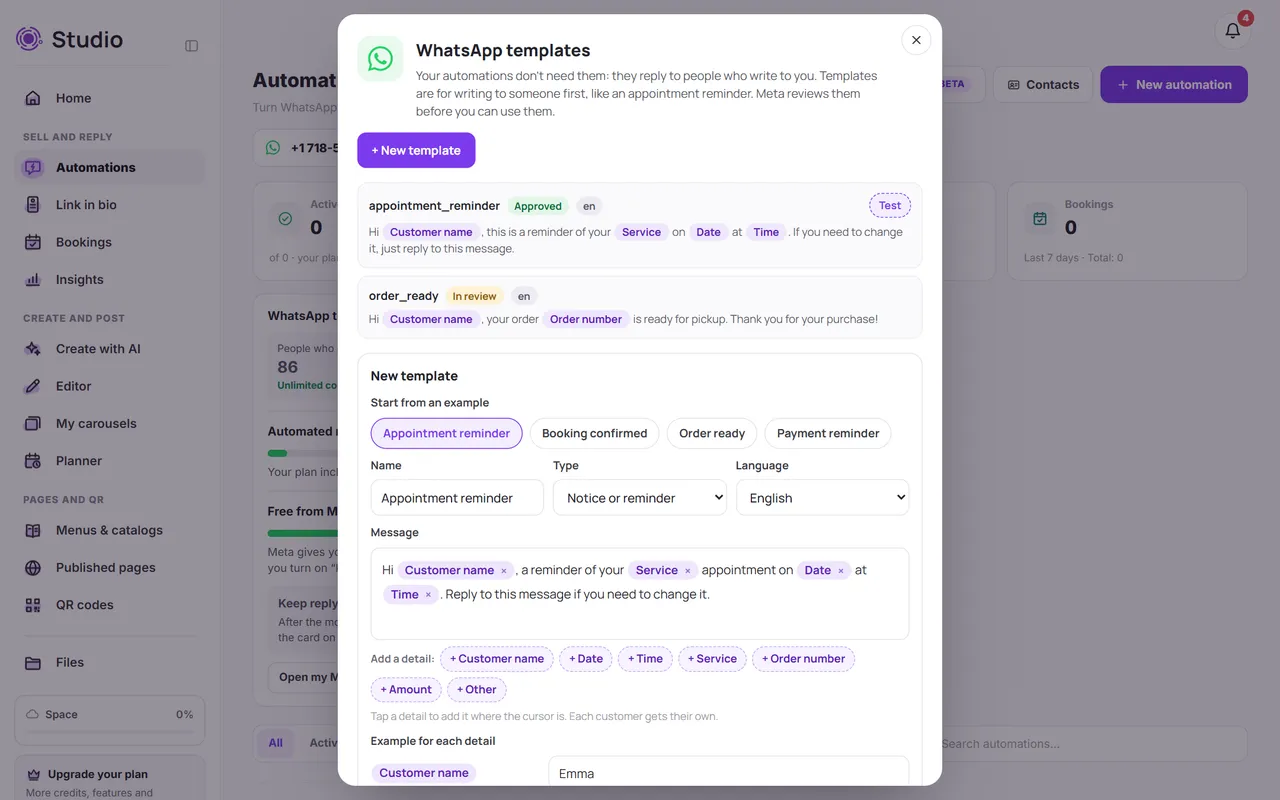
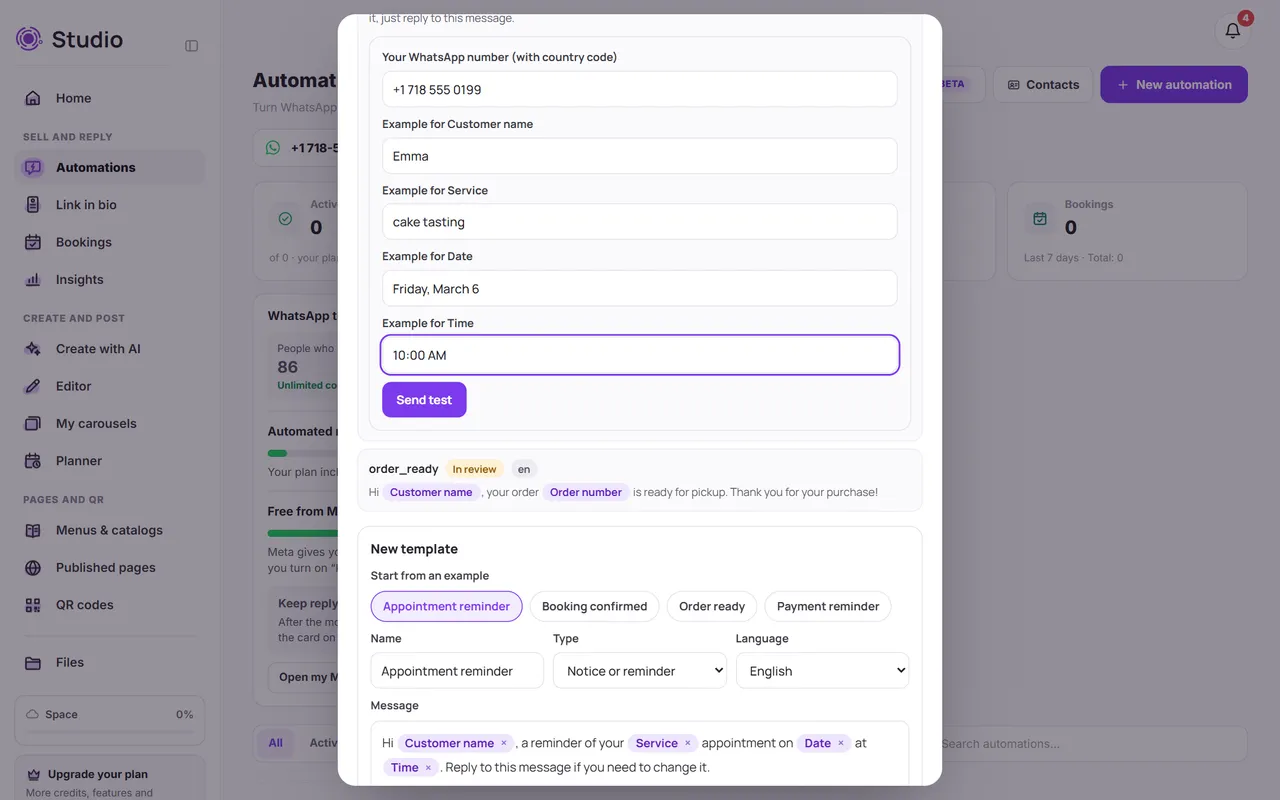
A template from start to finish: create it, send it to Meta and test it.
Create a template
Open Templates
It's at the top of Automations, next to Switch account, when your WhatsApp number is selected.
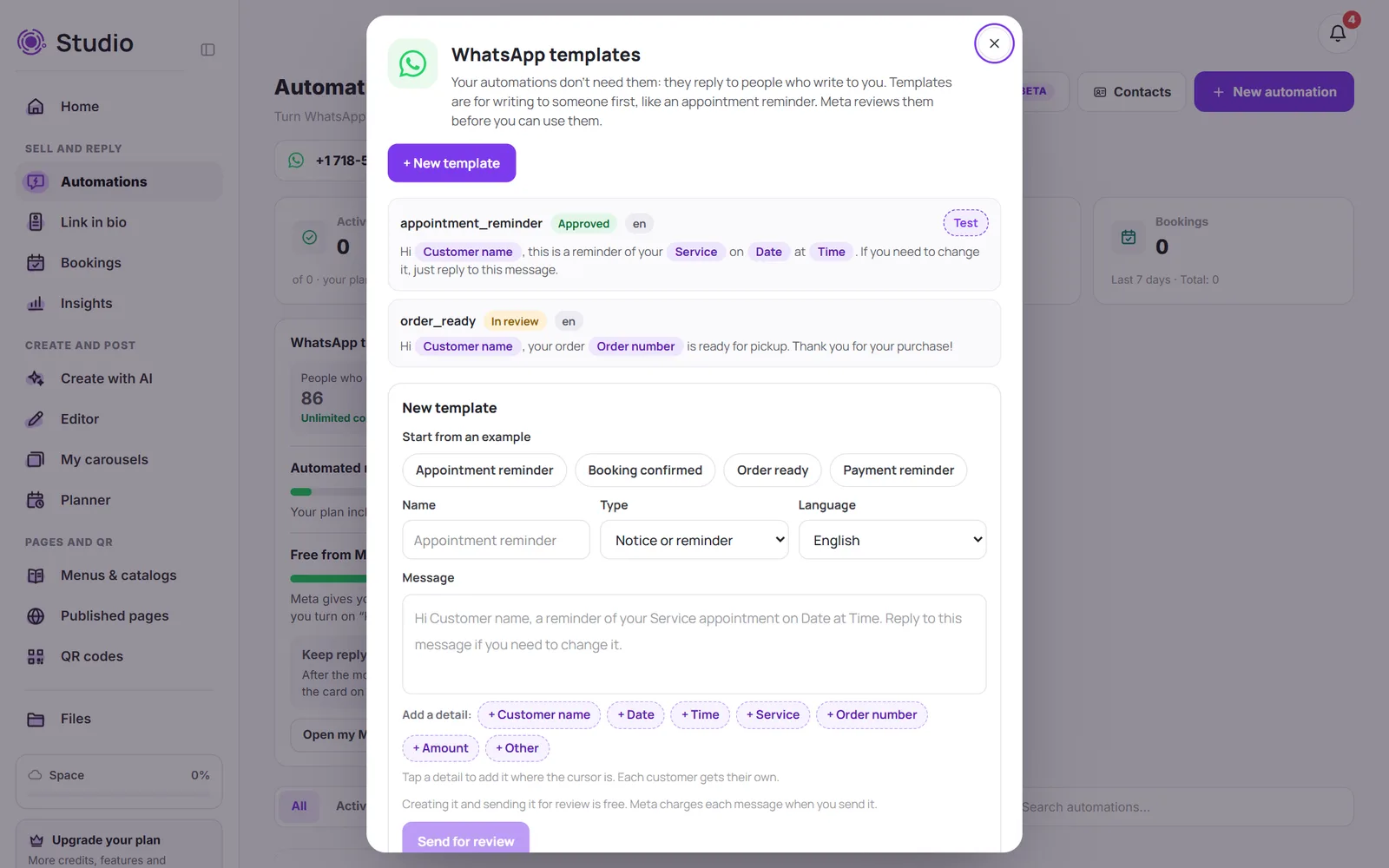
Start from an example
Appointment reminder, Booking confirmed, Order ready or Payment reminder. It fills in the name, type and text, and you change them.
Use details that change
Tap a detail (Customer name, Date, Time, Service, Order number, Amount or Other) to add it where the cursor is. Each customer gets their own.
Write an example for each detail
Meta uses them to review the template. Your customers see their real details.
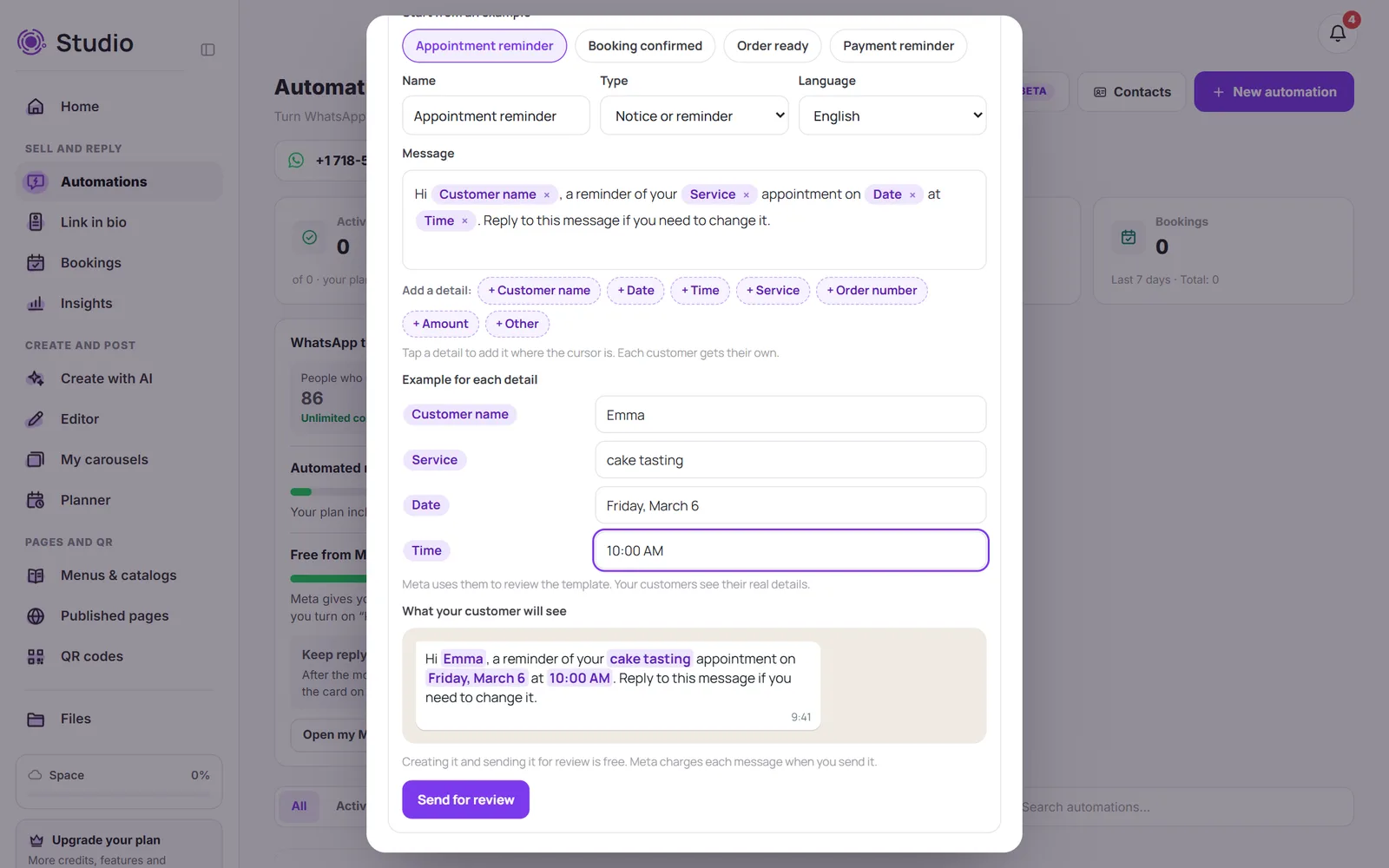
Tap Send for review
Meta usually answers within a few minutes to a few hours. The status updates on its own, no need to reload.
Type: notice or promotion
| Type | What it's for |
|---|---|
| Notice or reminder | Something the customer is expecting: their appointment, their order, their payment. |
| Promotion | Offers, news or invitations. |
The statuses
| Status | What it means |
|---|---|
| In review | Meta is looking at it. |
| Approved | Ready to use. You can test it now. |
| Rejected | Meta didn't accept it. Below it you see the reason in plain words: fix the text and create a new one. |
| Paused or Low quality | Many people blocked or reported it. Change the text to make it more useful. |
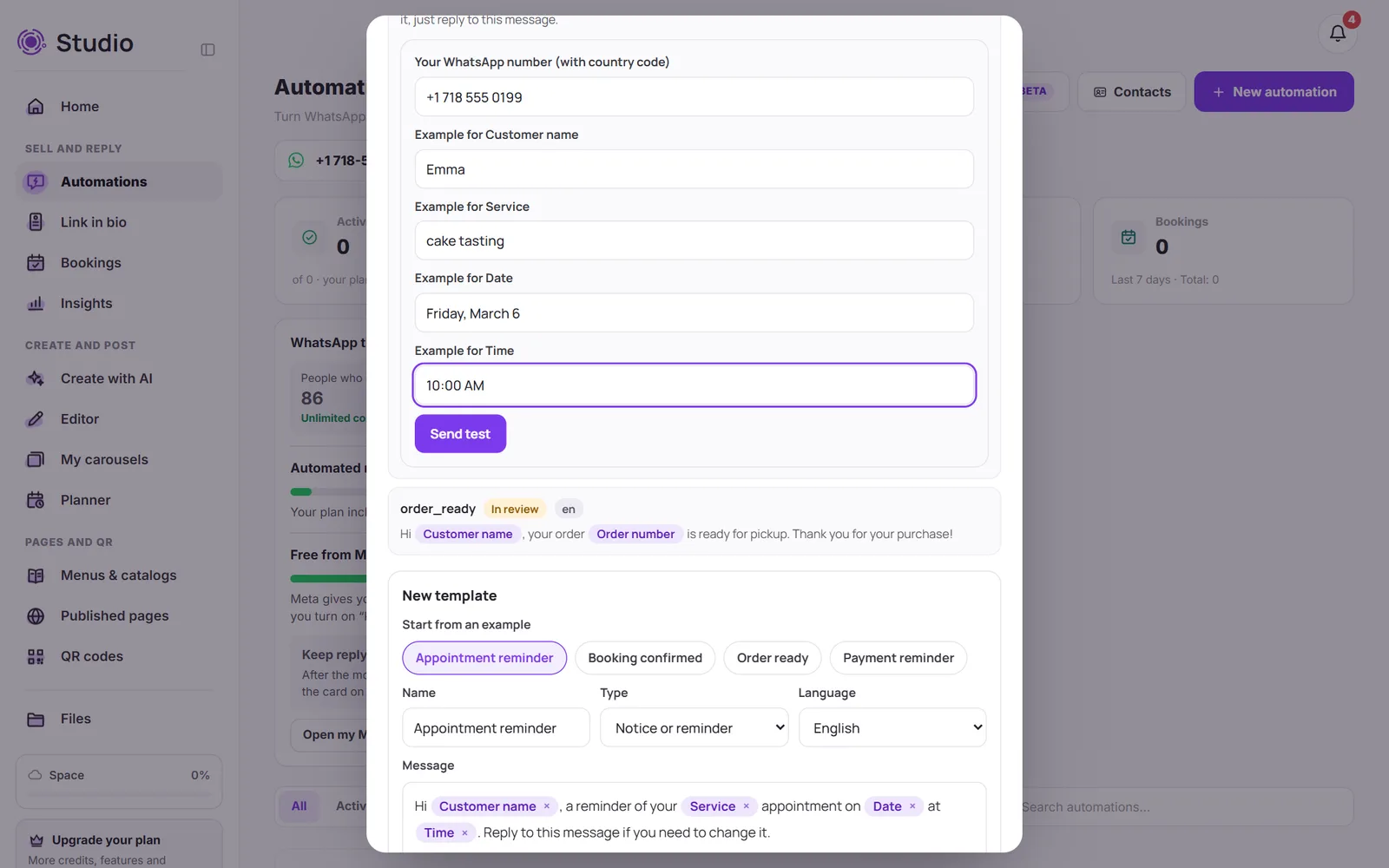
Test it on your number
On an Approved template, tap Test, type your WhatsApp number with the country code and an example for each detail, and tap Send test. It arrives on your WhatsApp just as a customer would get it.
To get Meta to approve it
- Add some words before the first detail and after the last one: a template can't start or end with a detail.
- Each template name can be used once per language.
- Say clearly who you are and why you're writing. No misleading texts or promises you don't keep.
Claude and ChatGPT can also create your templates and send you a test, on Pro and Max. Ask in plain words: “create a template to remind people of tomorrow's appointments.”