Change or cancel your plan
How to upgrade or downgrade your plan, update your card, download invoices, and cancel your subscription.
Everything is done from Billing (in your profile menu).
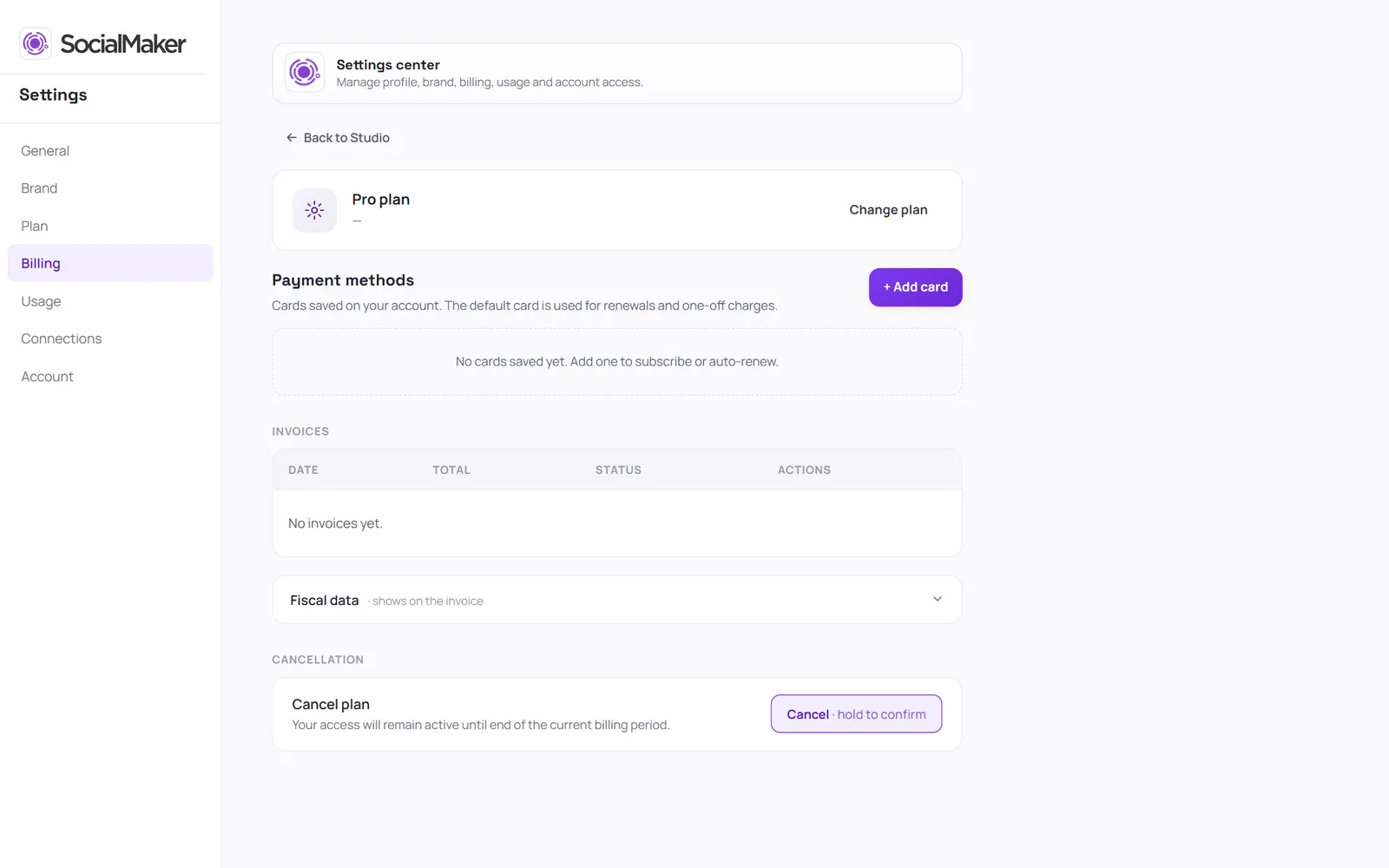
Change your plan
Tap Change plan and choose the new one. If you upgrade, the unused time on your current plan is deducted, and you only pay the difference today. If you downgrade, we show you what changes before you confirm (for example, how many carousels per month you'll have).
Card and invoices
In Payment, you update your card. In Invoices, you view and download every invoice.
Cancel
In Billing, tap “Cancel plan”
Press and hold the button to confirm
Your access stays active until the end of the current billing period.
Was this article helpful?