Automate your WhatsApp: keyword and first message
Create an automation that replies on its own when someone sends you a keyword or messages you for the first time, with buttons, links, bookings and products. Step by step with a template.
On WhatsApp, your automations reply to people who message you. There are two ways to start:
| Trigger | When it replies |
|---|---|
| WhatsApp message | When someone sends you a keyword, even inside a sentence, like “hi, can you send me your PRICES?” |
| First message | The first time each person messages you, even if they don't use any keyword. It replies only once per person. |
WhatsApp has no posts or stories, so there are no comment automations: those are for Instagram and Facebook.
Create your first one in 2 minutes
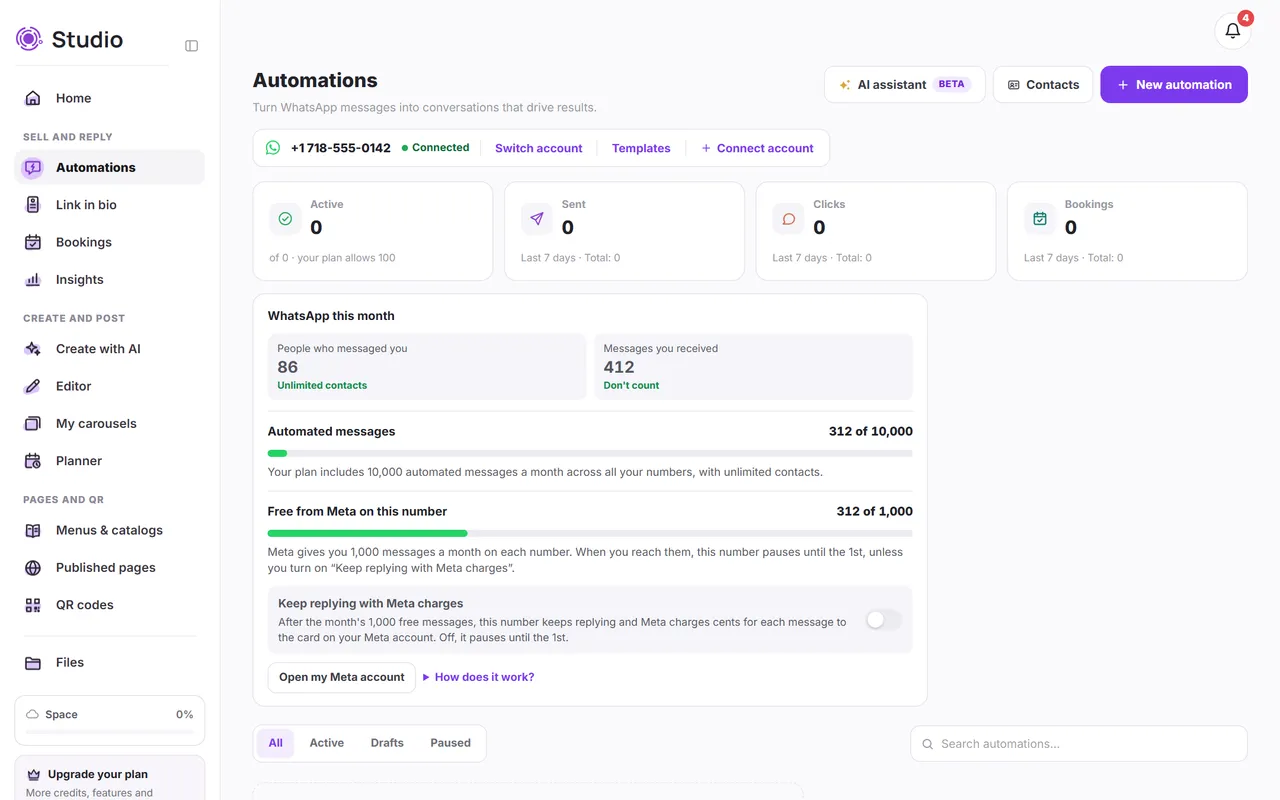
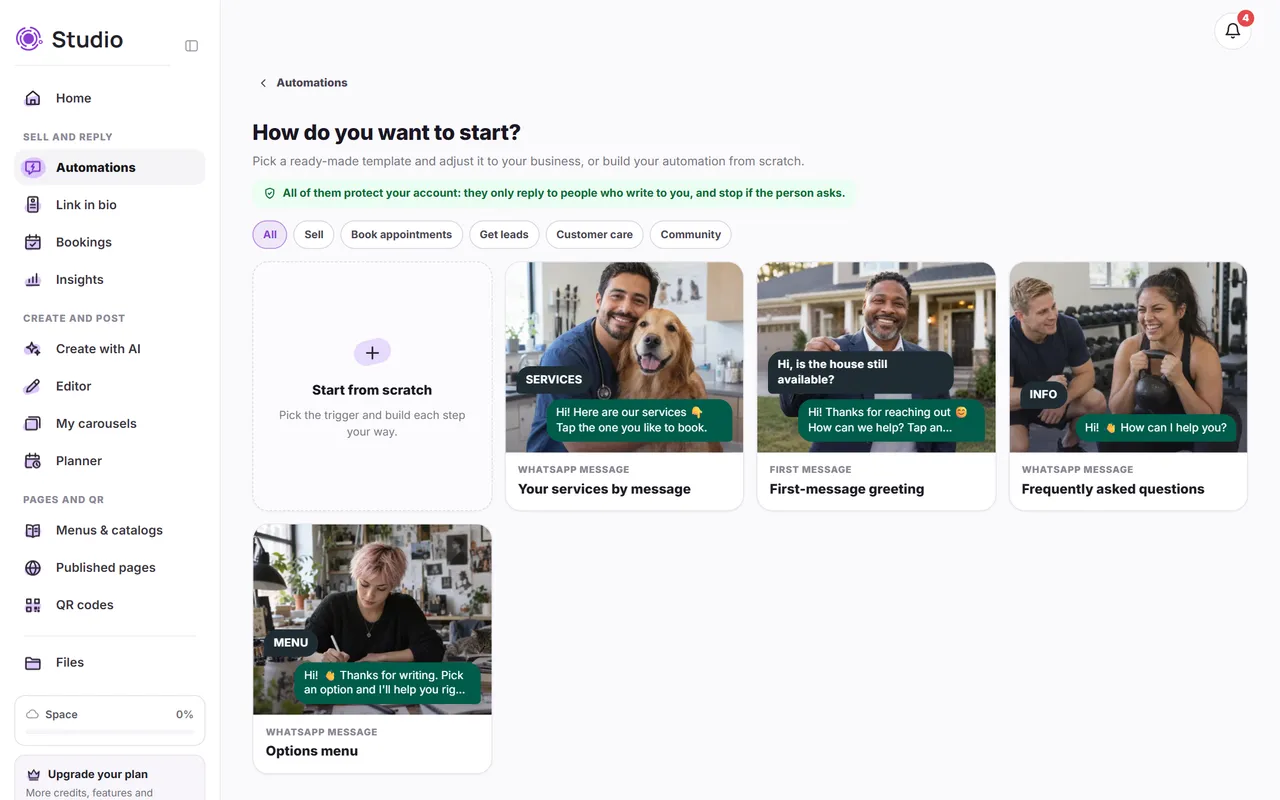
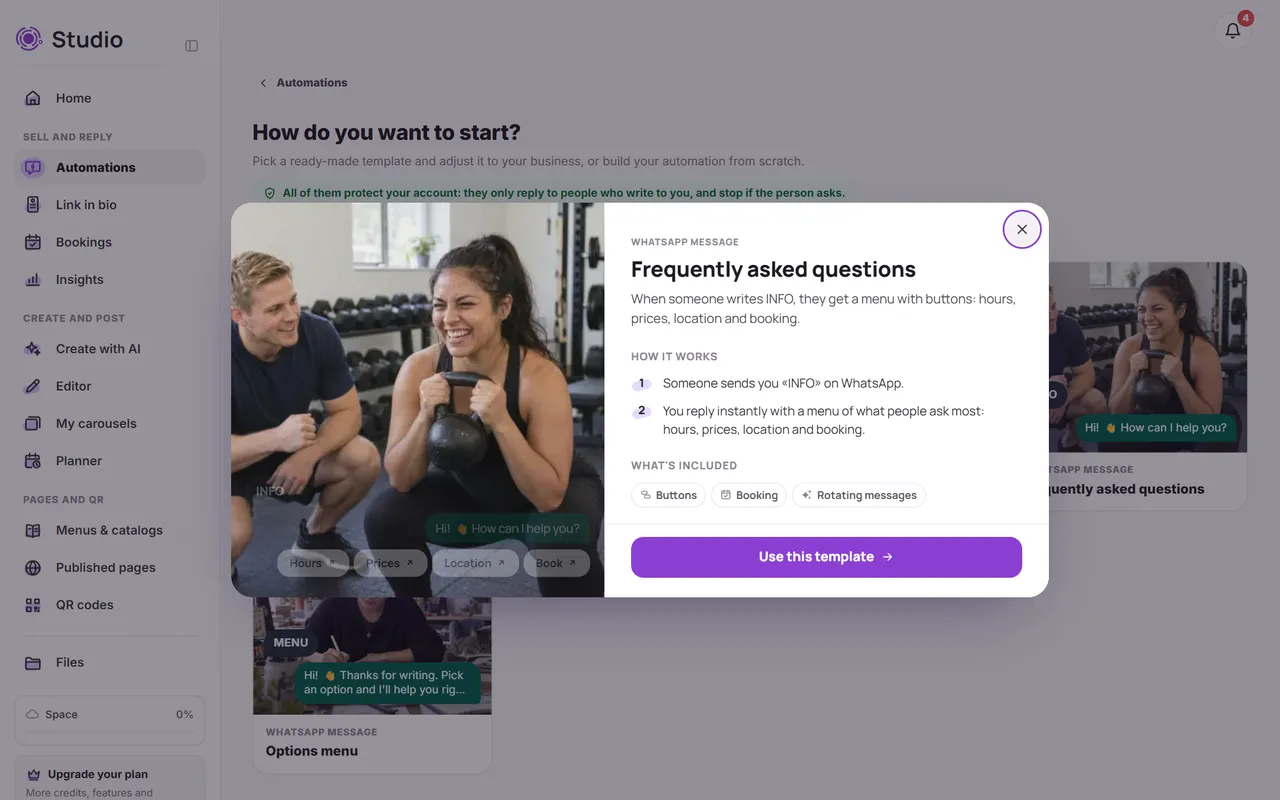
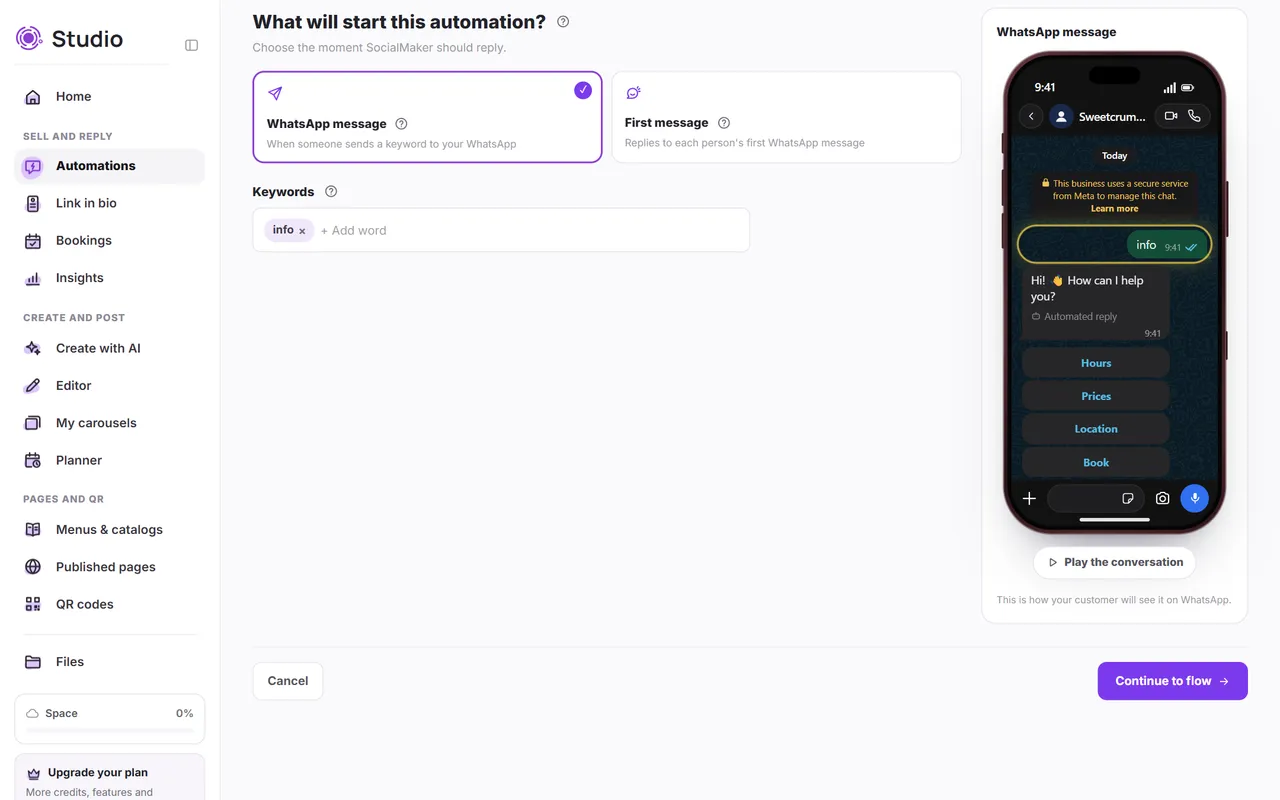
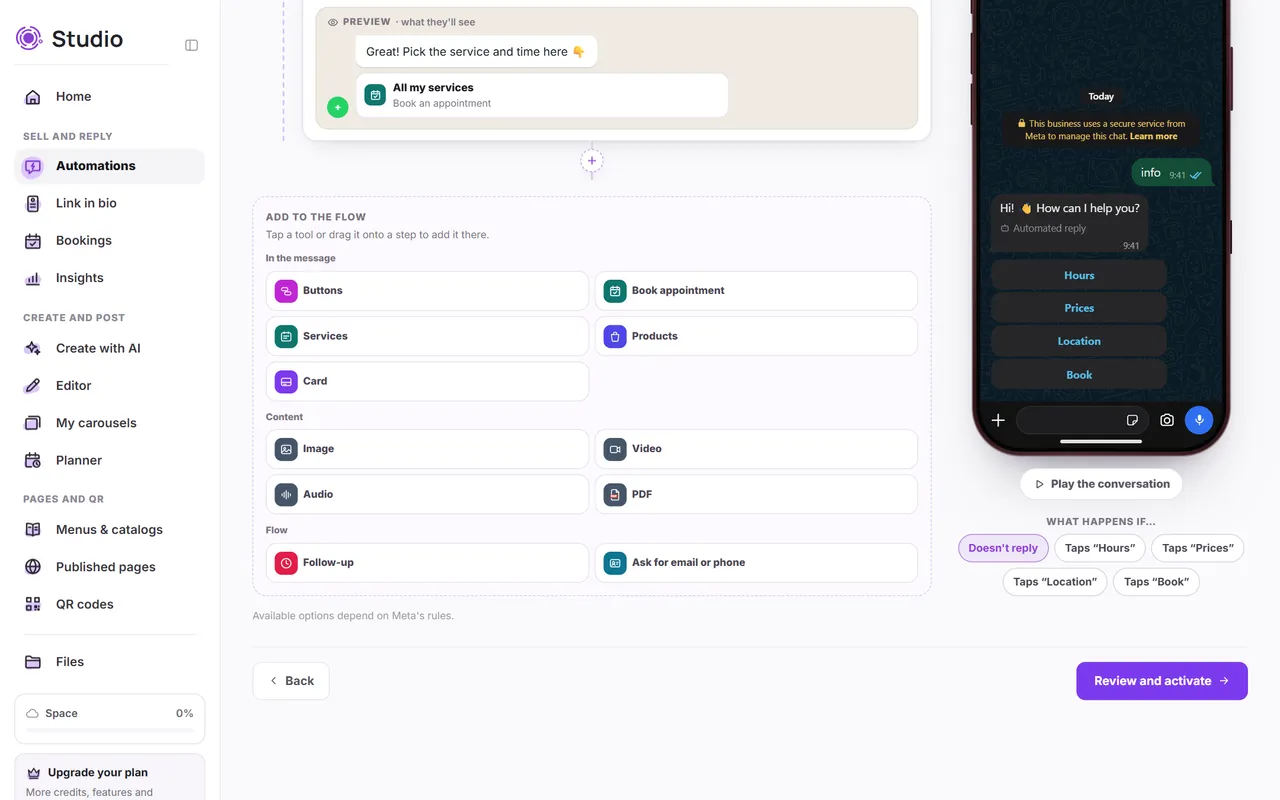
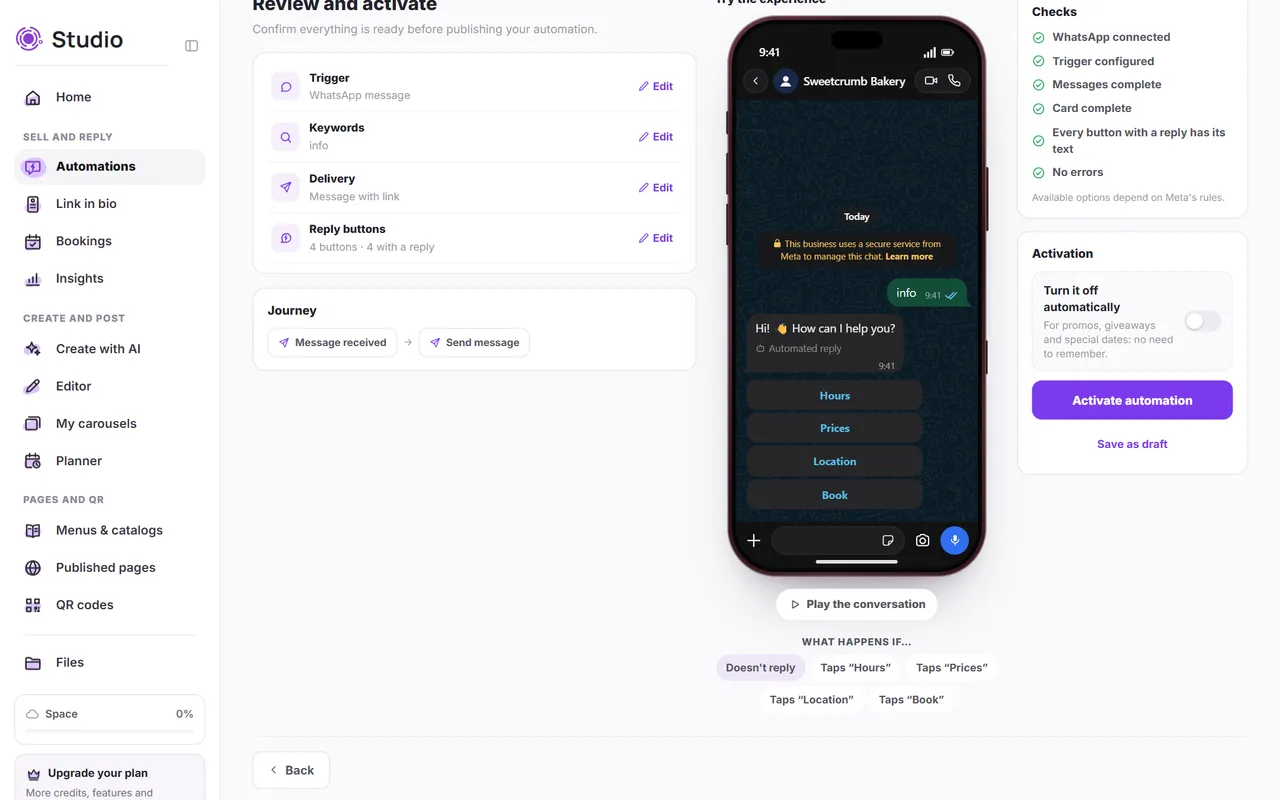
A WhatsApp automation from a template, start to finish.
Pick your WhatsApp number
If you have several accounts connected, tap Switch account at the top of Automations and pick your number.
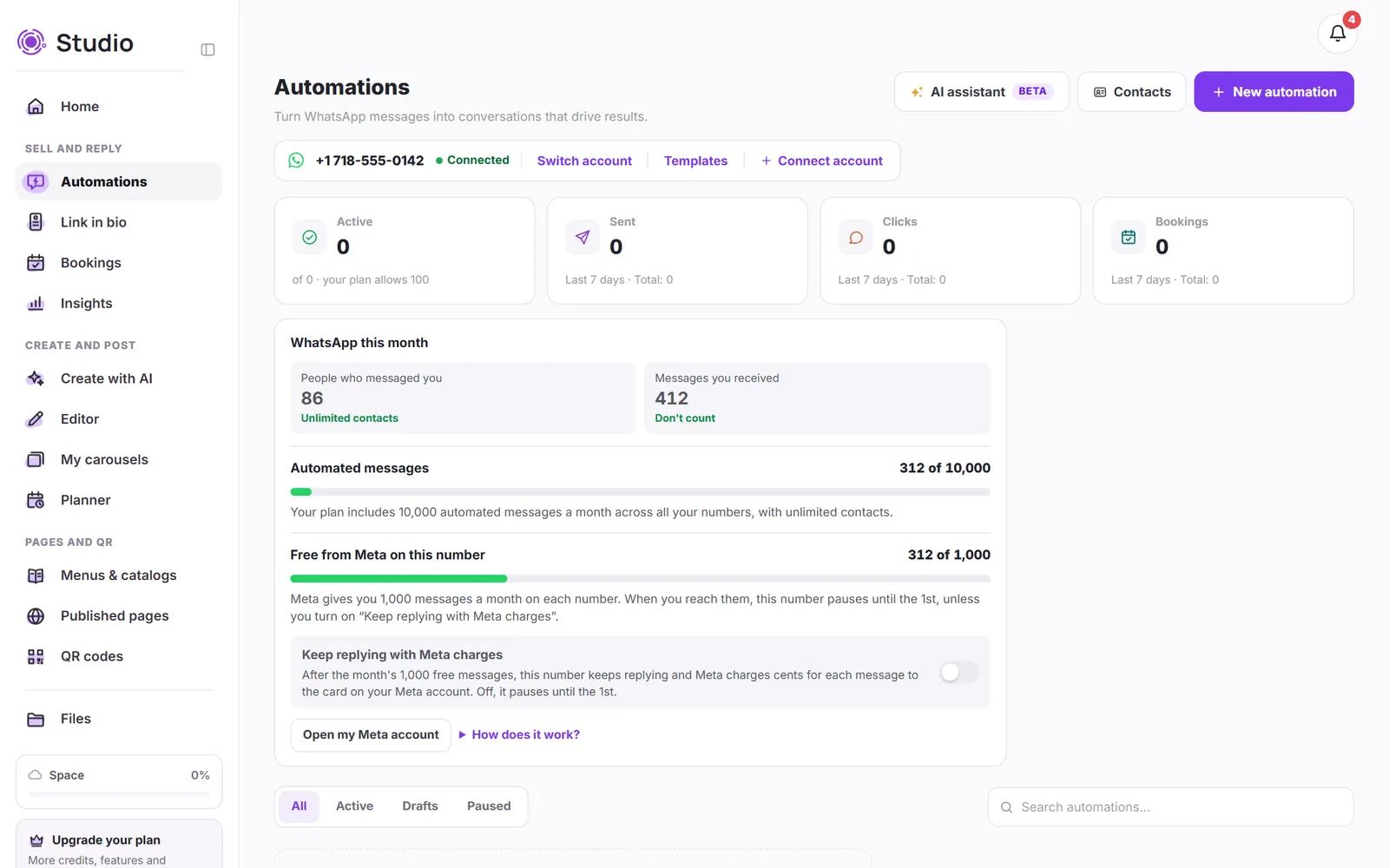
Tap New automation
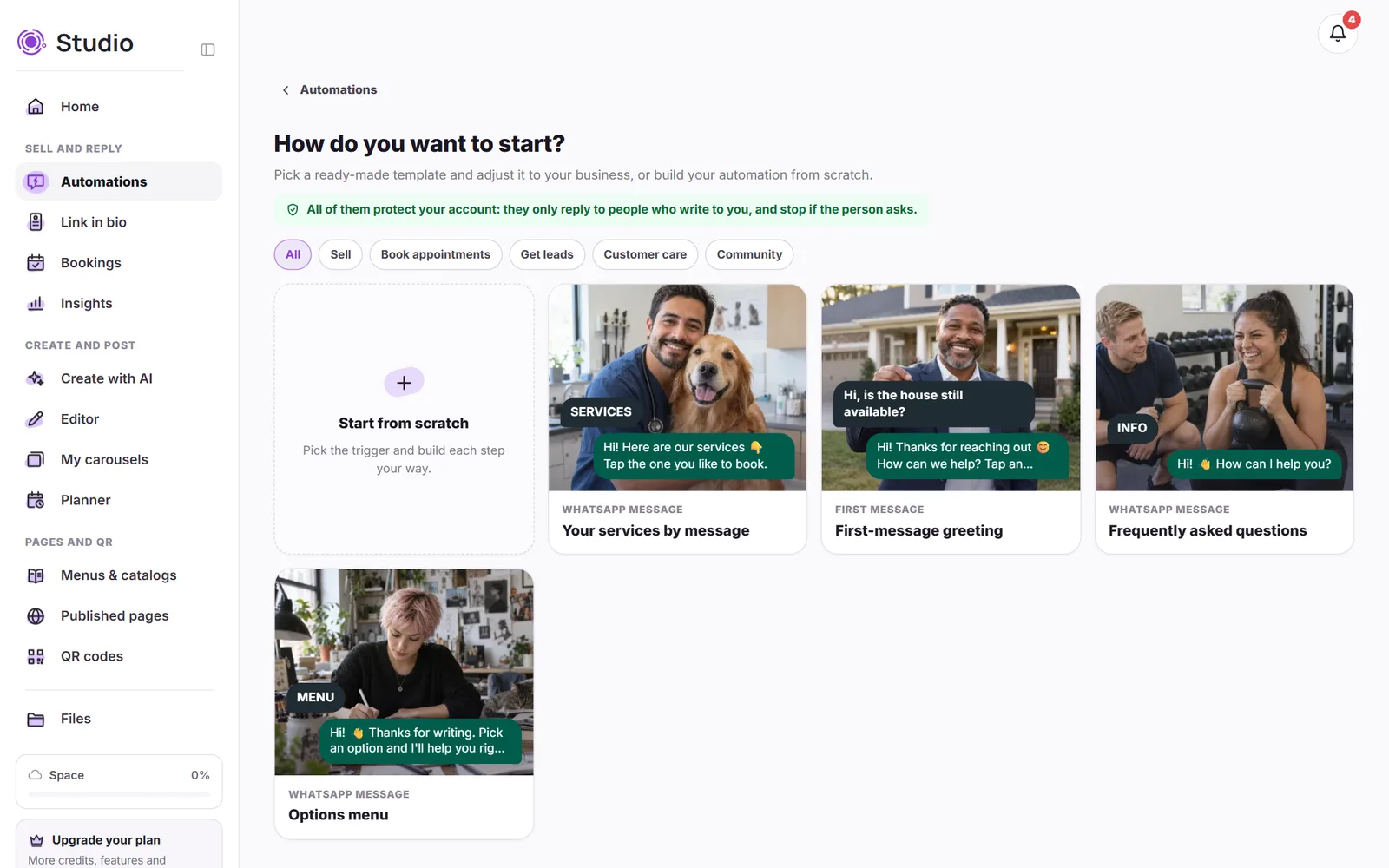
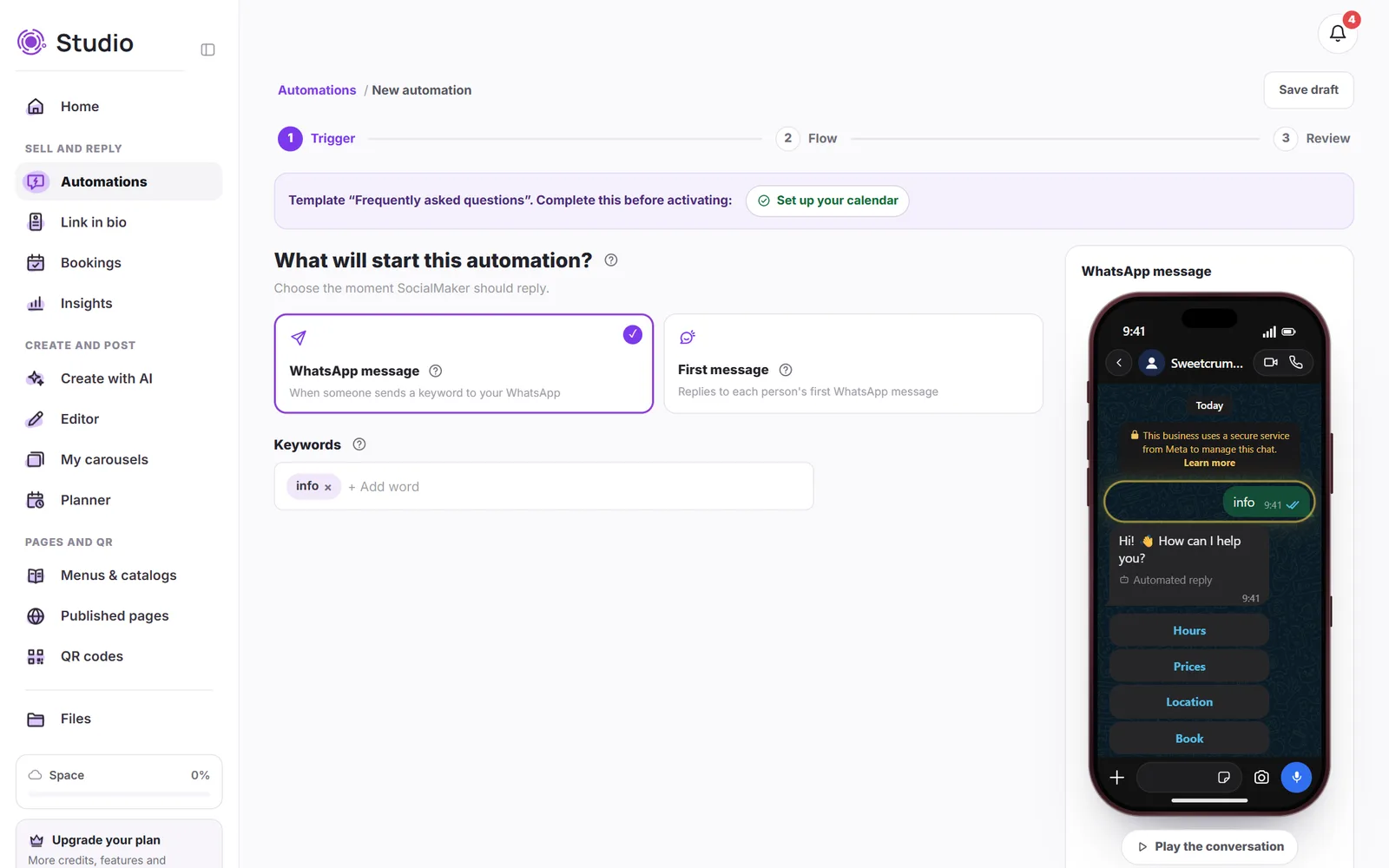
You only see the templates that work on WhatsApp: Your services by message, First-message greeting, Frequently asked questions and Options menu. Or start from scratch.
Choose the trigger and the words
WhatsApp message with your keywords, or First message to greet each new person. The phone on the right shows you the conversation exactly as your customer will see it.
Build the reply
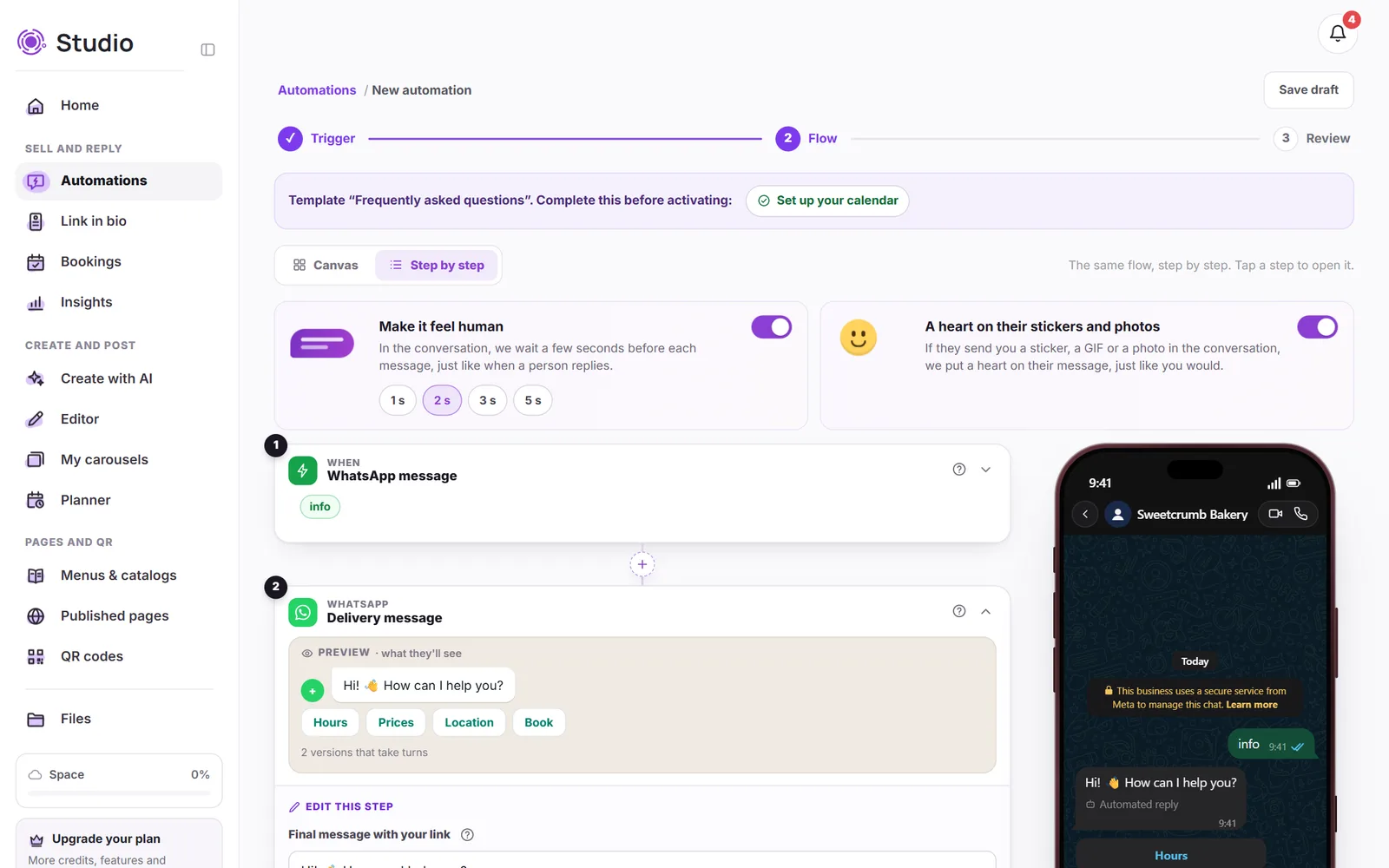
Write the message and add whatever you want to send: reply buttons, your link, the booking card, your products, a photo, a video or a PDF.
Review and activate
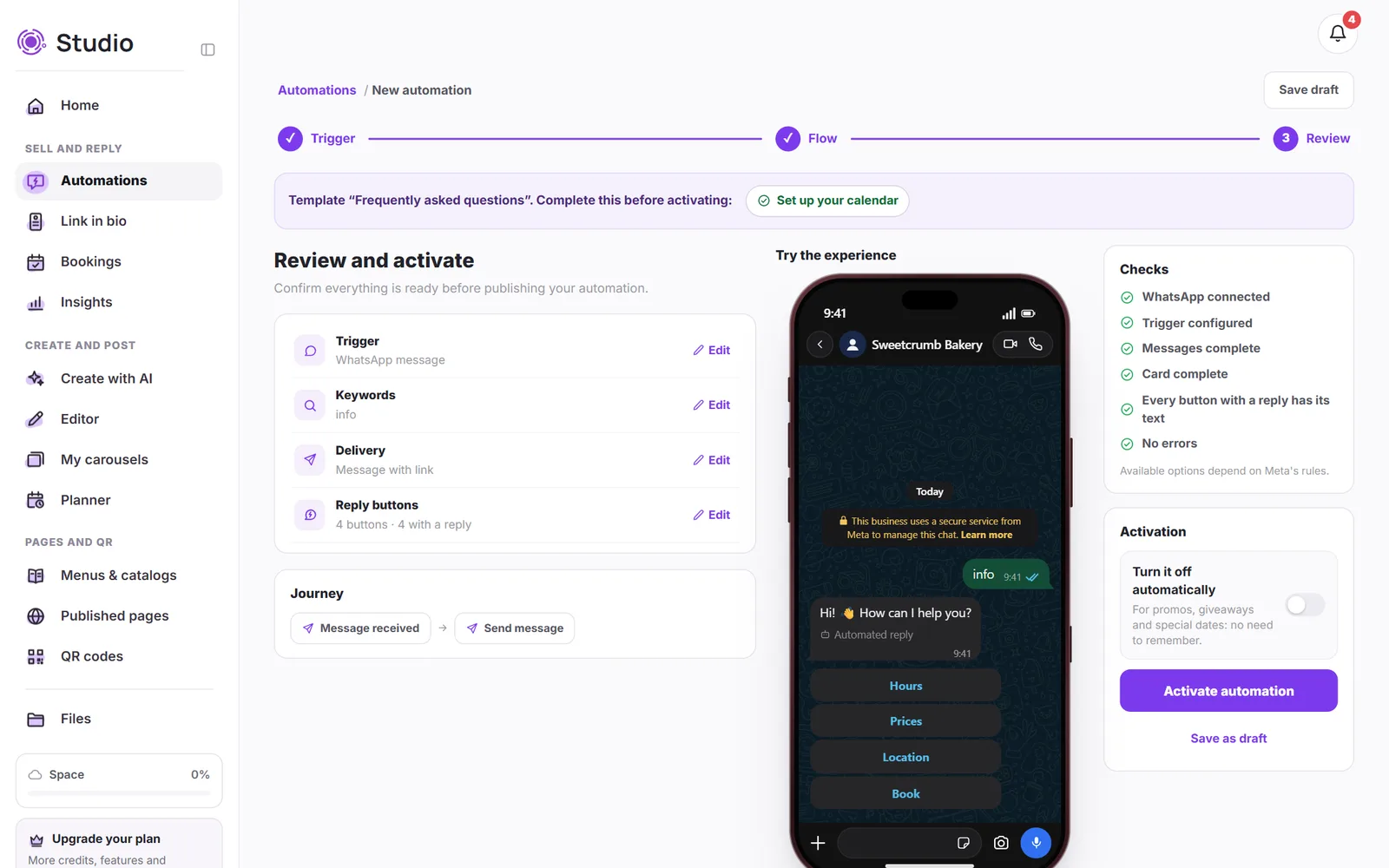
The checklist tells you if something is missing. Tap Activate automation and it starts replying.
What you can send
- Reply buttons: up to 3 show up as buttons. From 4 to 10, WhatsApp shows them as a list that opens with See options.
- Each button has its own reply: prices, hours, location or booking.
- Your link, trackable: you see how many people opened it.
- The booking card with your SocialMaker calendar, your products from your link in bio or your menu or catalog.
- Photos, videos, audio and PDFs.
- Ask for their email before delivering: it's saved in Contacts. On WhatsApp you already have their number, so there's no need to ask for it.
How your customer experiences it
- The reply arrives in seconds, with a short pause between messages so it feels like a person.
- Automatic replies are labeled as automatic, so your customer knows they can write to you to talk with you directly.
- WhatsApp shows them a notice at the top of the chat: “This business uses a secure service from Meta to manage this chat.” It's normal for businesses connected the official way.
- If they send just stop or unsubscribe (or, in Spanish, parar, basta or no más), they stop getting automatic replies from that number.
Does it reply when I write from the app?
No. What you write yourself from the WhatsApp Business app doesn't trigger your automations.
Can I have several automations on the same number?
Yes, each with its own words. Plus one First message automation to greet people who message you for the first time.
Can I message a customer first?
Only with a template approved by Meta, because automations reply to people who message you. Templates come with Pro and Max: read WhatsApp templates.
Can Claude or ChatGPT set it up for me?
Yes, on Pro and Max. Ask “when people send PRICES on WhatsApp, send them my catalog” and it creates it turned off so you can review it.