Connect SocialMaker to Claude
Add SocialMaker as a connector in Claude, give it permission and ask for what you need in plain words: your Instagram and Facebook automations, your link in bio, your carousels, your bookings and your menus.
With the SocialMaker connector, Claude works in your account for you: you tell it what you want in plain words and it does it in SocialMaker. It can create your Instagram and Facebook automations, design your link in bio and your carousels, check your free times or build your menu or catalog, always with the permissions you give it.
1. Add the connector in Claude
Open Claude
Go to claude.ai on a computer (or open the desktop app) and sign in.
Go to «Customize» → «Connectors»
That's where all your connectors live.
Tap «+ Add» and choose «Add custom connector»
It's the option to add your own connector.
Enter the name and the address
Name: SocialMaker. Server address: https://socialmaker.ai/mcp. Tap Continue.
Keep the recommended sign-in option
Don't change the sign-in settings: tap Continue and then Add.
2. Give it permission in SocialMaker
In the connectors list, next to SocialMaker, tap Connect. SocialMaker opens: sign in (if you weren't signed in) and you'll see what Claude wants to do.
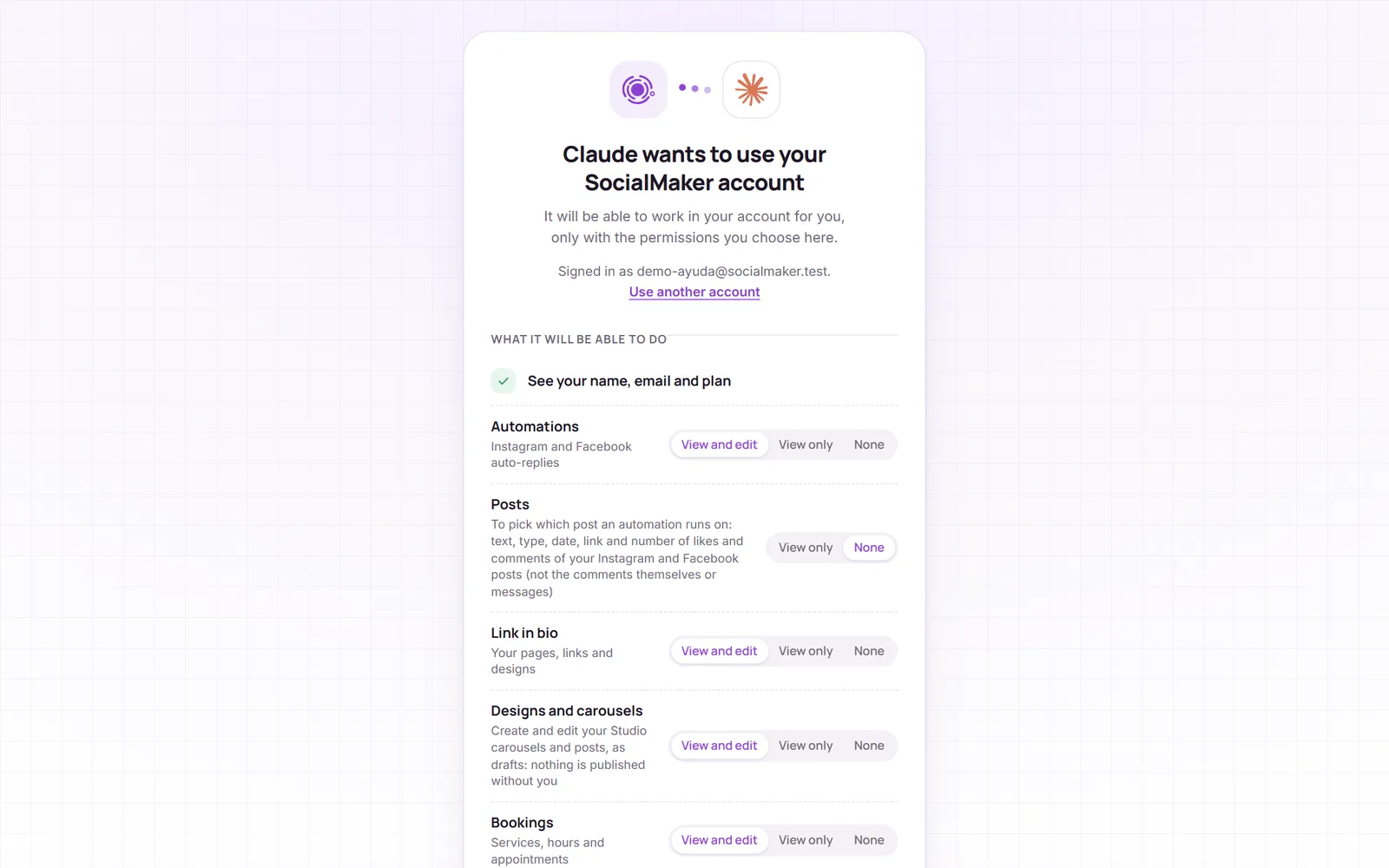
- View and edit: Claude can see that area and make changes (for example, create an automation or edit your link in bio).
- View only: it can look, but it doesn't change anything.
- None: that area doesn't exist for Claude.
- Posts starts at «None»: turn it on only if you want Claude to see your Instagram and Facebook posts to set up an automation on a specific post.
Tap Allow and you're back in Claude, connected.
3. Use it in a chat
Open a new chat in Claude
Tap «+» → «Connectors» and turn SocialMaker on
That way Claude uses it in that conversation.
Ask for what you need
For example, any of these. Claude tells you what it's going to do and shows you the result.
- Automation
When someone comments PRICE on Instagram, send them my catalog by DM
- Custom design
Design a link in bio for my bakery with warm colors and show it to me before applying it
- Bookings
What free times do I have on Monday?
- Your menu
Create my menu with these dishes and prices: …
- Carousel
Design a 5-slide carousel about my 3 most requested services, in a trending style, and show it to me
- File
Add this PDF guide to the delivery of my PRICE automation
See permissions or disconnect
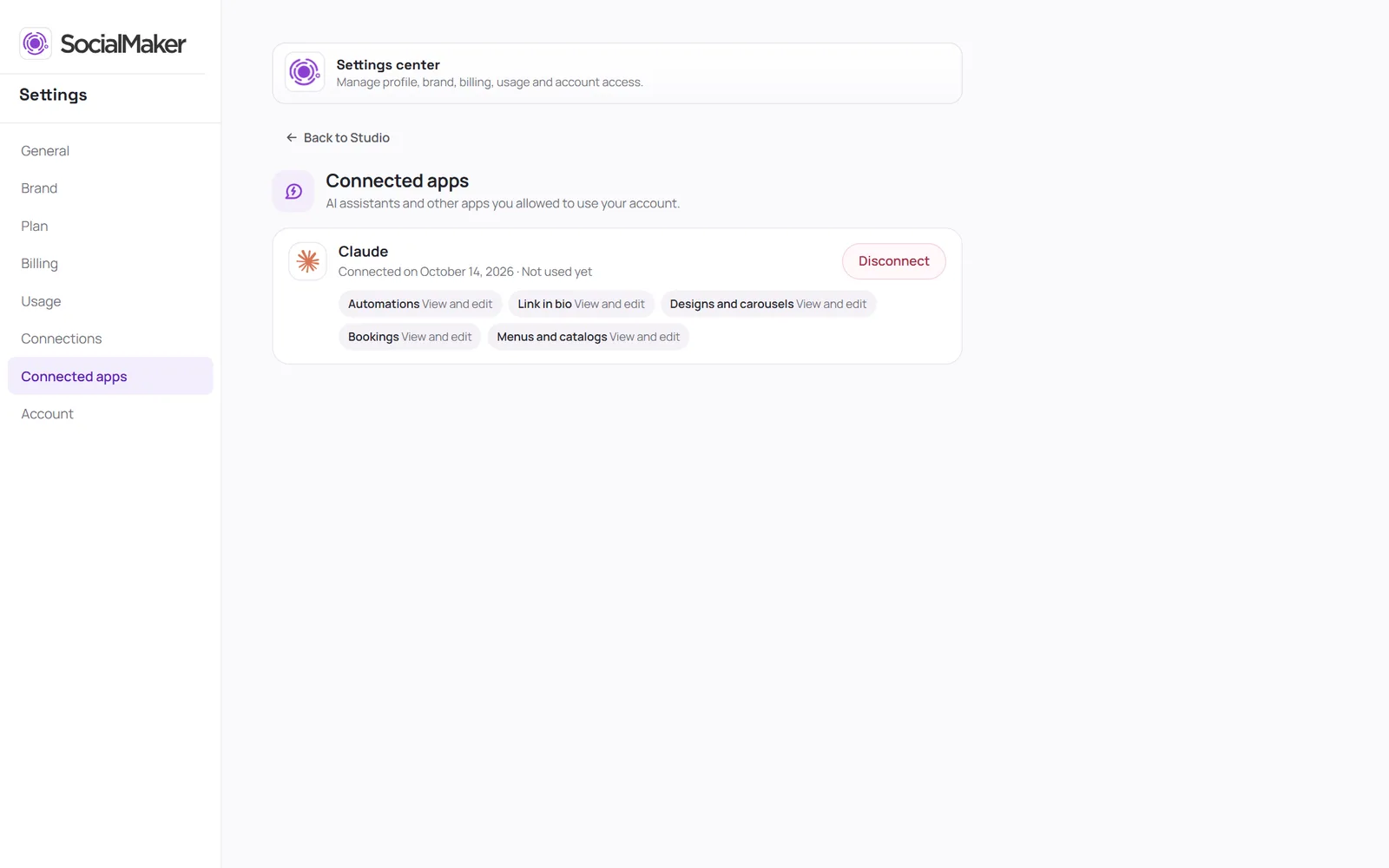
In SocialMaker, go to Settings → Connected apps: there you see what Claude can do and when it was last used, and you disconnect it with one tap. You can also remove it from Claude, in Customize → Connectors.
Can Claude see my Instagram messages or comments?
No. We never give it the comments or messages you receive, your password, or your Instagram, Facebook or Google keys. It only sees the username of your connected accounts, to know where each automation runs.
I had connected it before and it can't see my menus or my carousels
New areas, like Menus and catalogs or Designs and carousels, are requested when you connect. Tap Disconnect in Claude and then Connect again to give it the permission.
Can I use it on my phone?
Yes. Add it once from a computer and then you also have it in the Claude mobile app.
How much does it cost?
The connector is included in SocialMaker's Pro and Max plans, and what Claude does for you doesn't use your SocialMaker AI credits.
Claude can't upload a file it created
By default, the space where Claude runs code only reaches package managers on the internet. In claude.ai → Settings → Capabilities, allow socialmaker.ai among the domains for code execution. Meanwhile, Claude gives you the file and a link so you can upload it yourself in two taps.