Connect your WhatsApp Business
How to connect your WhatsApp Business number to SocialMaker so your automations reply on their own. You can keep using the app on your phone. Included in the Starter plan and up.
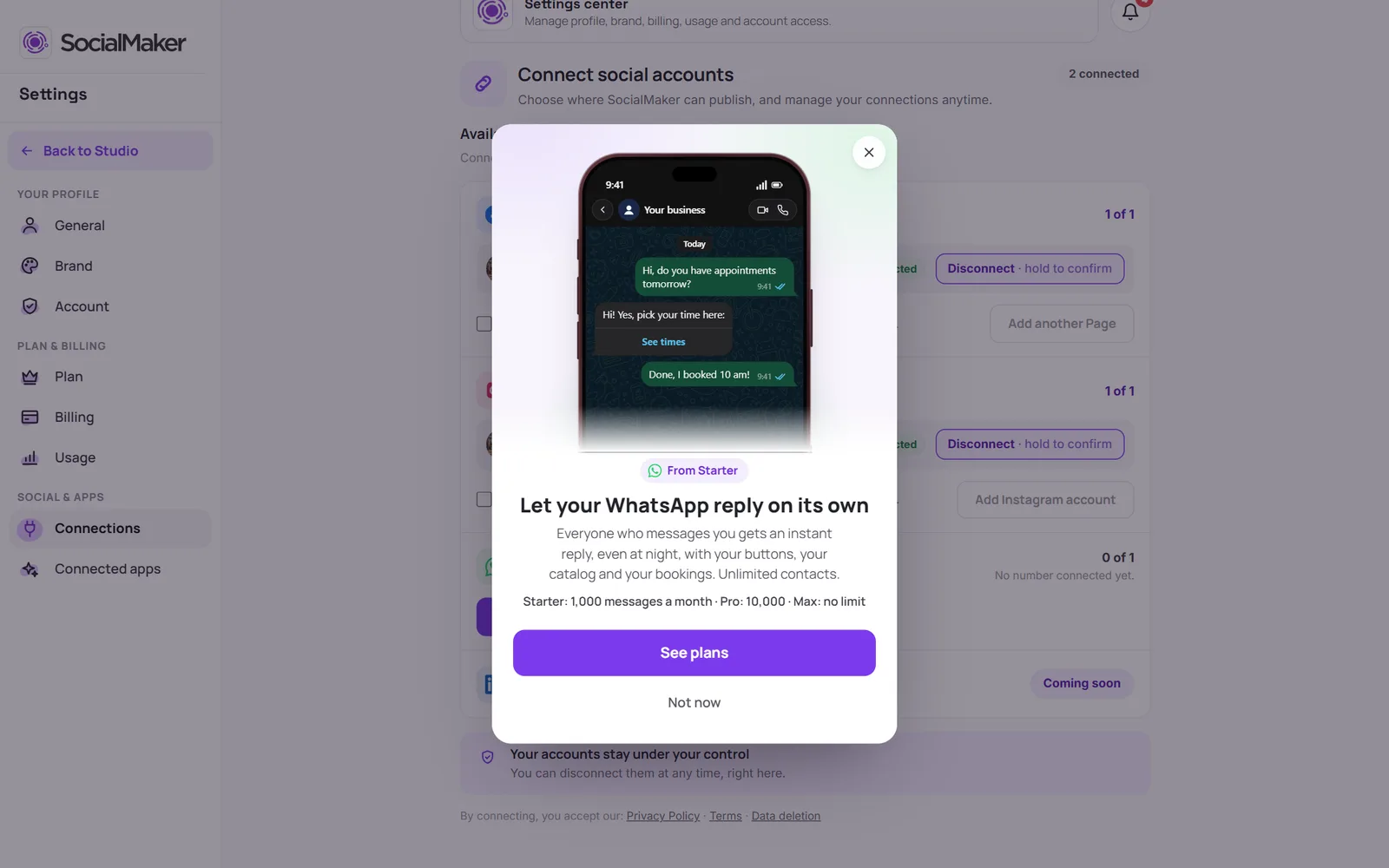
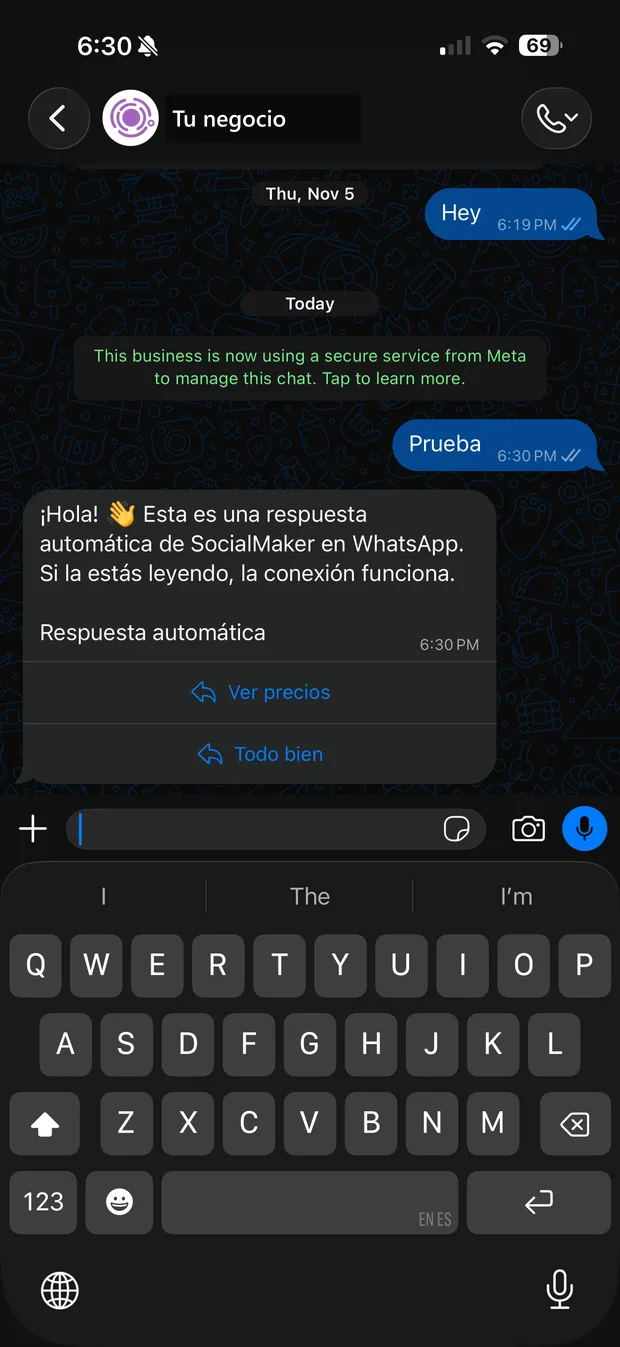
With your WhatsApp connected, everyone who messages you gets an instant reply, even at night, with your buttons, your catalog, your bookings and your link. The connection is official: it happens in a window from Meta, the company that owns WhatsApp, and SocialMaker never sees your password or your card.
Before you start
- WhatsApp comes with the Starter plan and up (1 number and 1,000 automated messages a month). Pro connects up to 3 numbers with 10,000 messages, and Max up to 5, with no limit. Contacts are unlimited on every plan. On Free, the button shows you the plans.
- You need a Facebook account to sign in to the Meta window. That's where you pick or create your business portfolio.
- You can connect the number you already use in the WhatsApp Business app and keep replying from your phone as usual. You can also use a new number that isn't on any WhatsApp app.
- If your number is on regular WhatsApp (the personal one), move it to the WhatsApp Business app first. It's free and you keep your chats.
- Connect it from a computer and allow pop-ups: the Meta window opens separately. On a phone (especially Chrome on iPhone) that window sometimes closes before it finishes, and for the number on your WhatsApp Business app Meta asks you to scan a code with your phone.
- At the end, Meta offers to add a card. It's optional: you can skip it and still connect.
Step by step
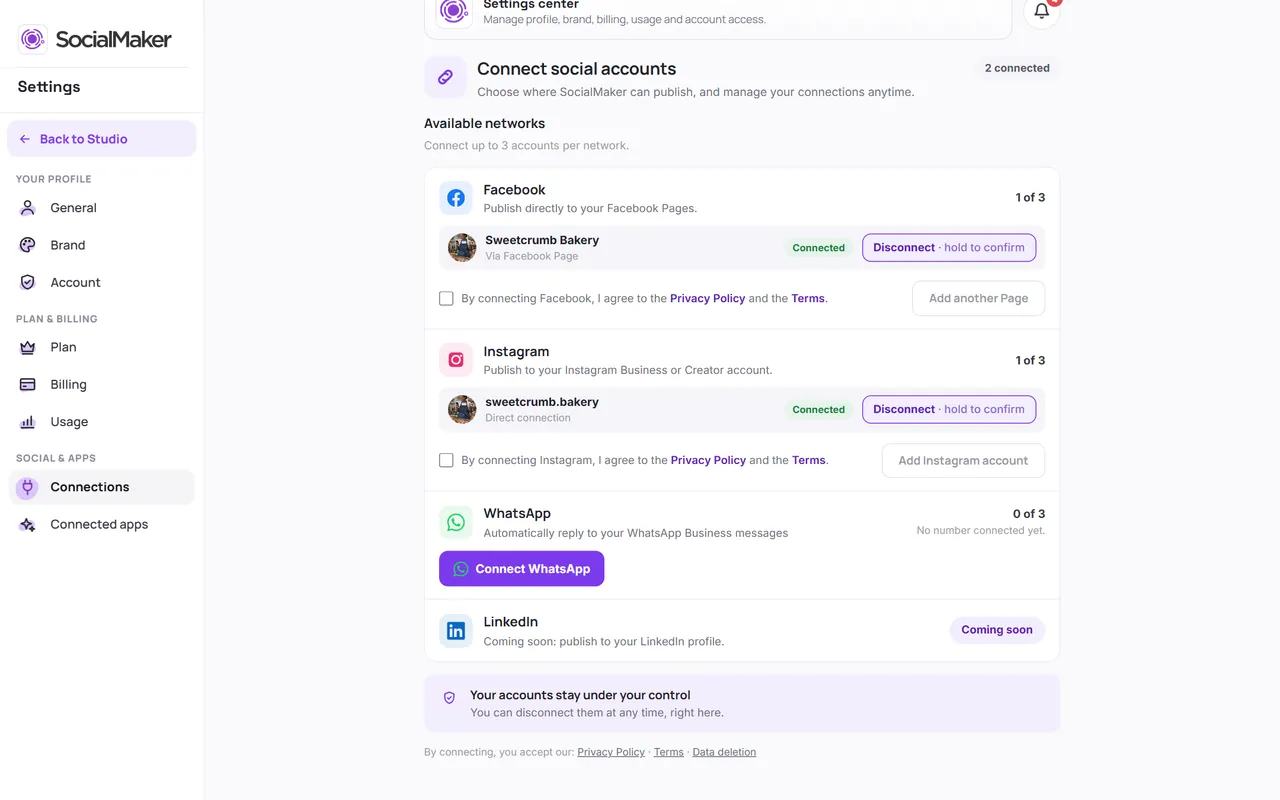
Connect WhatsApp: three taps in SocialMaker and the rest in the Meta window.
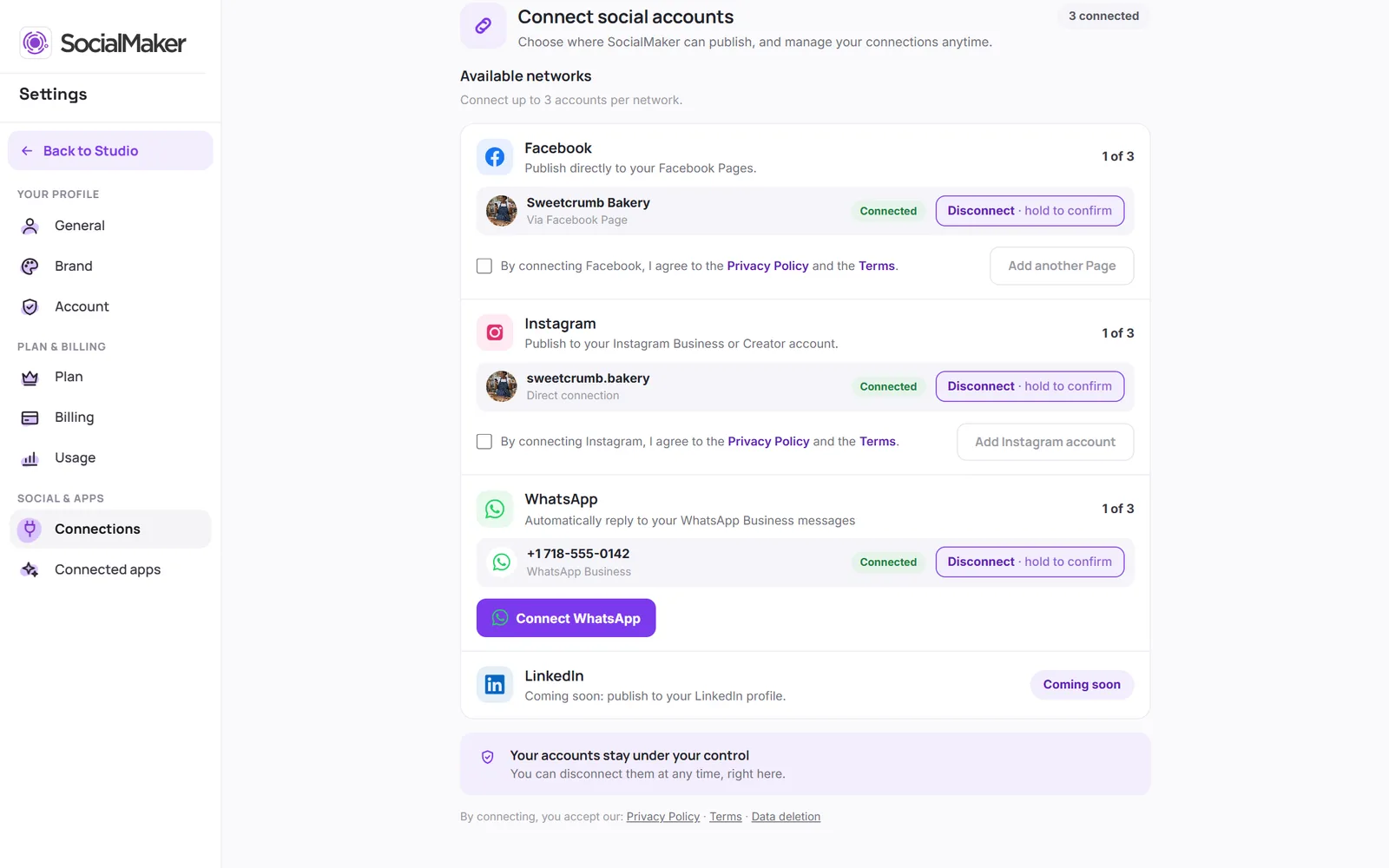
Open Settings → Connections
You can also start from Automations, with the Connect account button.
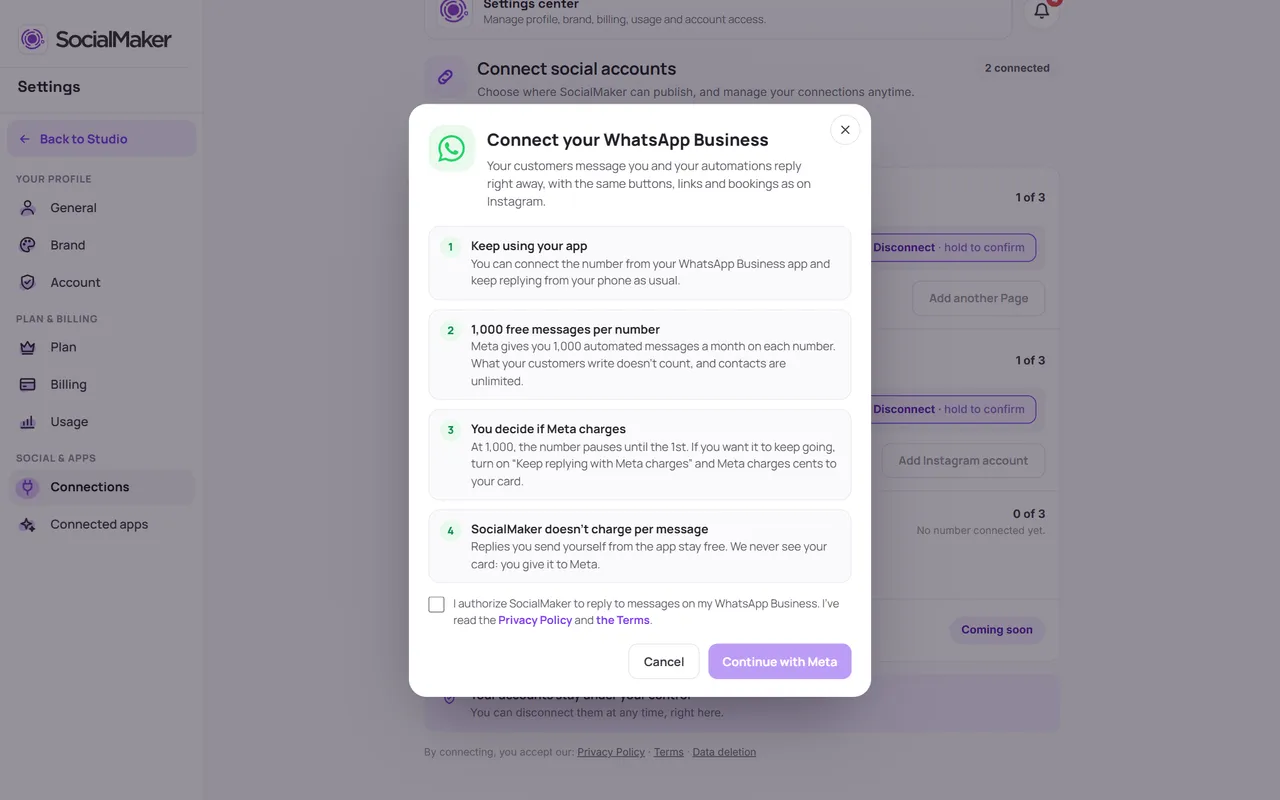
Tap Connect WhatsApp and read the essentials
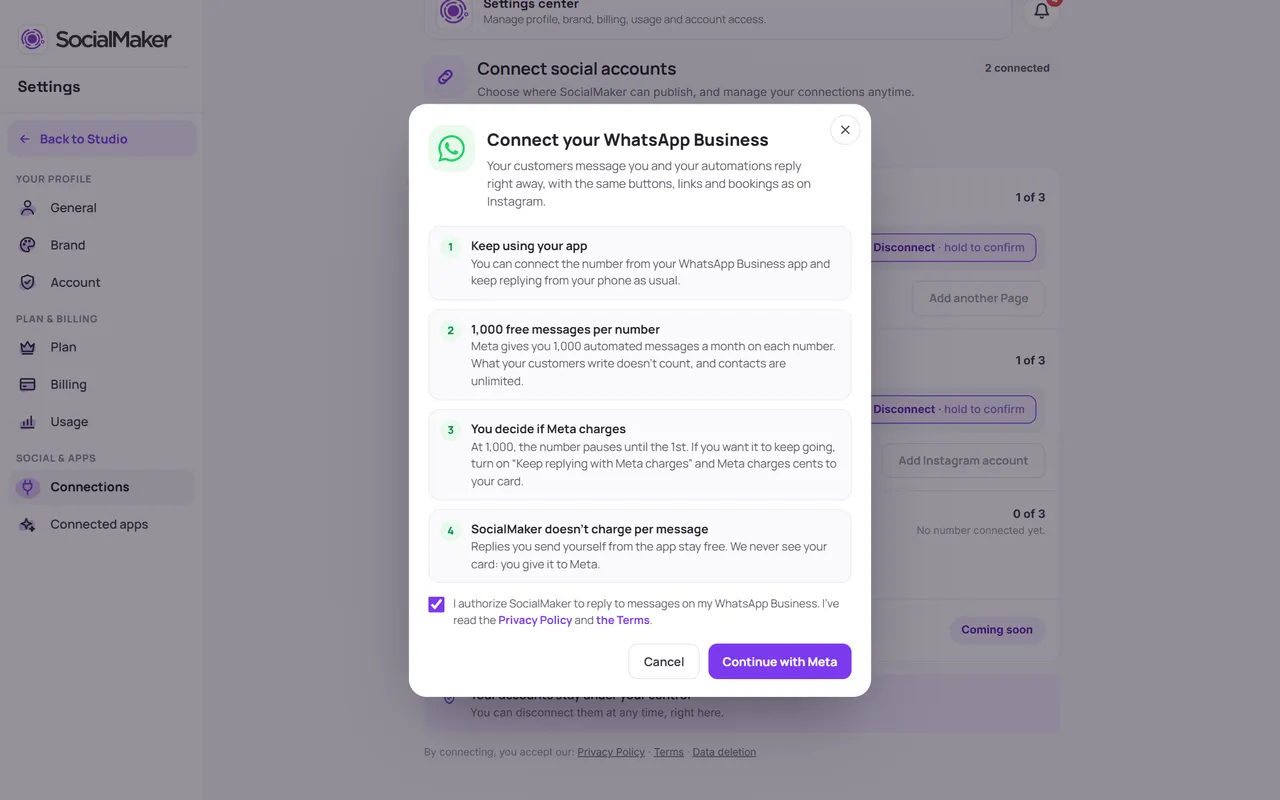
The window sums up how it works: you keep using your app, Meta gives you 1,000 messages a month per number, you decide whether Meta charges after those, and SocialMaker doesn't charge per message.
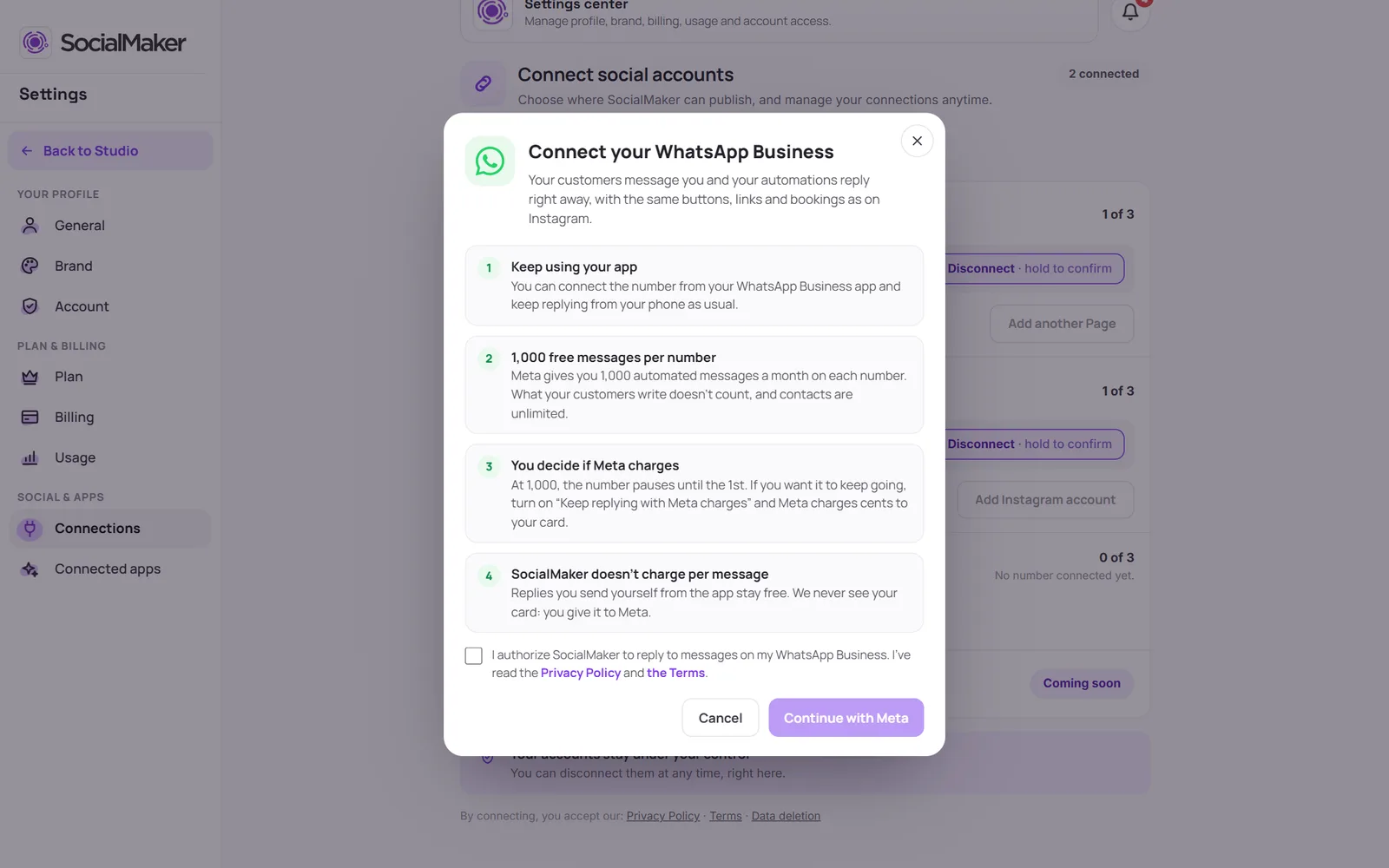
Check the box and tap Continue with Meta
The official Meta window opens. Sign in with your Facebook account and tap Continue.
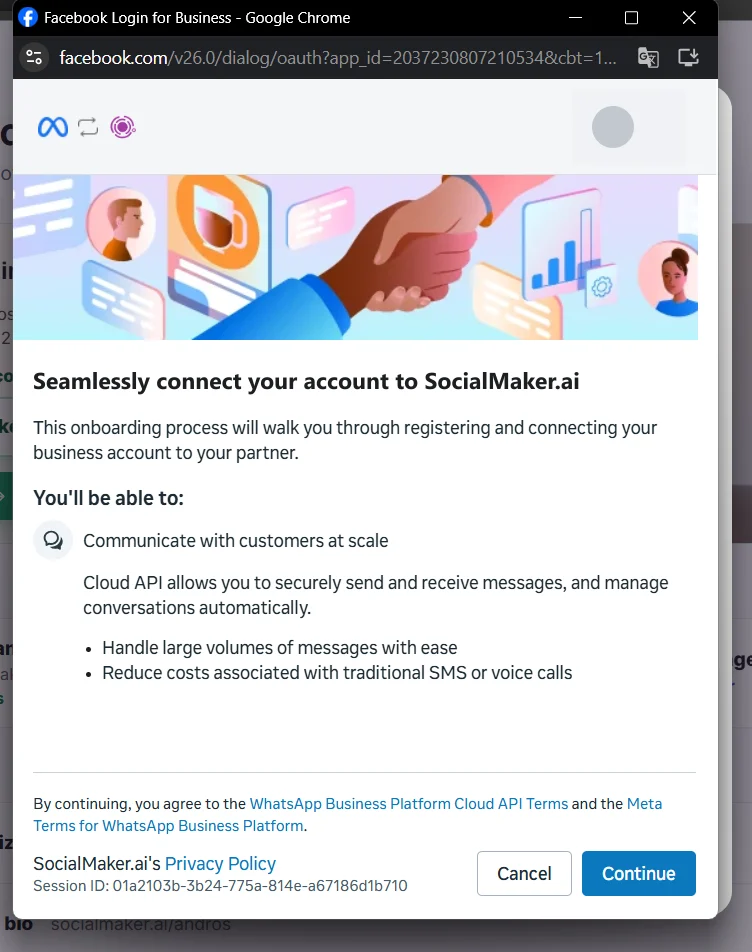
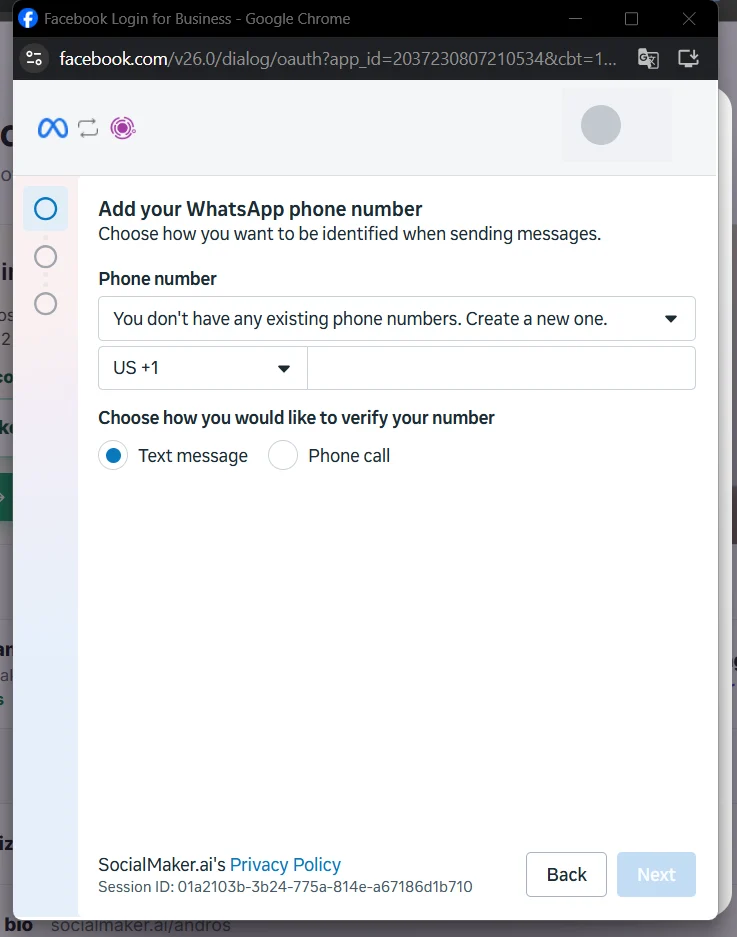
Enter your number
Pick the country, type your WhatsApp Business number and choose how to get the code: text message or phone call. Even if it says “create a new one”, if the number is already on your app you keep using it: you confirm it later with a QR code.
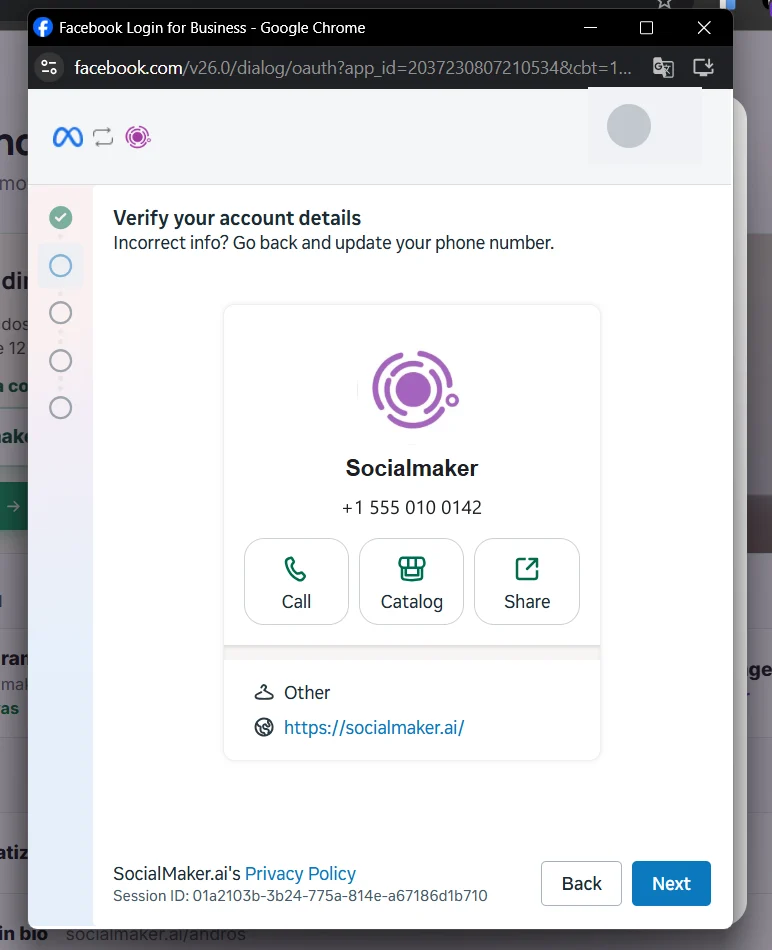
Check your account details
Meta shows the name and number as your customers will see them. If something is wrong, go back and fix it.
Pick or create your business portfolio
If you already have one on Meta, pick it from the list. If not, leave Create a Business portfolio.
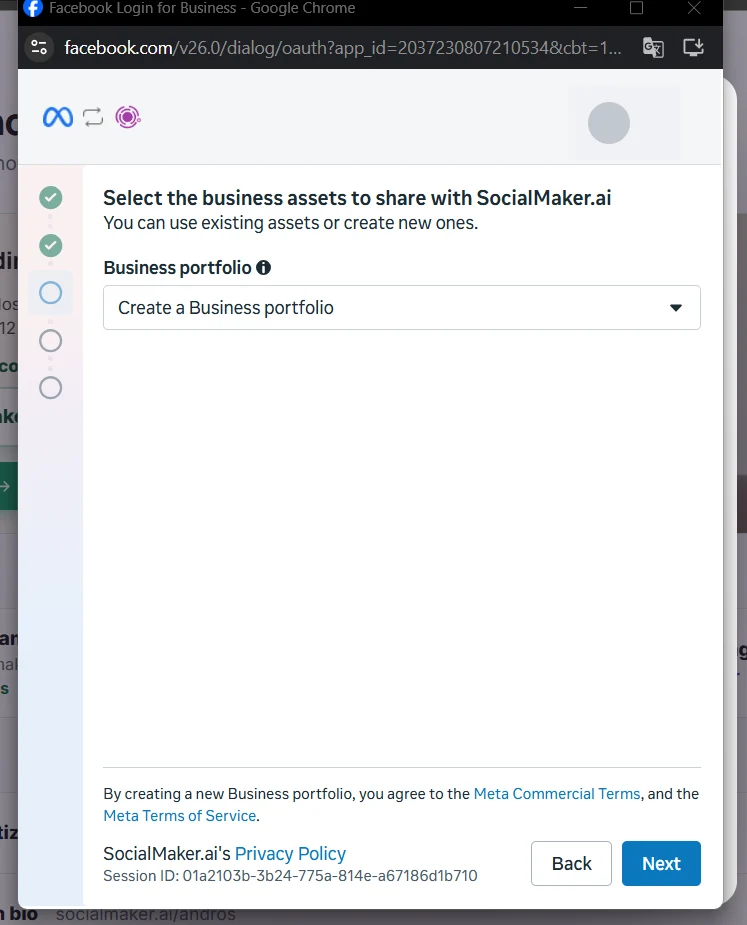
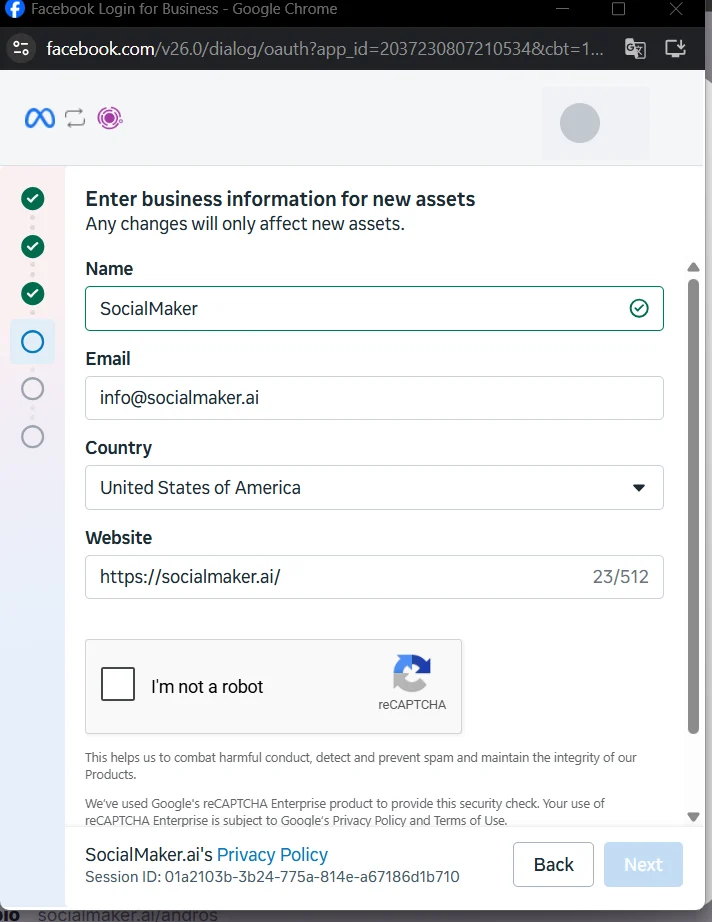
Fill in your business details
Name, email, country and website. Check I'm not a robot and continue.
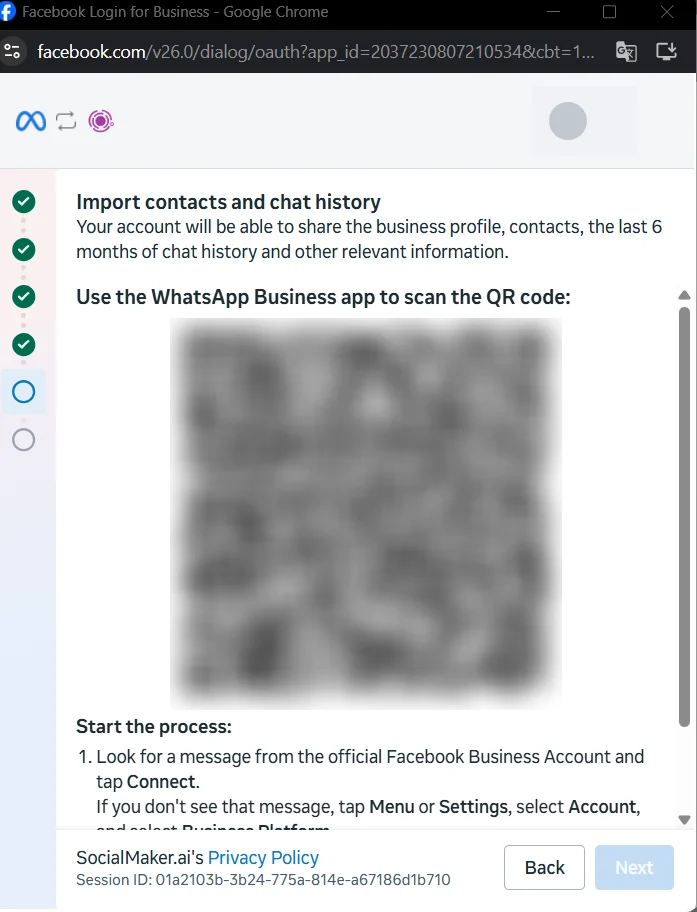
Scan the QR code with your phone
Meta shows you a QR code. Leave it on screen and grab your phone.
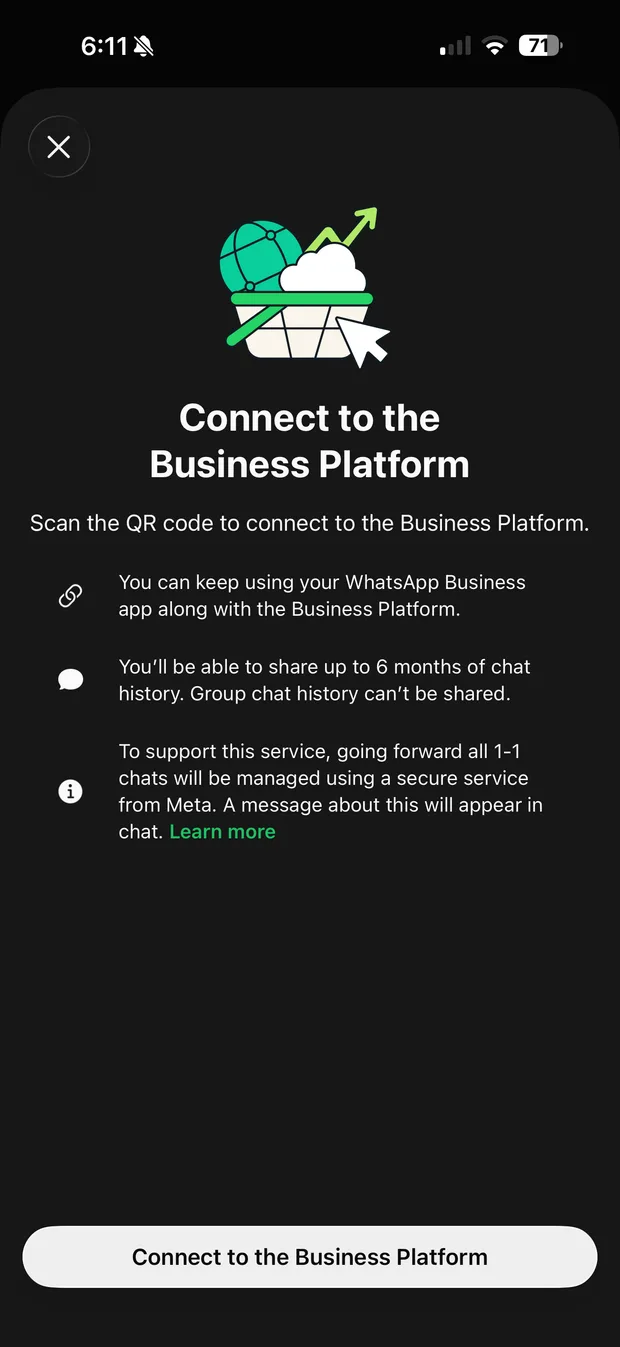
On your phone: open WhatsApp Business
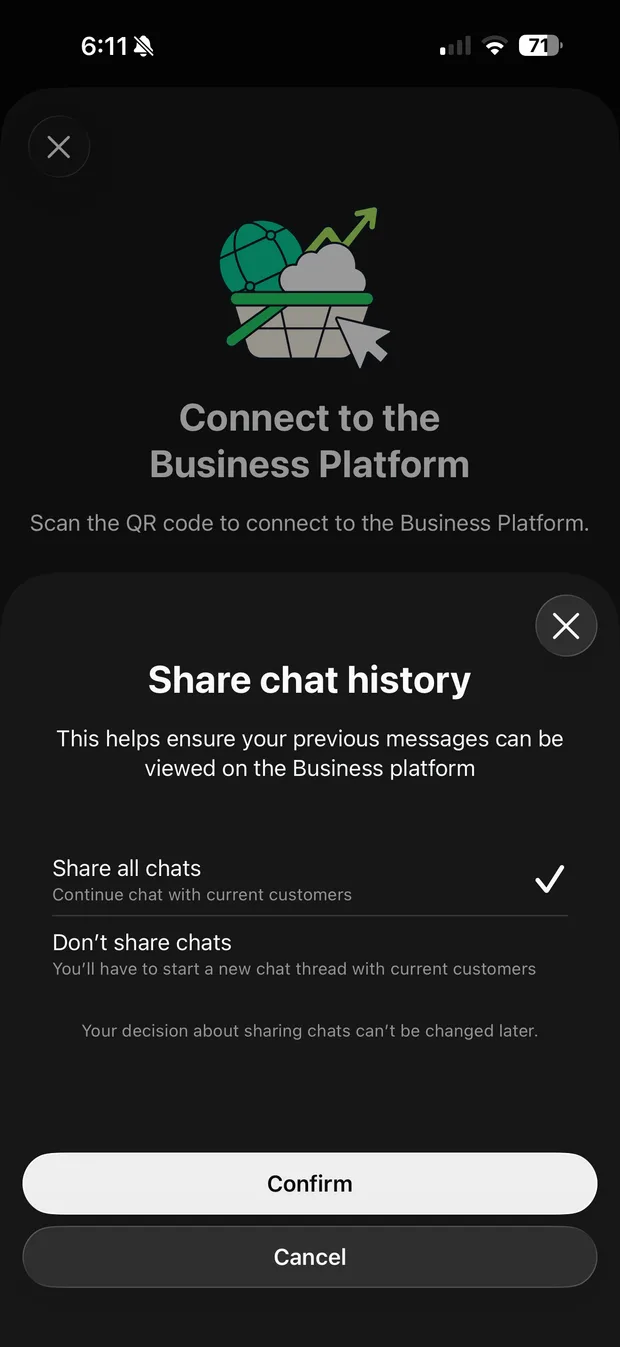
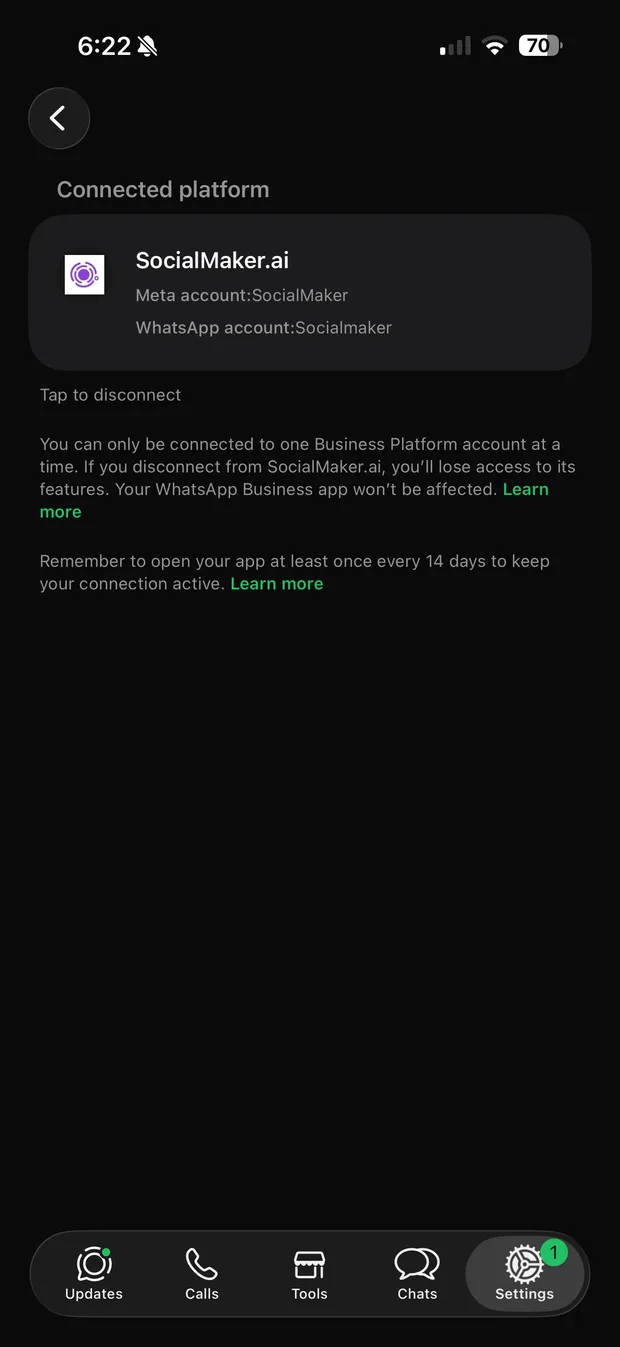
You get a message from the official Facebook Business Account: tap Connect. If you don't see it, go to Settings → Account → Business Platform. There, tap Connect to the Business Platform.
Decide whether to share your chats
You can share your chats from the last 6 months or not share them. SocialMaker works the same either way. This choice can't be changed later, so take your time. Then scan the QR code on your computer.
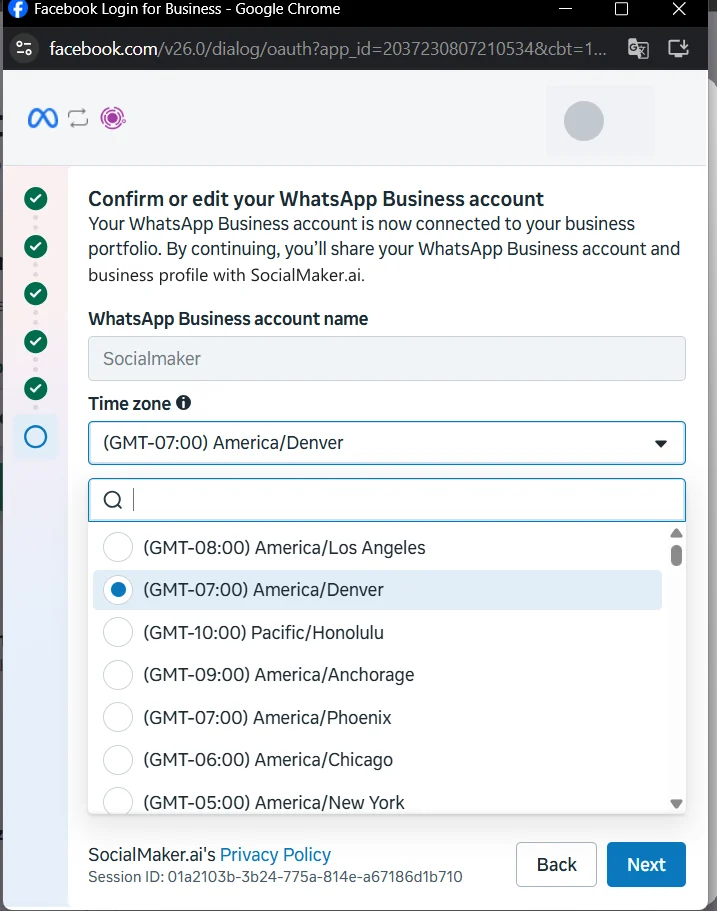
Confirm the name and time zone
Back on your computer, pick your business's time zone and tap Next.
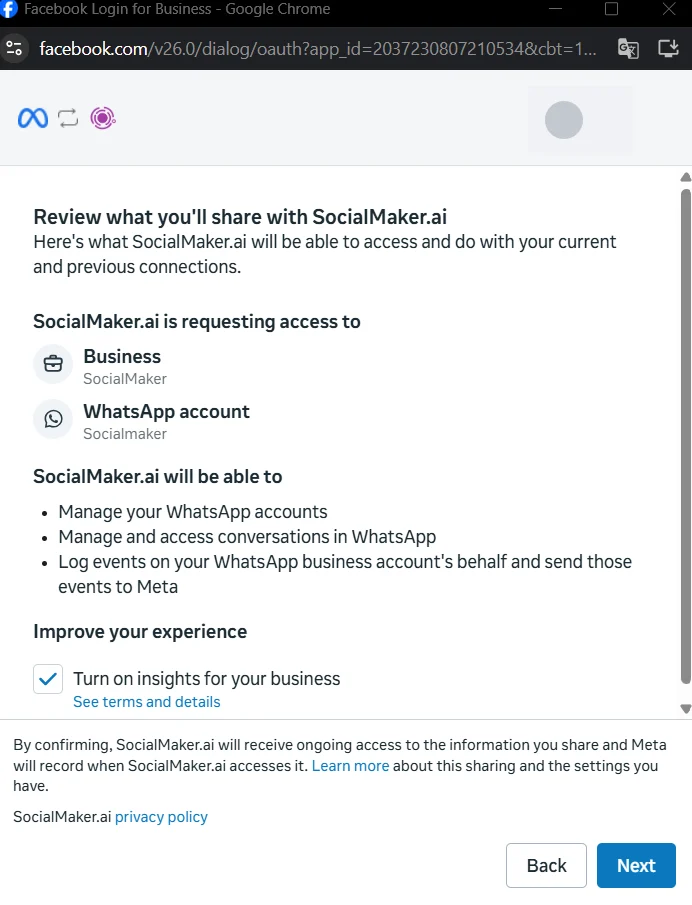
Review what you share
Meta sums up what SocialMaker.ai will be able to do: manage your WhatsApp account and its conversations. Tap Next.
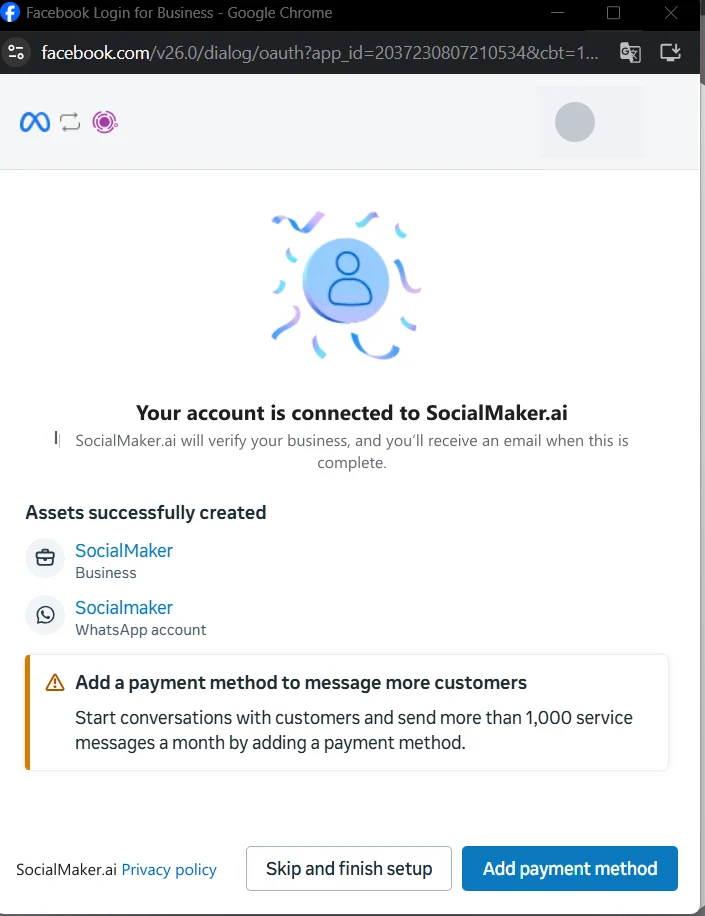
Finish without adding a card
Meta offers to add a payment method. You don't need one: the first 1,000 messages each month don't require it. Tap Skip and finish setup.
Done
You're back in SocialMaker with the message Done! Your WhatsApp is connected. The number shows up in Connections and in Automations.
After you connect
- Open the WhatsApp Business app at least once every 14 days: WhatsApp requires it to keep the connection active.
- Create your first automation: Automate your WhatsApp.
- See how many automated messages you've used this month: how they count.
- On Pro and Max, if you want a number to keep replying after Meta's 1,000 free messages, turn on Keep replying with Meta charges on the meter and add a card on Meta. On Starter you don't need to: at 1,000 your automations pause until the 1st, with no charges.
If something isn't working
| What you see | What to do |
|---|---|
| Your browser blocked the Meta window | Allow pop-ups for socialmaker.ai (the icon shows up in the address bar) and try again. |
| Meta couldn't activate that number | The number is connected to another tool (another chatbot or provider). Disconnect it there and try again. |
| Meta didn't send us your number | Tap Connect WhatsApp again. If Meta shows Continue as…, tap Edit Settings to choose your WhatsApp, and complete every step through Skip and finish setup. |
| On your phone, the Meta window closes and you end up on another page | The connection didn't finish. Go to socialmaker.ai on a computer and connect it from there. |
| You've reached your plan's number limit | Starter connects 1 number, Pro up to 3 and Max up to 5. Disconnect one or change your plan. |
Can I keep using the WhatsApp Business app?
Yes. You connect the same number and keep replying from your phone. What you write yourself doesn't trigger your automations and doesn't count toward your automated messages.
Does SocialMaker charge per message?
No. What you pay SocialMaker is your plan, with unlimited contacts and automated messages each month (1,000 on Starter, 10,000 on Pro, no limit on Max). Meta doesn't charge for the first 1,000 on each number and, on Pro and Max, after that it only charges if you turn it on.
Can I connect my personal WhatsApp?
Not directly. Move the number to the WhatsApp Business app (it's free) or use a new number.
How do I disconnect it?
In Settings → Connections, press and hold Disconnect on your number. Its automations stop replying until you connect it again.