How to take bookings on Instagram without losing them in your DMs
A guide to taking appointments on Instagram: an online calendar, a book button in your bio, automatic replies to “any openings?” and reminders.
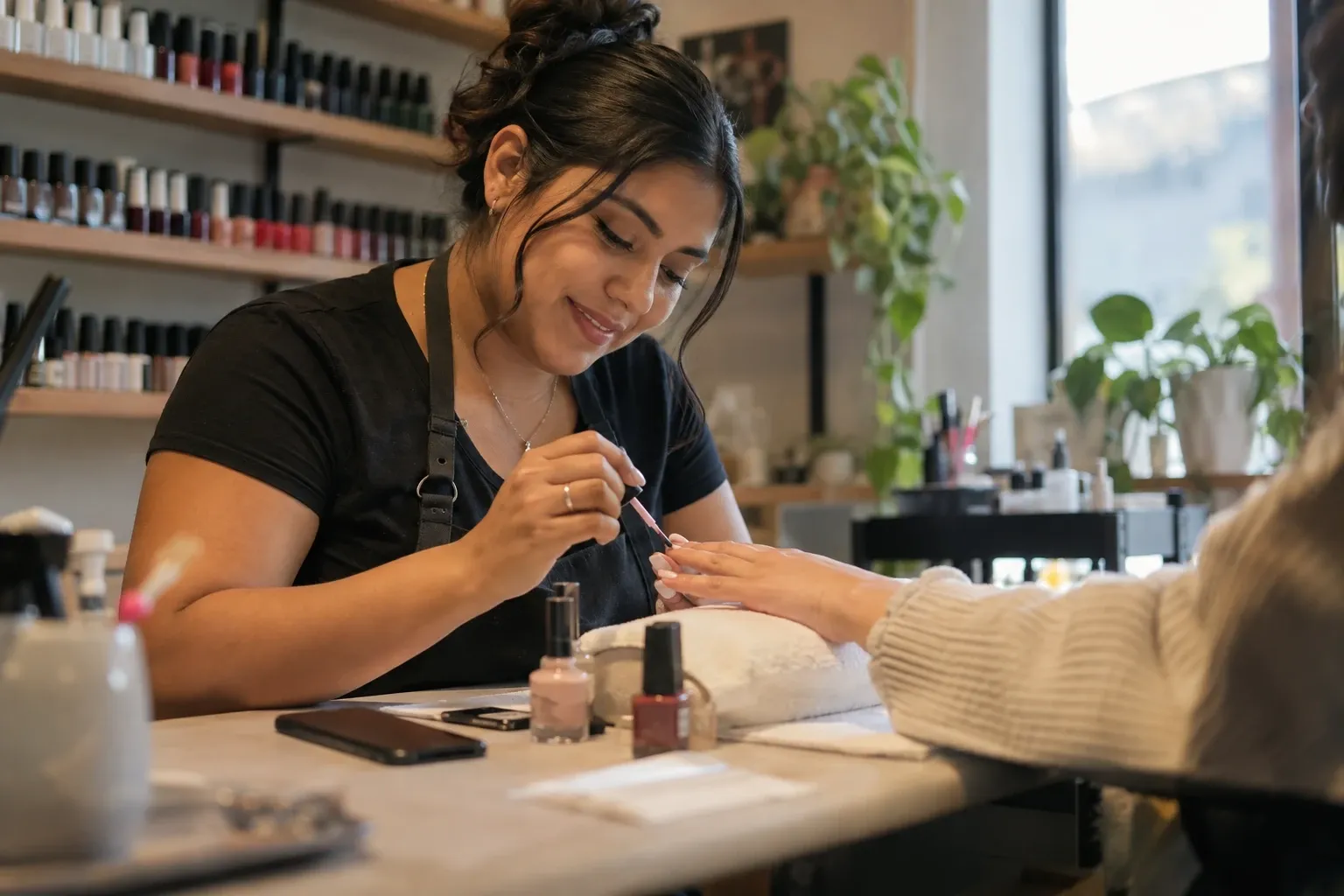
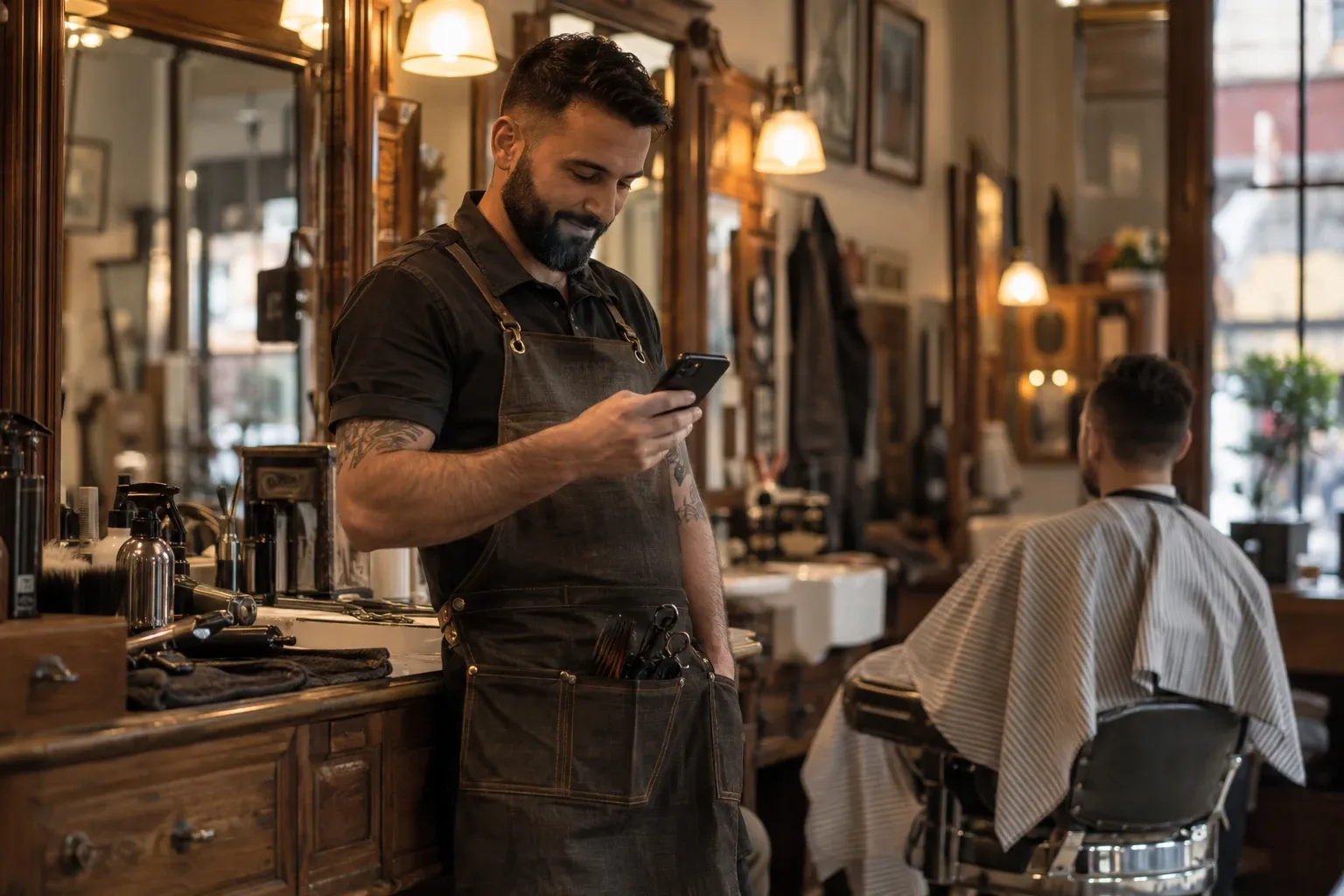
It's 11 p.m. and a message comes in: “Any openings on Saturday?” You see it the next morning, you reply… and that person already booked somewhere else. If you work by appointment (nails, hair, barbering, beauty, consultations, classes or tattoos), this happens every week, and every time it's a client walking away.
It's not that you don't care: people want it sorted right away. According to the Sprout Social Index 2025, 73% of social media users will buy from a competitor if a brand doesn't respond on social, and 73% expect a reply within 24 hours or less. And in salons and spas, 81% of regular clients need to manage their appointments outside business hours (Zenoti, 2025).
The good news: you can get it under control without living on your phone. In this guide you'll see the three ways to take bookings on Instagram, how to set up yours in 4 steps, and the mistakes that lose the most appointments.
The 3 ways to take bookings on Instagram
| Option | How it works | Keep in mind |
|---|---|---|
| Profile button | A “Book” button next to “Follow” that opens a partner booking app. | It depends on that app and isn't always available. |
| Link in bio | Your booking page in your profile link. | It always works, but people have to go to your profile to find it. |
| Messages and comments | You answer “any openings?” with a button that opens your calendar. | It's where the questions arrive; done by hand, you have to answer them one by one. |
What works best is combining the last two: your calendar in your link in bio for people who visit your profile, and an automatic reply for people who ask by message or in a comment. Here's how to set it up with SocialMaker:
Step 1: set up your online calendar
Create your services with their length and price, set the hours you work, and block the days you're off. You also choose where each appointment happens: at your place, on Zoom, Google Meet, WhatsApp or a phone call.
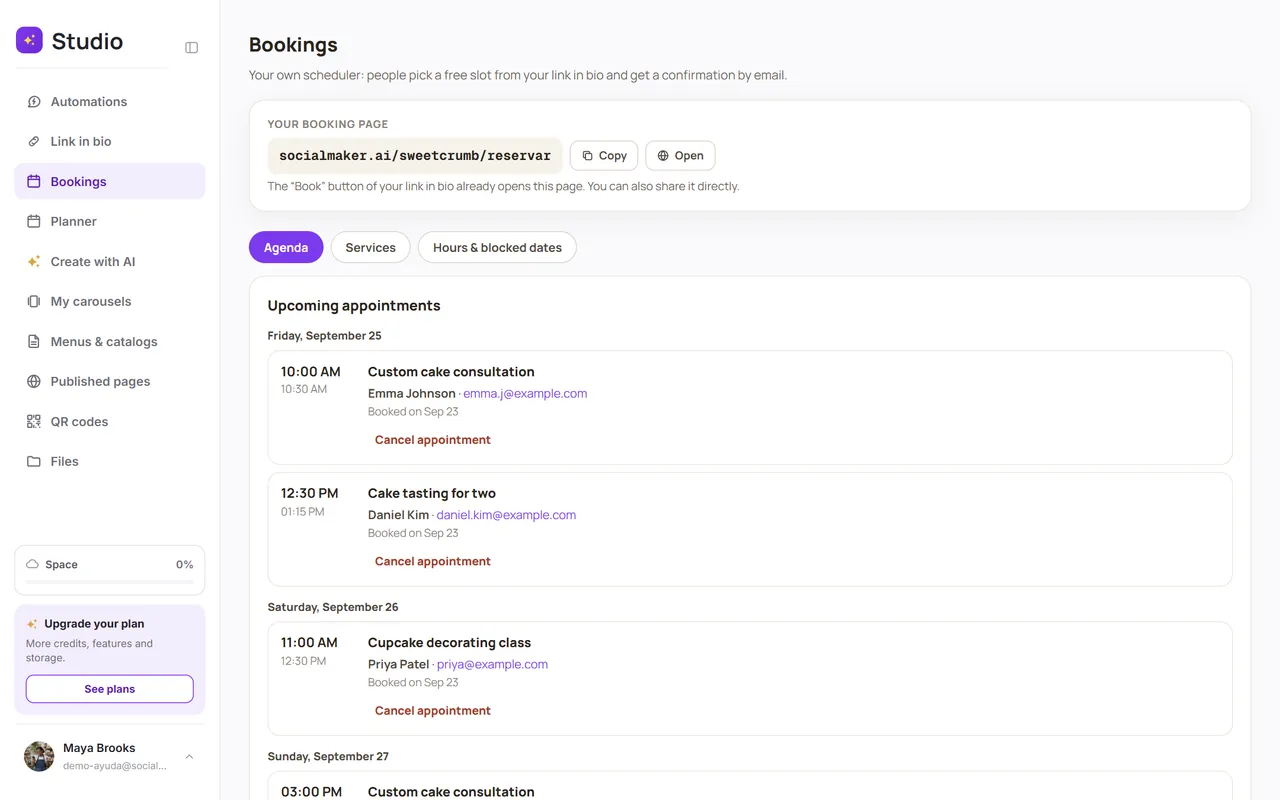
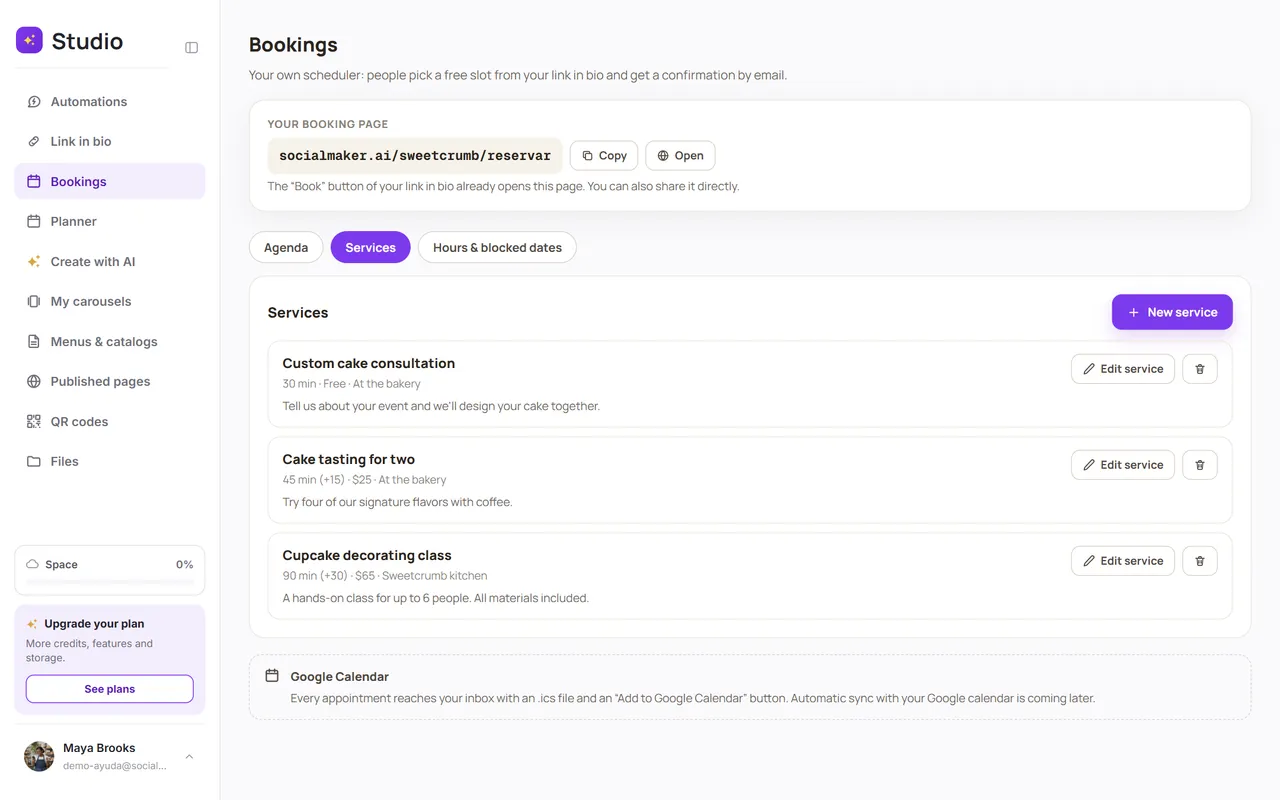
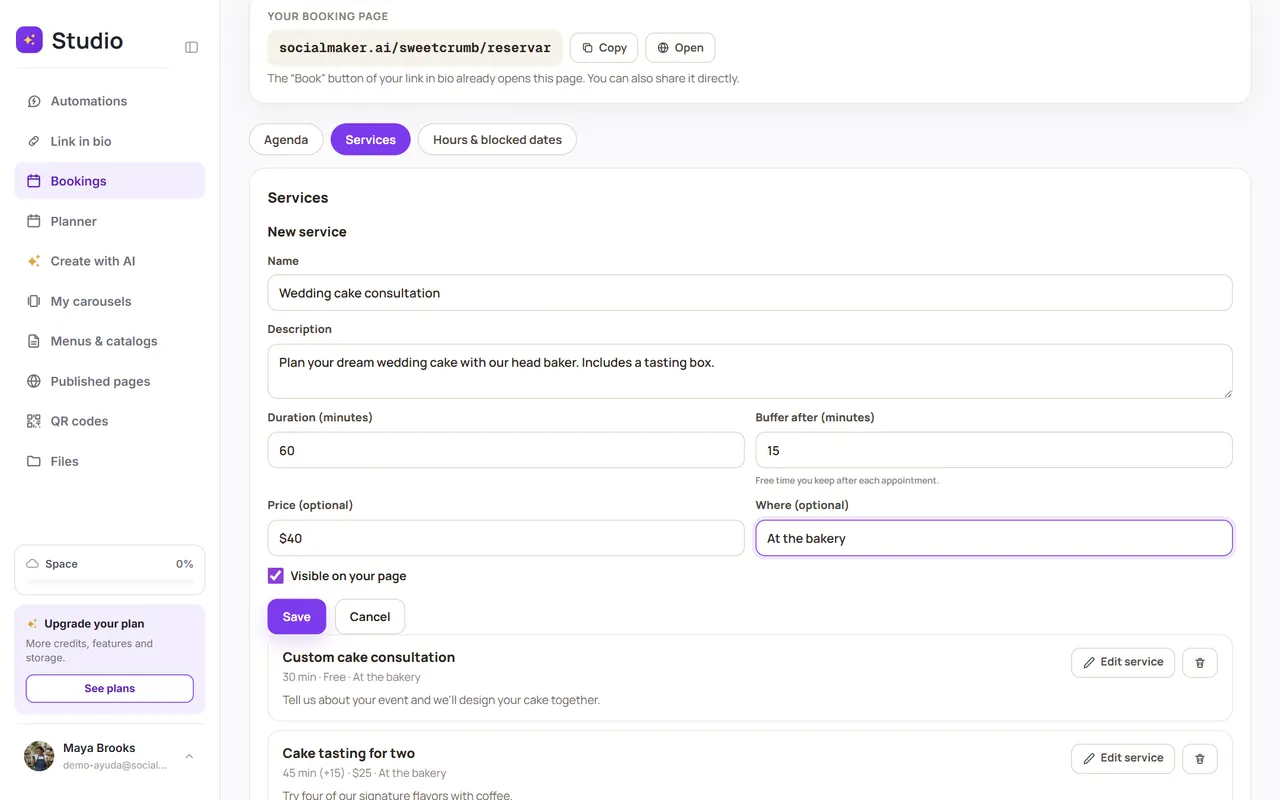
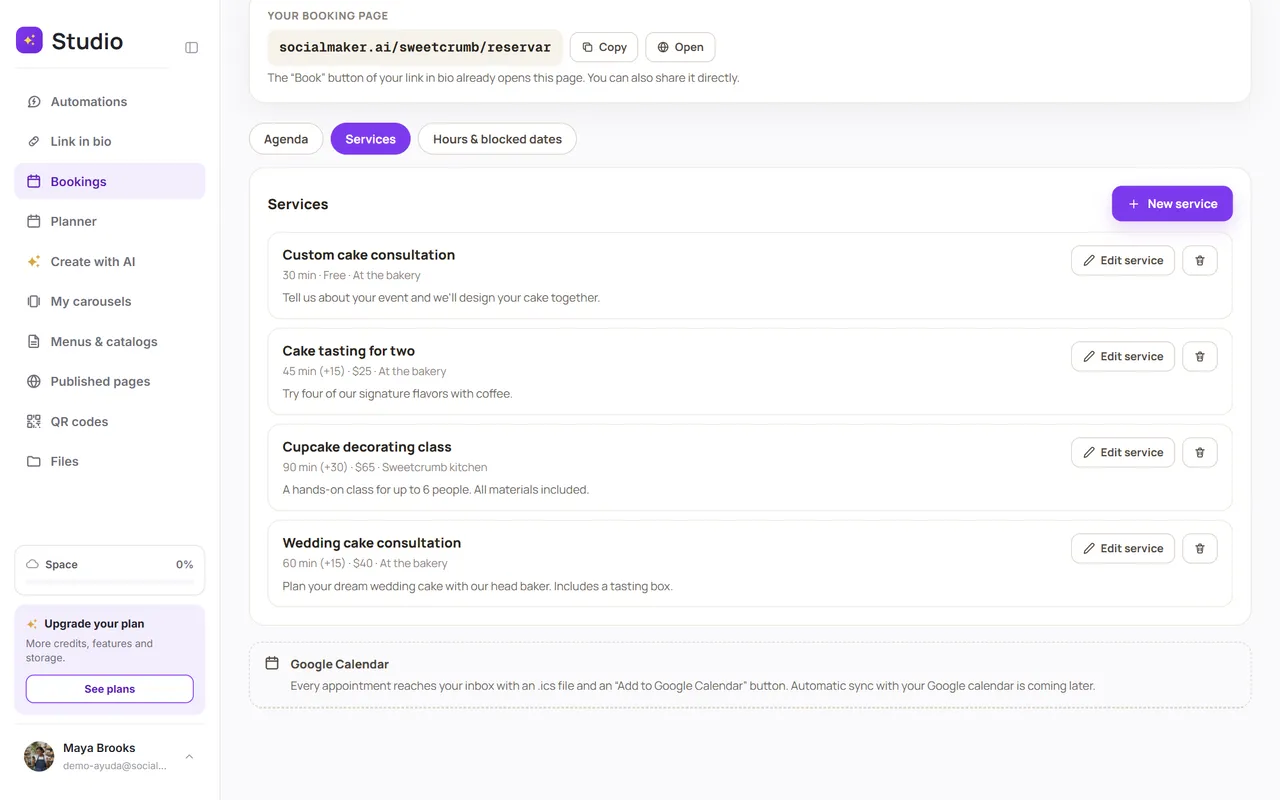
Your clients only see the open times and book in a minute, with no back-and-forth messages. See how to create your services.
Step 2: add “Book” to your link in bio
With your SocialMaker link in bio, the “Book” button goes straight to your calendar. Paste that link in your Instagram profile and anyone who visits can book at any hour, even at night or on the weekend.

Step 3: answer “any openings?” automatically
This is where the most appointments get lost. With an automation, when someone comments BOOK on your post or messages you “hours,” they instantly get a button that opens your calendar, or a carousel with your services to pick from.
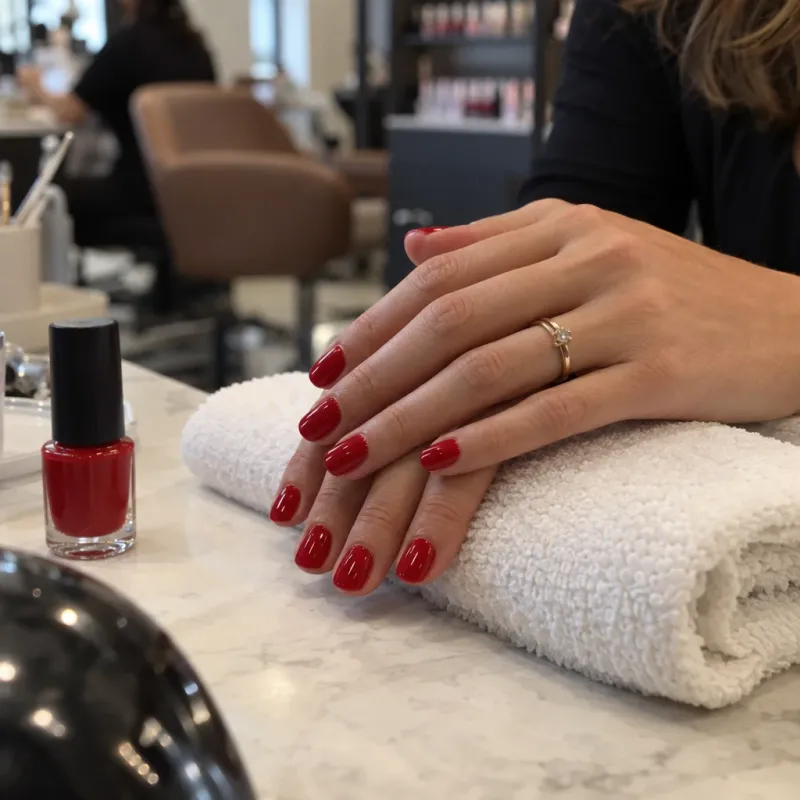
If the person books from that button, the appointment is tracked in that automation and they get a confirmation by message with the day and time. See how to send appointments and services by DM.
Step 4: confirm, remind and let people reschedule
- Instant confirmation: your client gets an email with the appointment details and an invite for their calendar.
- Reminder 24 hours before: if they booked ahead, they get an email so they don't forget.
- Reschedule or cancel without messaging you: from the link in their email they pick another open time or cancel, and you hear about it right away.
- Mark “no-show”: keep track of who doesn't show up, so you can decide what to do next time.
5 mistakes that lose bookings on Instagram
- Asking people to message you to see your times: every back-and-forth is a chance for them to lose interest.
- Hiding your booking link: if it's not in your bio and your story highlights, nobody finds it.
- Replying the next day: three out of four people expect a reply within 24 hours or less, and a late reply ends up at another business.
- Not confirming or reminding: an appointment with no confirmation or reminder is the one most often forgotten.
- Not letting people reschedule: if changing the time means messaging you, many people would rather not show up.
Frequently asked questions
Can you book appointments directly on Instagram?
Instagram doesn't have its own calendar. What you can do is put your calendar link in your bio and answer messages and comments with a button that opens it, so people book without leaving the conversation.
How do I add a “Book” button to my profile?
The profile action button depends on apps partnered with Instagram and isn't always available. The option that works for every account is your calendar link in your bio, with a clear “Book” button.
How do I create a free booking link?
With SocialMaker you set up your calendar and your link in bio on the free plan: it includes one booking service and one automation so you can try it with your clients.
What happens if someone asks for an appointment when I'm offline?
With an automation, the person gets the button to book instantly, at any hour. You just see the confirmed appointment in your calendar and an email with the details.
How do I stop clients from not showing up?
Confirm every appointment, send a reminder beforehand and let people change the time without messaging you. If someone doesn't show up, mark them as “no-show” to keep it in mind.
Is it better to take bookings on Instagram or WhatsApp?
Your calendar link works on both: you can share it on WhatsApp too. SocialMaker's automatic replies work on Instagram and Facebook.
Taking bookings on Instagram doesn't have to be a mess of messages. With your calendar in your bio and an automatic reply to “any openings?”, your clients book on their own and you focus on your work. If you want to go further, see the 5 automations every business needs.
Written byAndros BlandónSocialMaker