How to sync your booking calendar with Google Calendar (and stop getting double-booked)
Why appointments overlap, what syncing with Google Calendar really means, how to set it up step by step and what to check so nobody books over your plans.

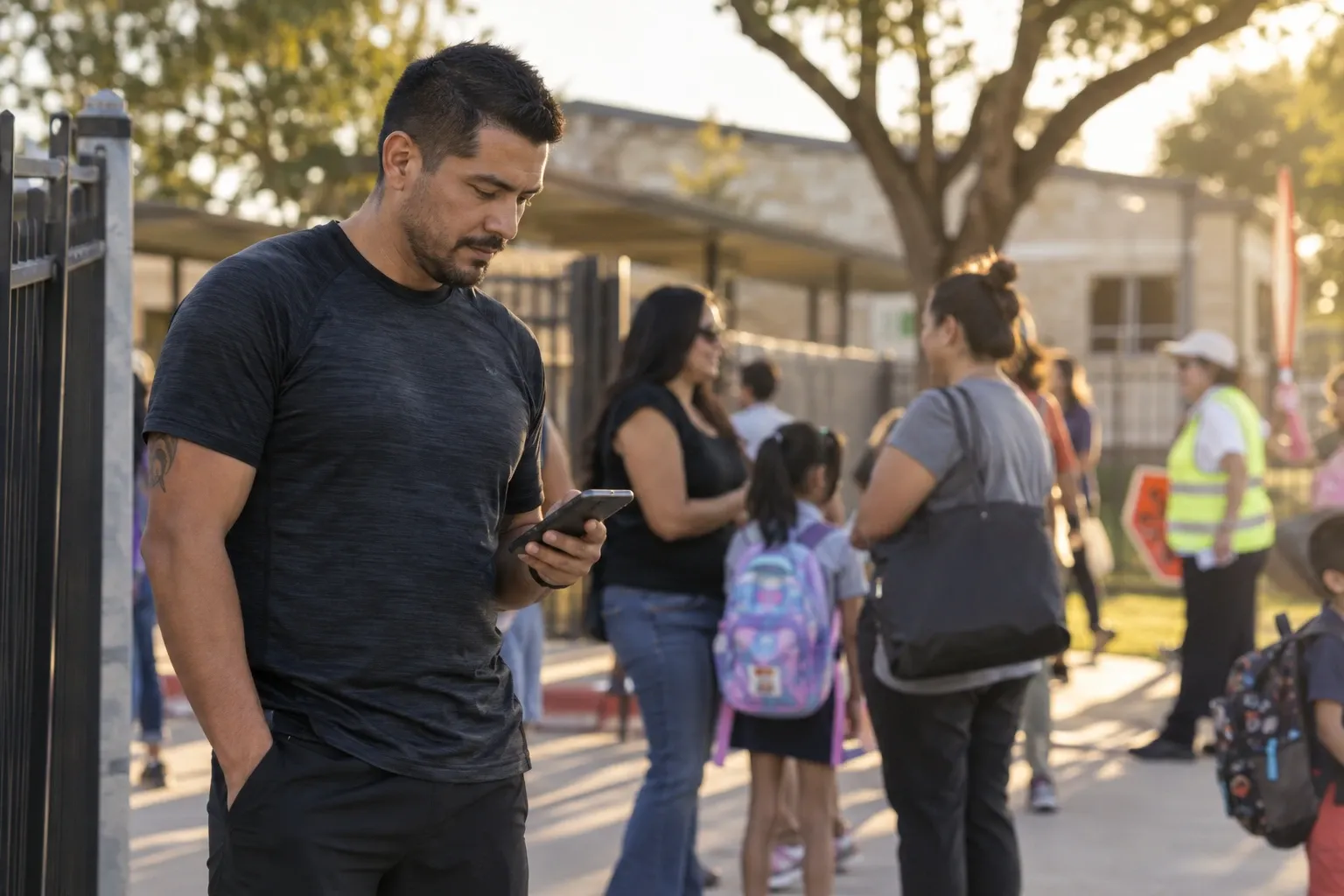
It’s 2:45 and you’re heading out to pick up your daughter from school. Your phone buzzes: “New booking: today, 3:00 PM.” The time was open on your booking page, but not in your life: it was on your Google Calendar, and your booking calendar had no idea.
It happens when you have two calendars that don’t talk to each other: yours, in Google, and the one your clients use to book. The fix isn’t copying everything by hand, it’s connecting them. In this guide you’ll see why appointments overlap, what “syncing” really means, how to set it up step by step and the details that make it work.
Why appointments overlap
- Two separate calendars. Your personal life is on Google and your bookings live in another tool. Each one thinks the other’s time is open.
- Copying by hand. Moving every booking from one side to the other works until the day you forget one.
- Events that don’t block. Even with your calendar connected, an event set to “Free” doesn’t count as busy (we explain how to check this below).
- Last-minute bookings. Someone books right as you add something on Google.
What “syncing” means (it goes both ways)
When a booking tool says it “connects with Google Calendar,” it can mean two very different things. You want it to do both:
- Reading your busy times (from Google to your booking page). If something is on Google, that time stops being offered to clients. This is what prevents double bookings.
- Writing your bookings (from your booking page to Google). Every new booking shows up on its own in your Google Calendar and, if it changes or is canceled, it updates too. That way you see everything in one place, on your phone.
What your booking tool sees on your calendar (and what it doesn’t)
Connecting your calendar shouldn’t mean handing over your private life. With SocialMaker, Google only tells us when you’re busy: we don’t see your event titles, who’s coming or your notes. And anything set to Free doesn’t block a thing.
Animation: on the left, a person’s day in Google Calendar with their events: their mom’s birthday all day and a call to the bank, both set as free, plus a therapy session and picking up their daughter at 3:00, both set as busy. On the right, what SocialMaker receives: just two blocks that say Busy, with no titles. Events set as free don’t block anything.
 Your Google Calendar
 What SocialMaker sees
To write your bookings, SocialMaker creates its own calendar in your account, called SocialMaker, and only writes there. It never touches your other events. If you ever disconnect it, the bookings already there stay on your calendar.
How to connect it in SocialMaker, step by step
Open Bookings → Availability
If you don’t have a booking page yet, set up SocialMaker’s appointment booking in a few minutes: your services, your hours and your link for your link in bio.
Tap “Connect Google Calendar” and choose your account
Google shows you two permissions: seeing when you’re busy and creating the “SocialMaker” calendar. Leave both checked.
Choose which calendars count
Your main calendar is already checked. If you have another one for work or family, check it too: if something is on any of them, that time can’t be booked.
Leave “Add my appointments to Google Calendar” on
Your upcoming bookings go to Google right then, and new ones as soon as someone books.
Run a test
Open your booking page on another phone, book a time and watch it show up on your Google Calendar. Then cancel it from the confirmation email and watch it disappear.

5 details that make the difference
- Check your all-day events. On Google, many of them are set to “Free” (a birthday, a reminder). If they really keep you busy, like a vacation, open them and switch them to “Busy,” or block those days on your booking calendar.
- Check all your calendars. If you use one for work and another for family, pick both under “Check if I'm busy in.”
- Leave breathing room between bookings. If you need 15 minutes to clean up or travel, add it to the service under Break after each appointment, so nobody books right at the end of another appointment.
- Allow a couple of minutes. Something you add on Google takes a moment to show up, but when someone confirms a booking we check your calendar again: if that time is now taken, it can’t be booked.
- One calendar per business. If you run two businesses (two link in bio pages, on the Max plan), each booking calendar connects separately and its bookings go into separate calendars.
What about your clients?
Your clients don’t need Google or an account. They book from your link in bio, get an email confirmation with a file to add the booking to Google, Apple or Outlook, and can change or cancel it from their link. If bookings reach you through Instagram messages, how to take bookings on Instagram shows how to keep them organized, and if no-shows worry you, how to reduce no-shows covers what actually works.
Frequently asked questions
Can SocialMaker see my events?
No. Google only tells us when you’re busy. We don’t see titles, guests, locations or notes.
Can it delete or change my events?
No. It only writes to its own “SocialMaker” calendar, which it creates when you connect. Your other events aren’t touched.
What if I move a booking in Google?
Changes are made in SocialMaker: if you move the event in Google, the booking doesn’t change on your booking calendar and your client isn’t notified. Change or cancel it in Bookings and Google updates on its own.
What if I disconnect my account?
Bookings already on Google stay there. From then on, SocialMaker stops seeing your calendar and adding bookings.
Can I check several calendars?
Yes. Each booking calendar connects to one Google account, and within it you pick every calendar you want to check.
How much does it cost?
Appointment booking is free with 1 service. The Google Calendar connection is included from the Starter plan: see pricing.

Written byAndros BlandonSocialMaker