Manage your appointments
See your appointments, book one yourself, reschedule it, add a note, resend the email or cancel it from the Appointments tab.
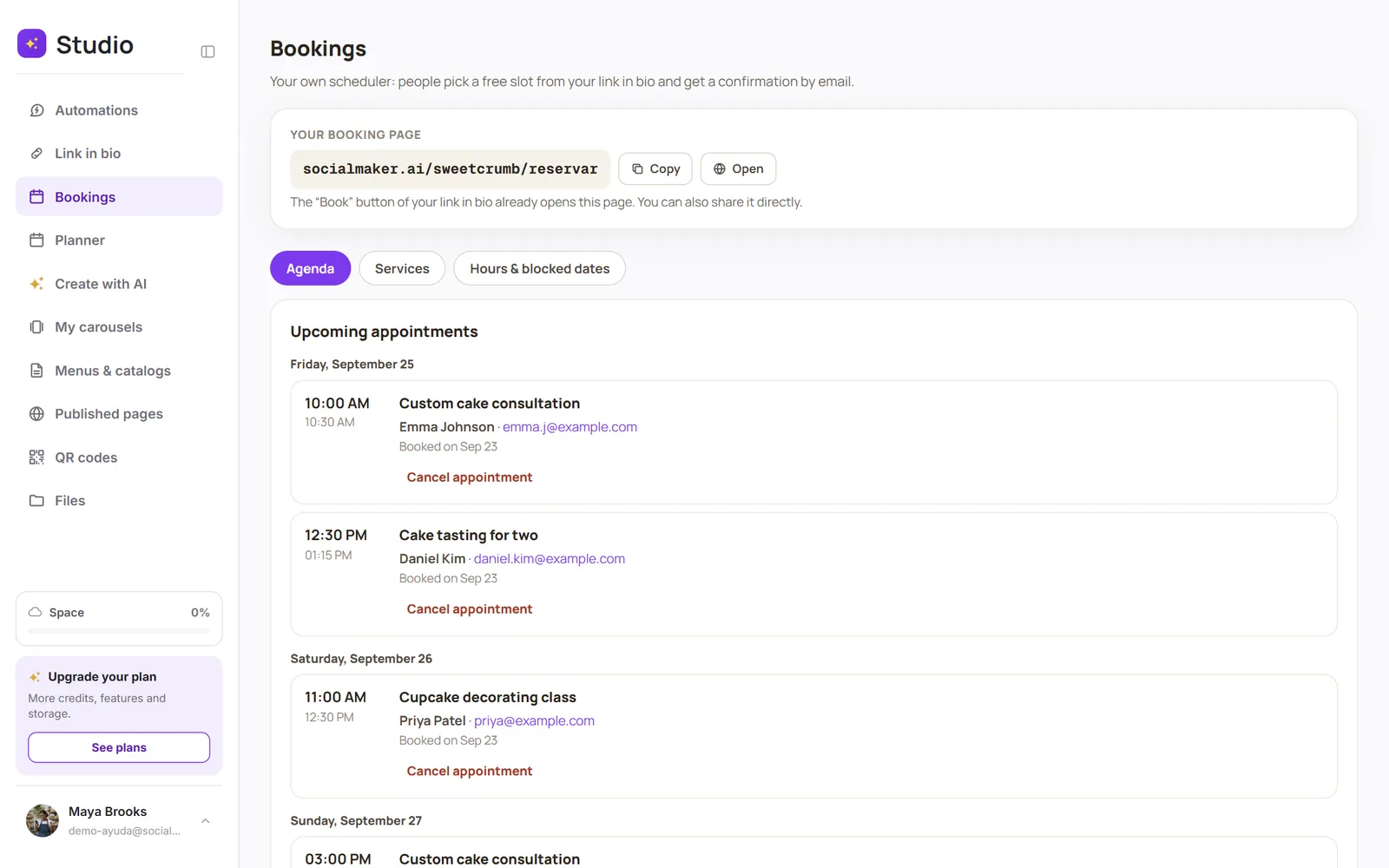
In Bookings → Appointments you see your appointments under Upcoming, Past and Cancelled, with a search by client or service. At the top you see how many you have today, this week and in total.
Book an appointment yourself
For someone who messaged you on WhatsApp or walked in: tap Book appointment (or Create → Manual booking), pick the service, the day and an open time (or Other time) and type in the client’s details. If you check Email them the confirmation, they get it like any booking. If the time overlaps another appointment or falls outside your hours, we warn you and you can tap Book anyway.
What you can do with each appointment
- WhatsApp and Email: write to your client in one tap.
- Reschedule: pick the new day and time; with Email them about the change they get the new time.
- Edit: change the appointment details, the location for that appointment only, the video call link or the guests.
- Note: an internal note only you can see (for example, “prefers a scissor cut”).
- Resend email: send the confirmation again to your client, their guests or yourself.
- No-show: mark it if your client didn’t come (They came undoes it).
Cancel an appointment
Tap Cancel appointment and confirm. SocialMaker emails your client and the time is open again.
Past and cancelled appointments
Check them anytime under Past and Cancelled. On cancelled ones you see who canceled: you or your client.