See your automation results
What Active, Sent, Clicks and Bookings mean, and how to read the results for each automation.
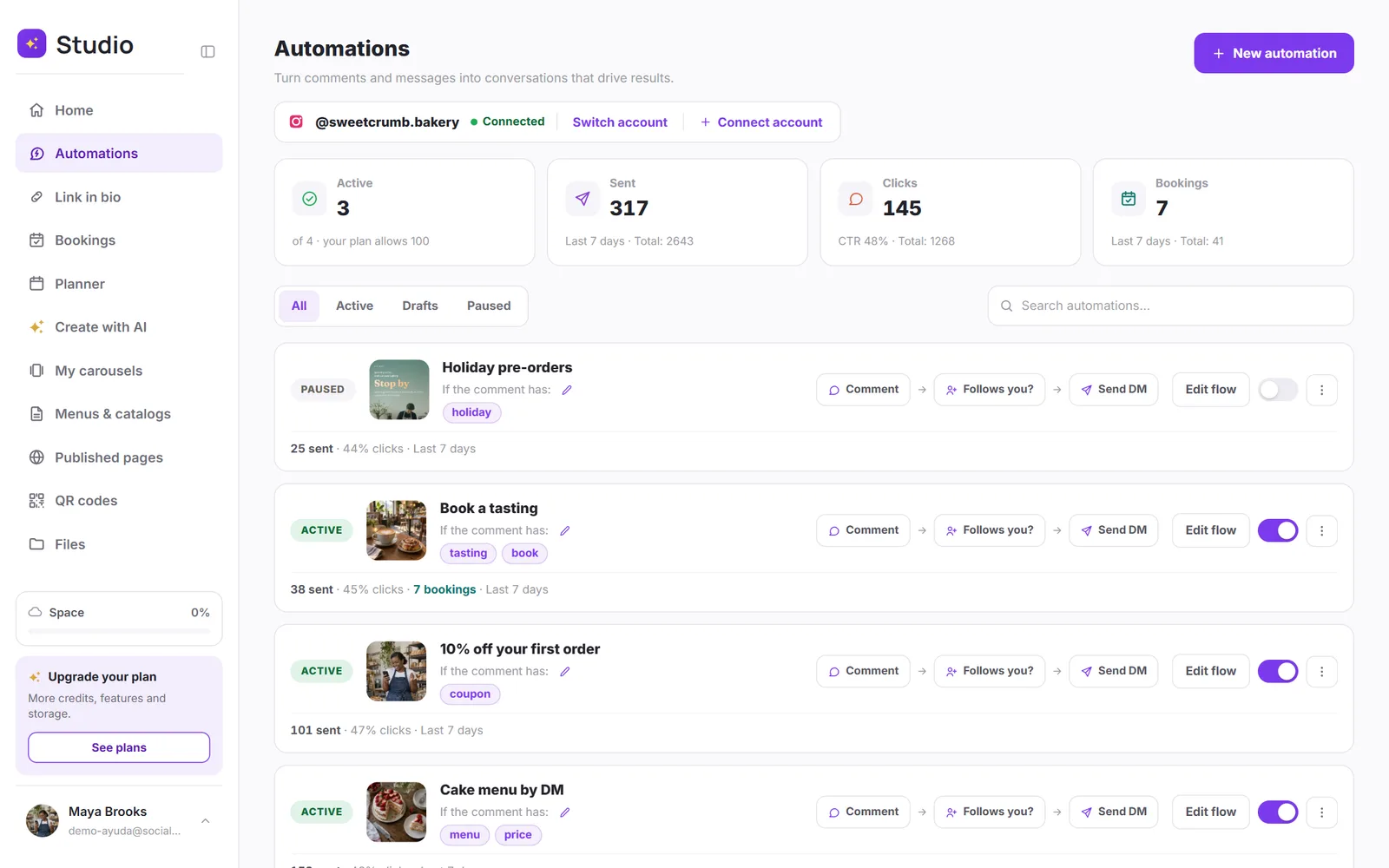
At the top of the Automations panel, you'll see four numbers from the last 7 days:
| Number | What it measures |
|---|---|
| Active | How many automations are replying right now. |
| Sent | Messages sent by your automations (and the all-time total). |
| Clicks | How many times people tapped your trackable links. Below it you'll see the CTR: clicks over sends, or how appealing your offer is. |
| Bookings | Appointments booked from an automation's button (and the all-time total). |
Per automation
Each row shows its status (Active, Paused or Draft), its keyword, its sends, its click-through rate and, if it includes an appointment, its bookings from the last 7 days. Use the toggle to pause or resume it; use Edit flow to change any message.
The funnel and A/B tests
Tap See stats on an automation to see, step by step, how many people commented, got your message, tapped the button, opened your link and booked, and which version of your message works best. It's on Pro and Max: see the funnel and A/B tests.
Was this article helpful?
You might also like
Send links, files, coupons and voice notesEverything you can deliver by DM: trackable links, up to 10 files, cards with buttons, coupons and voice notes recorded on the spot.Appointments, services and products by DMSend your booking page, a carousel with your services, or your products right inside the chat, and see how many bookings each automation brings in.Automatic follow-upsUp to three more messages, within 24 hours, for anyone who didn't reply or tap your link. They stop on their own.