Create your first automation
Step by step: someone comments a word on your post and gets your link, your booking page or your coupon by DM.
The most popular automation: someone comments a word, like BOOK, and gets what you promised by DM. With a template, it takes a couple of minutes to set up.
Step by step
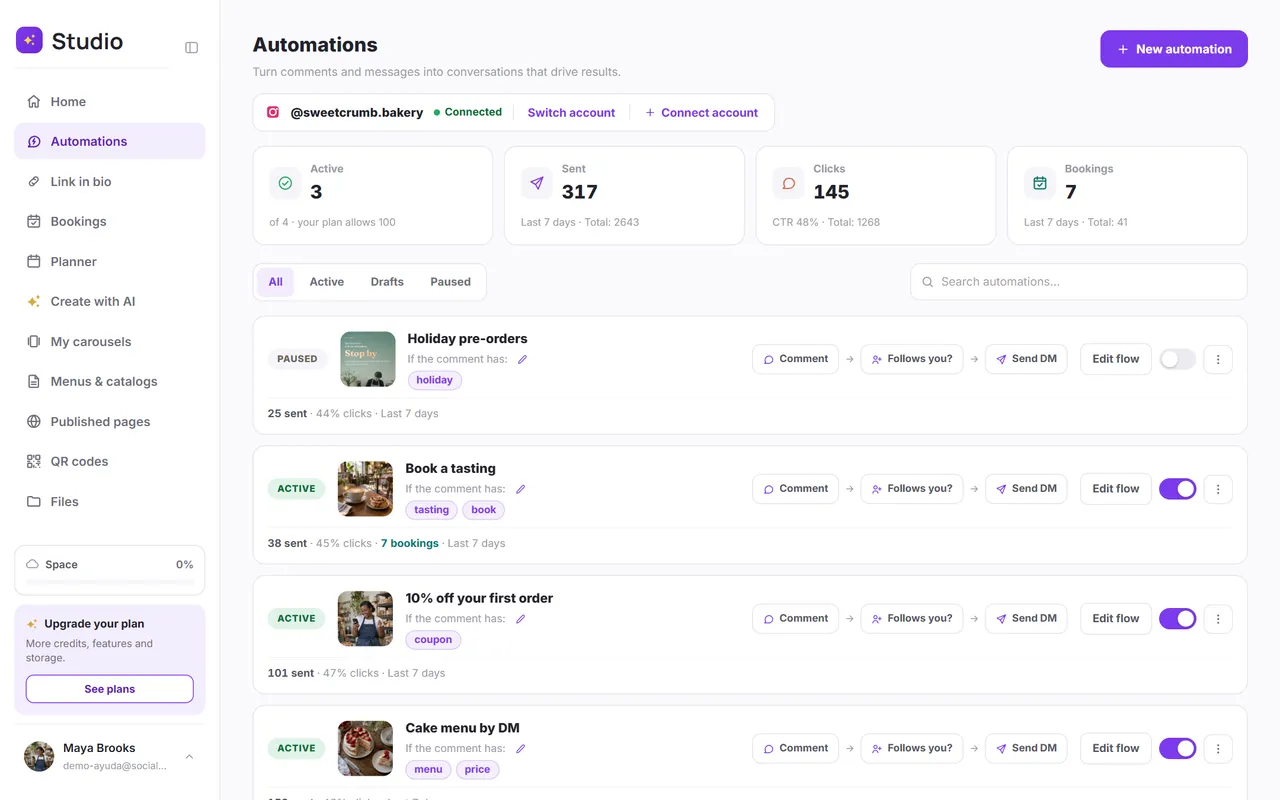
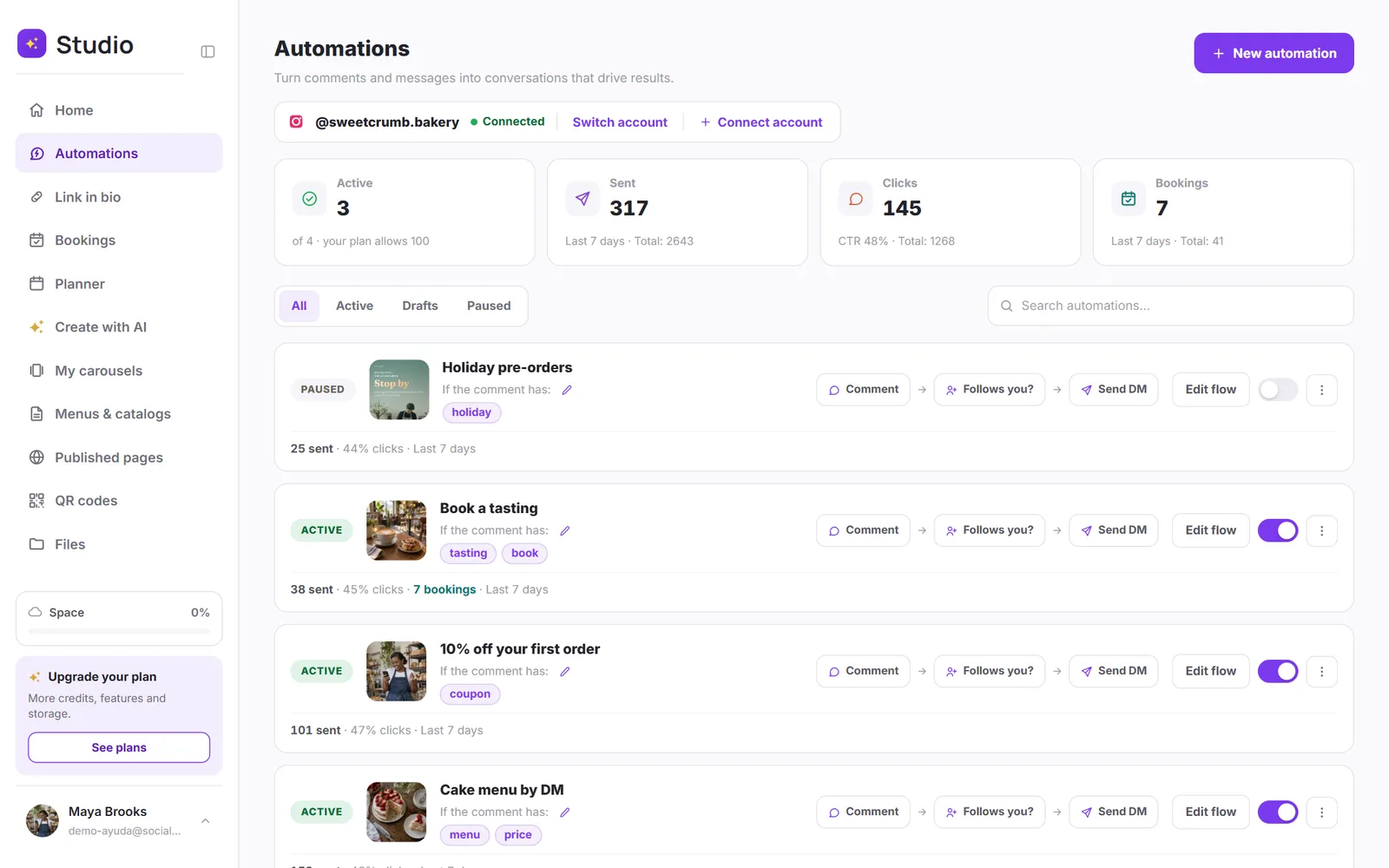
Open Automations and tap “New automation”
If you haven't connected your Instagram yet, it'll ask you to first. See how to connect it.
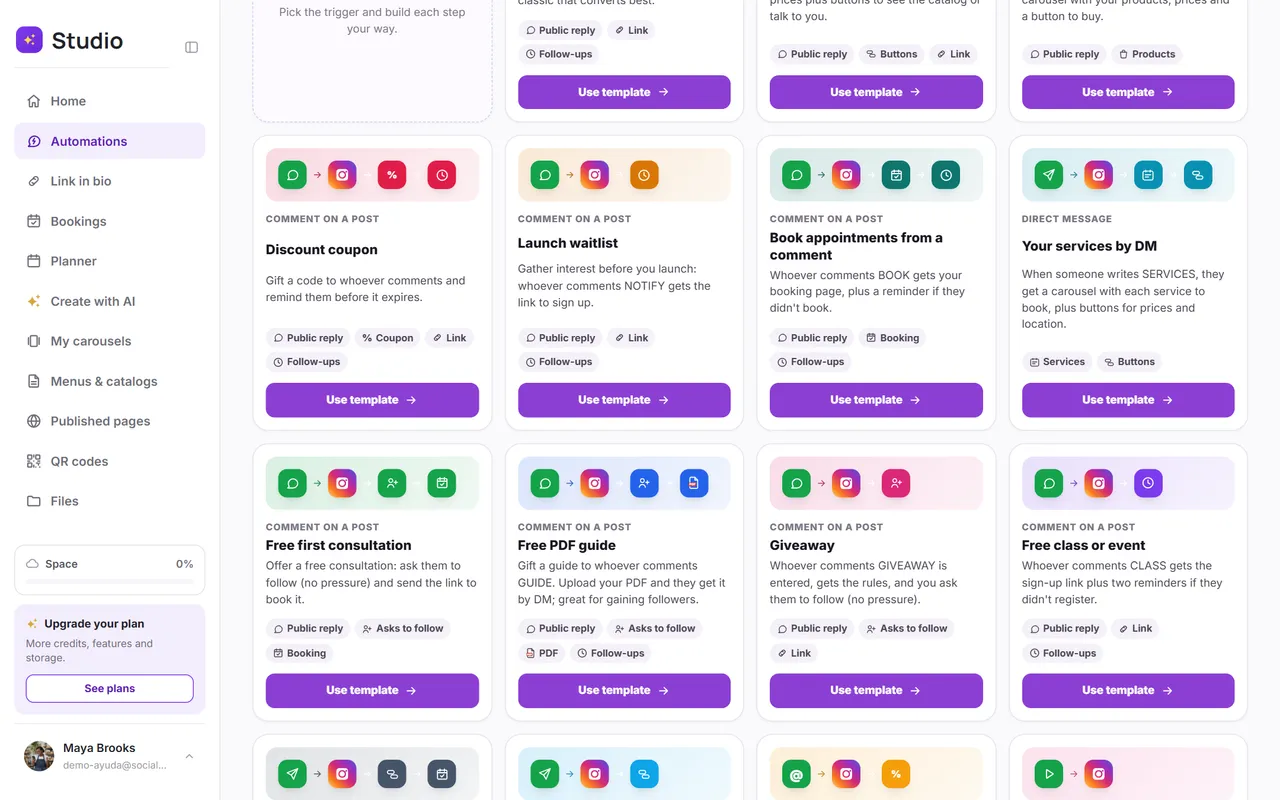
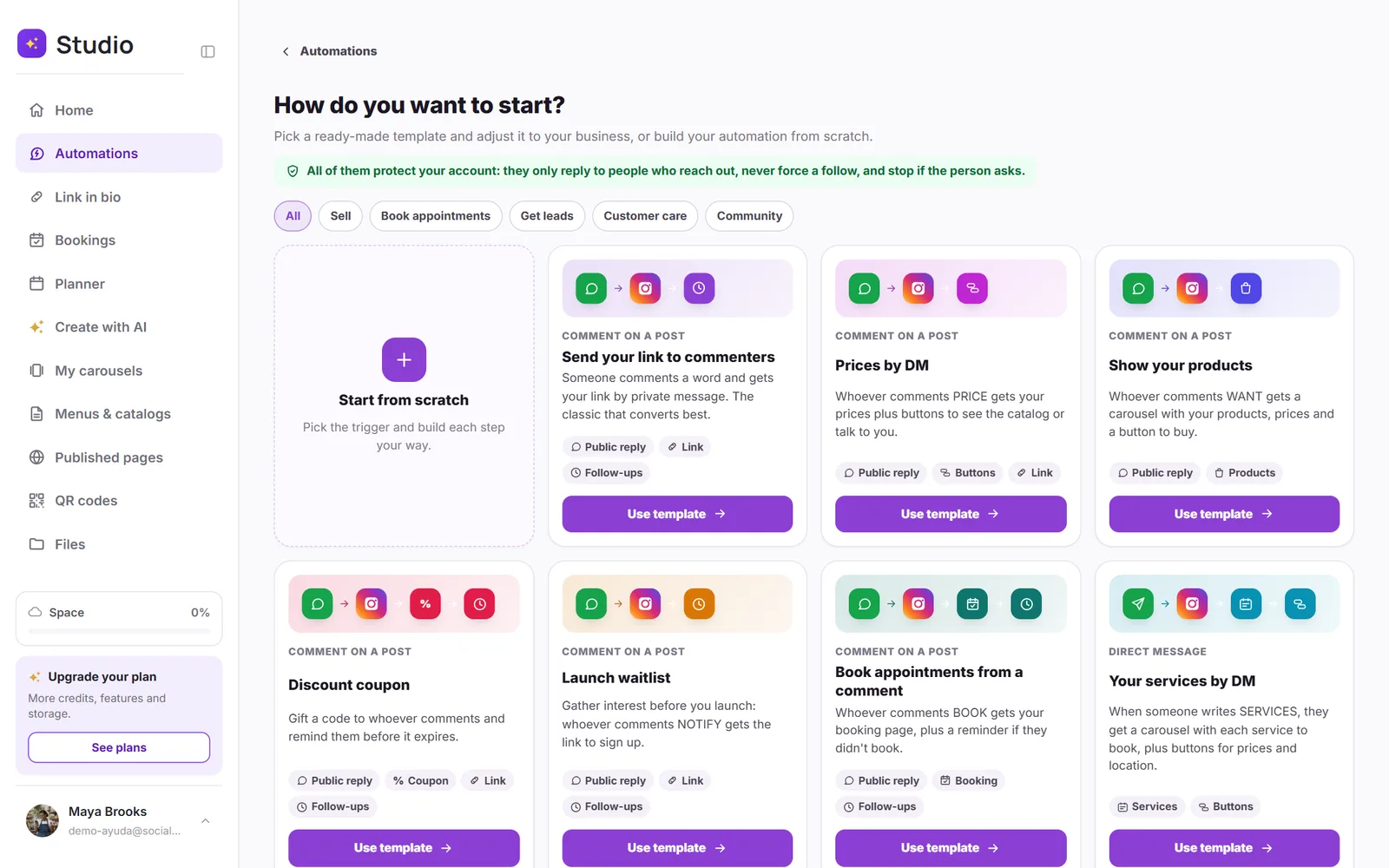
Pick a template or start from scratch
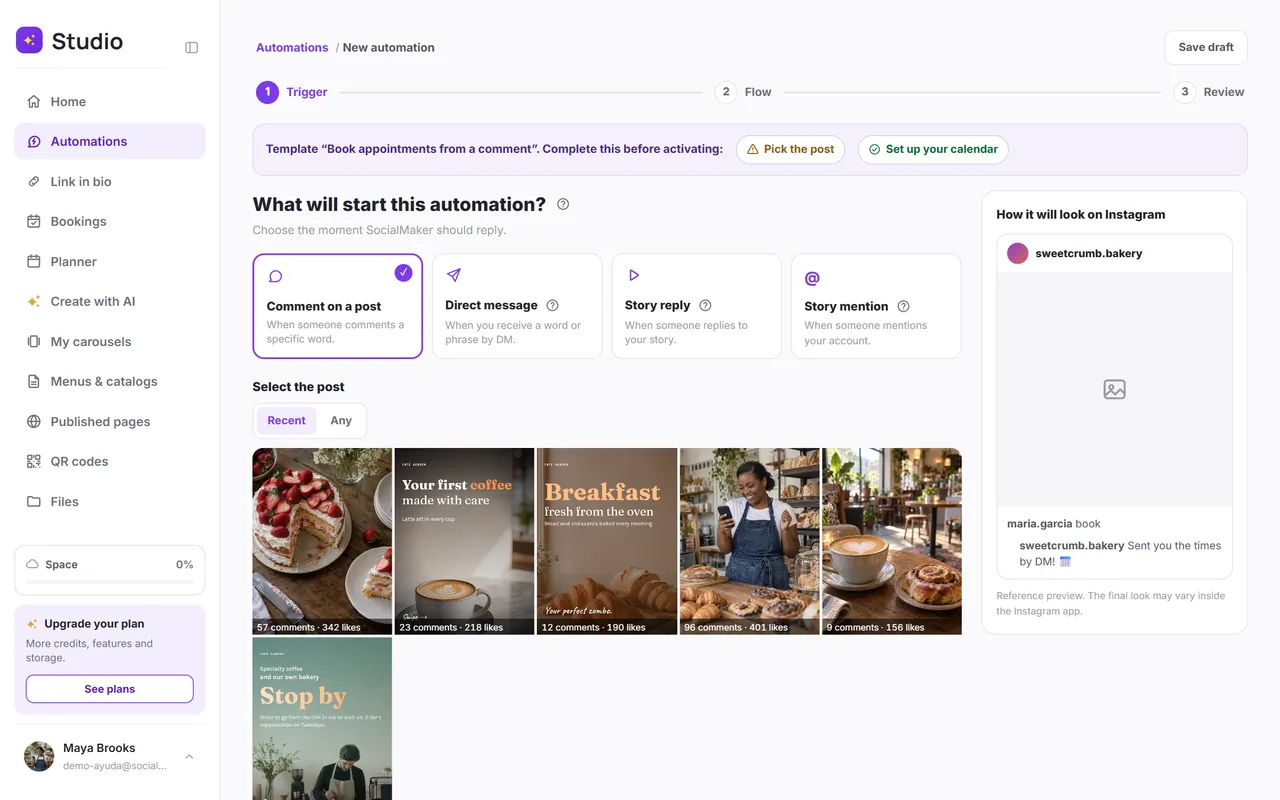
Templates come with the messages written and the steps built. At the top, you'll see what's left to complete before activating, like picking the post or setting up your calendar. If you'd rather build it yourself, tap Start from scratch.
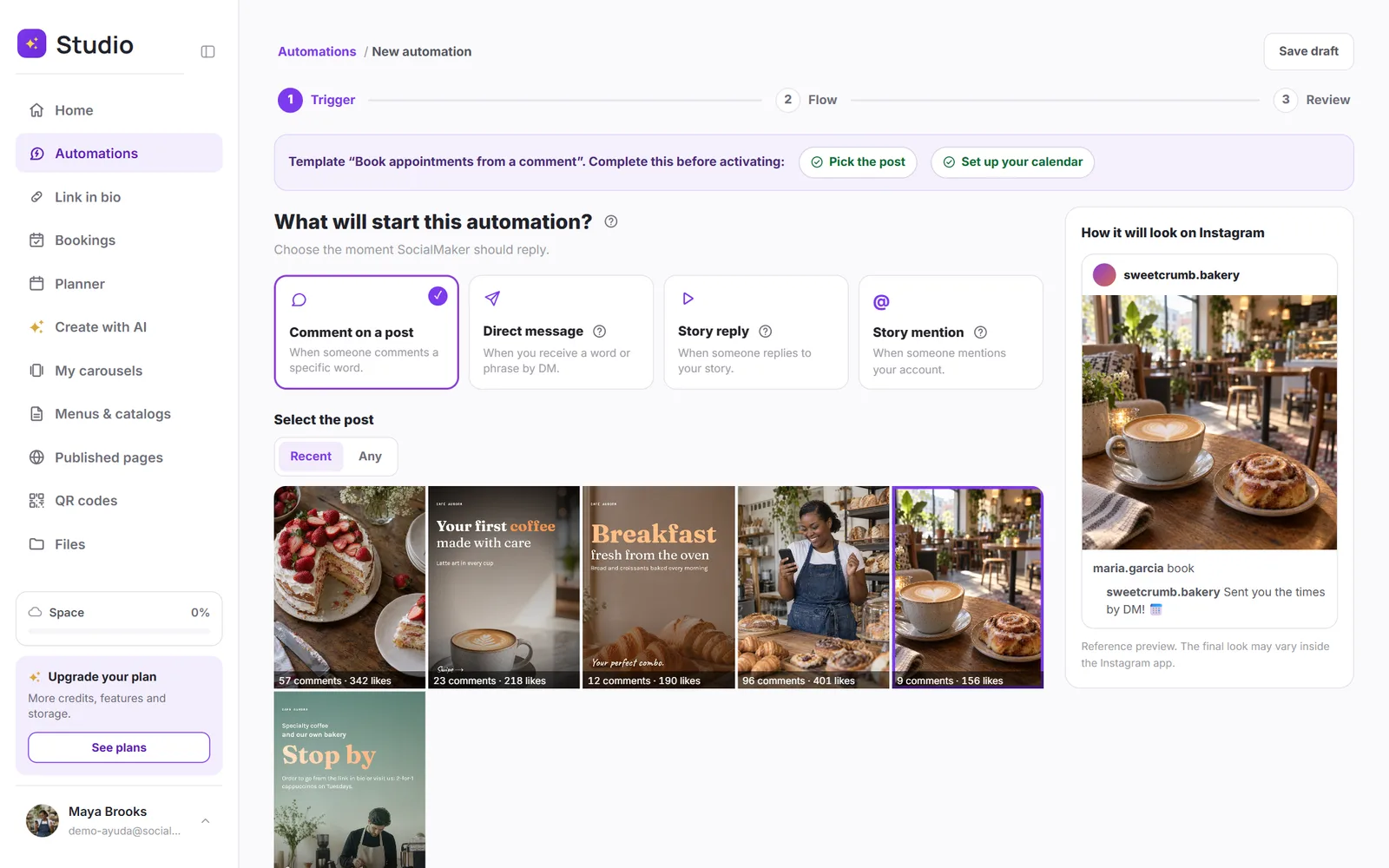
Pick the post and the keywords
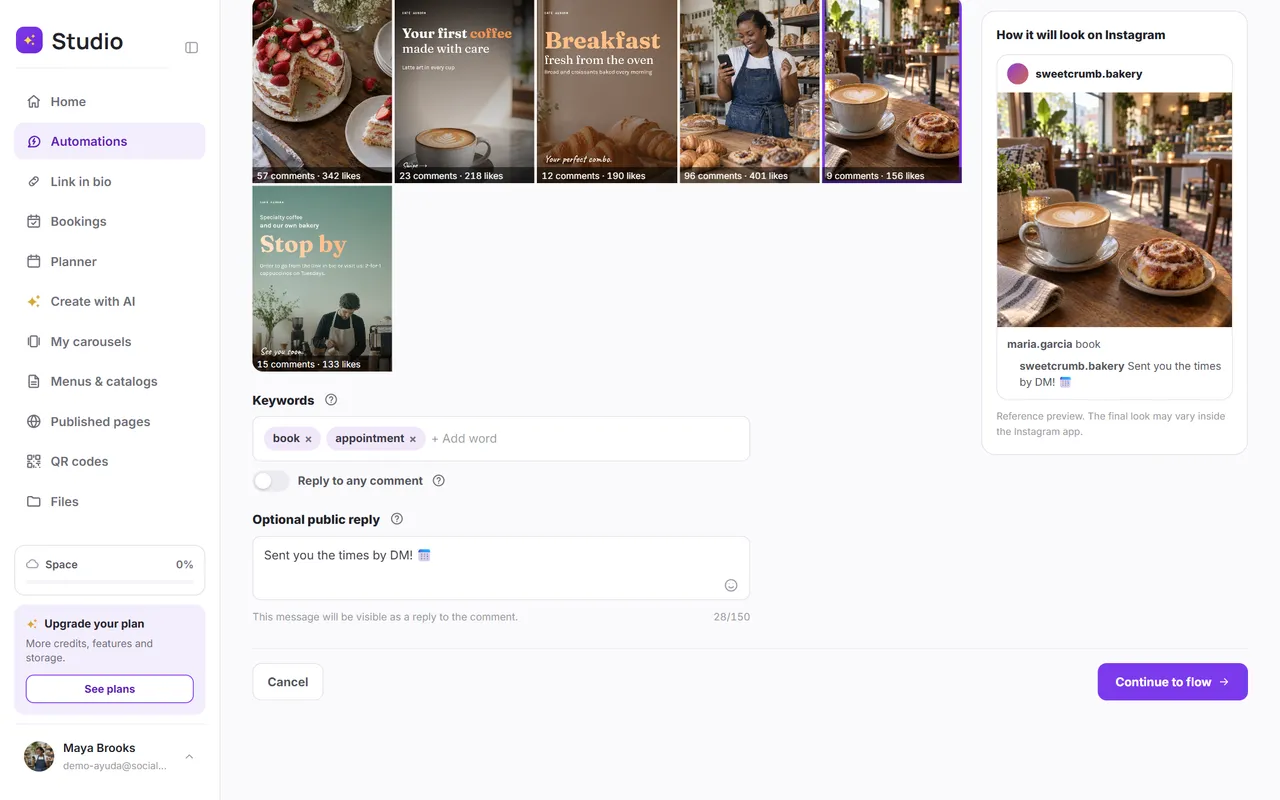
Tap the post you want to automate, or choose Any so it replies on all of your posts. In Keywords, write what people will comment; you can add several. If you turn on Reply to any comment, it replies to everyone. The other triggers are explained in other ways to start an automation.
Write the public reply (optional)
It's a visible comment under the person's, like “Just sent you a DM! 💜”. Add variations: they rotate at random, so your account doesn't post the same comment every time.
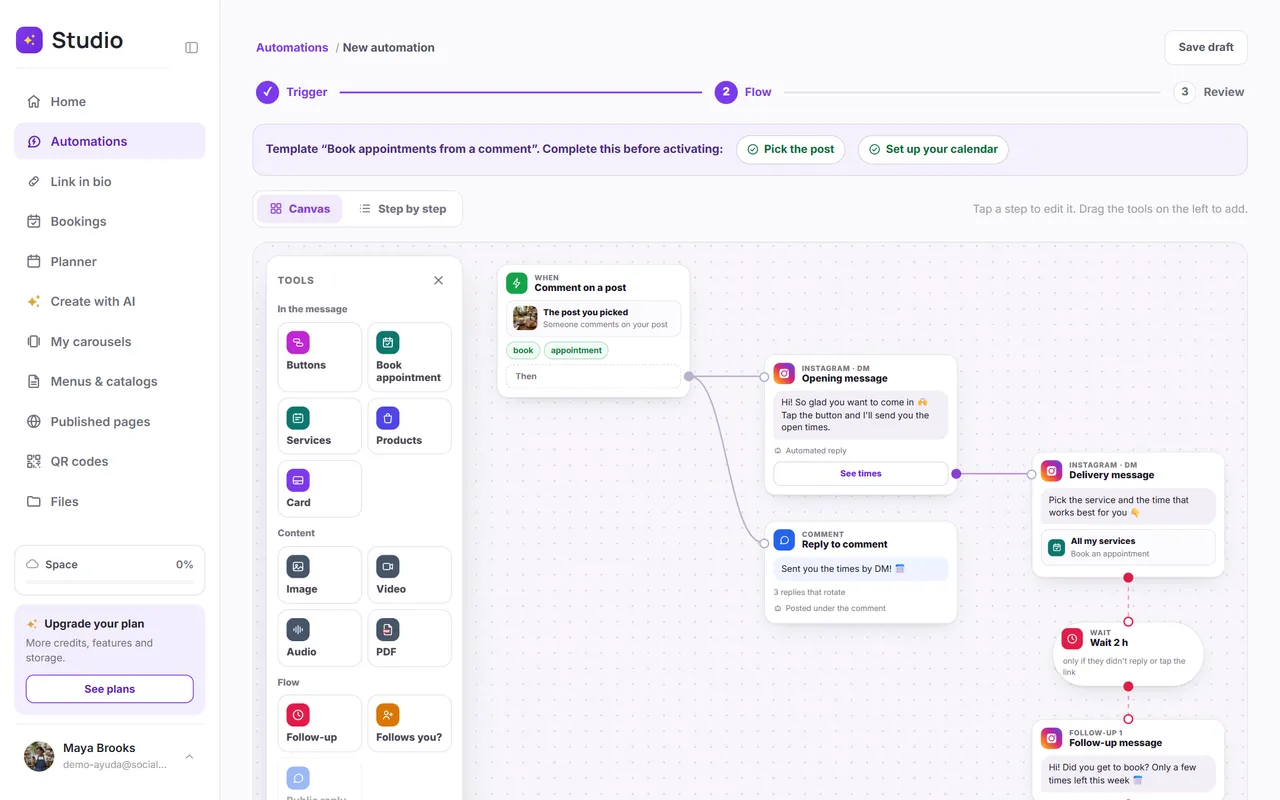
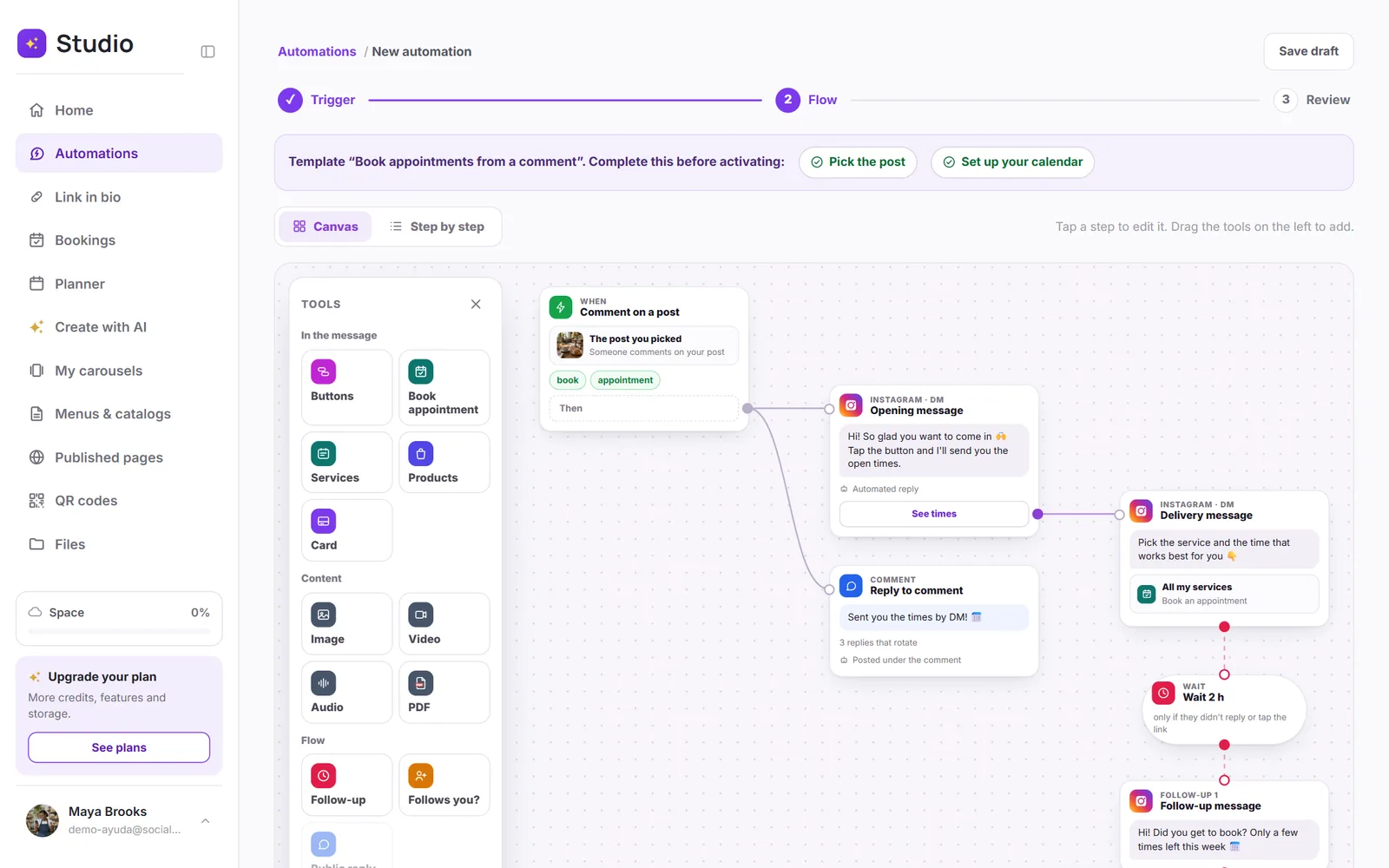
Build the flow on the canvas
Tap Continue to flow. Each card is a step: the opening message with its button, the delivery and the follow-ups. To add something, drag a tool from the left onto a step: buttons, an appointment, your services, products or files.
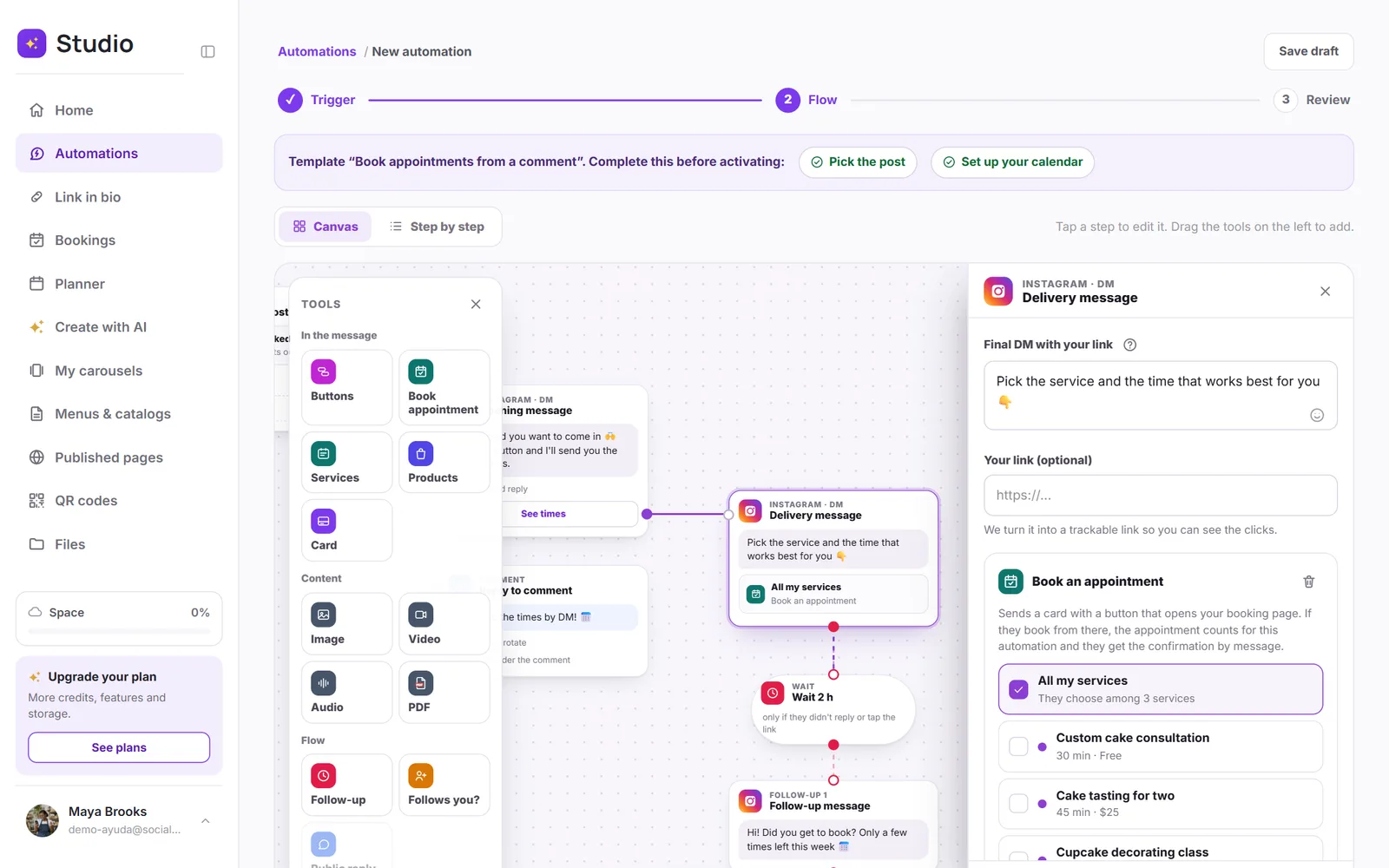
Edit each step in the side panel
Tap a step and you'll see everything in it on the right. In the booking template, for example, you choose whether people book from all of your services or from one in particular.
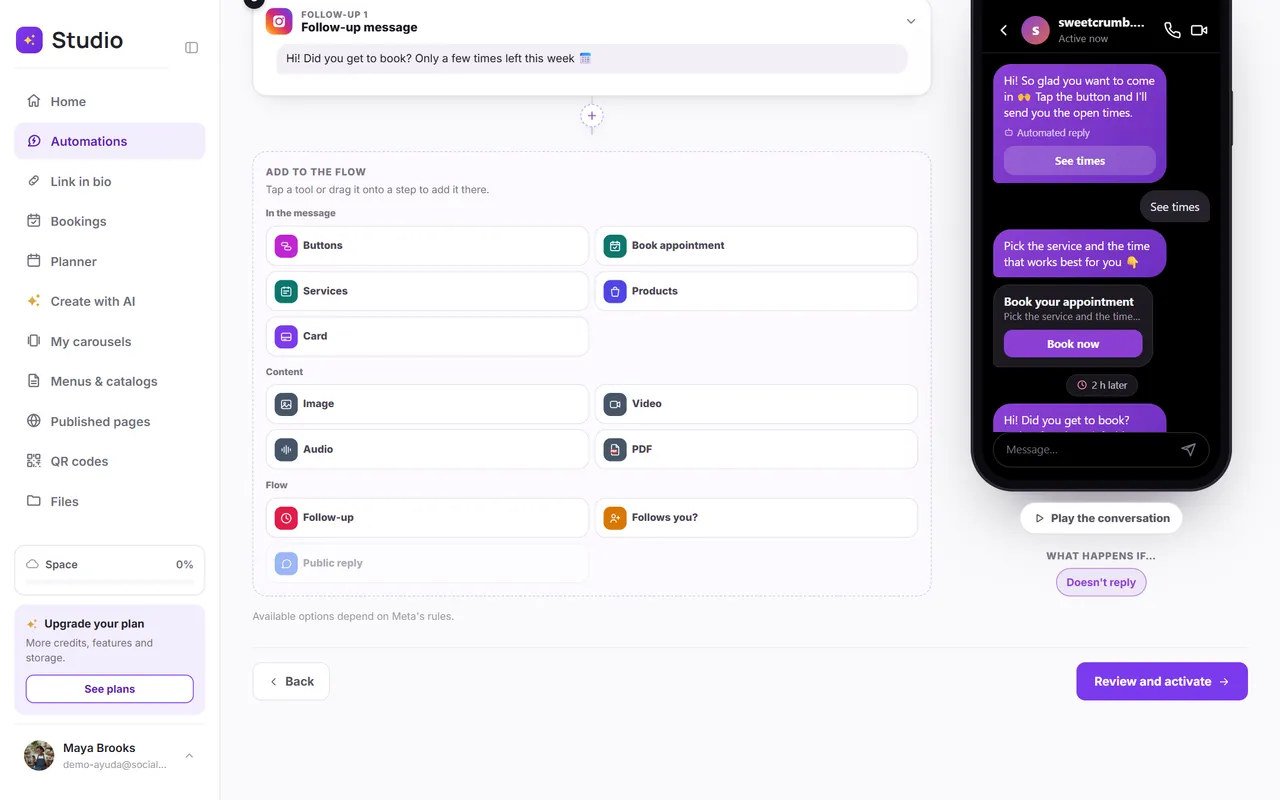
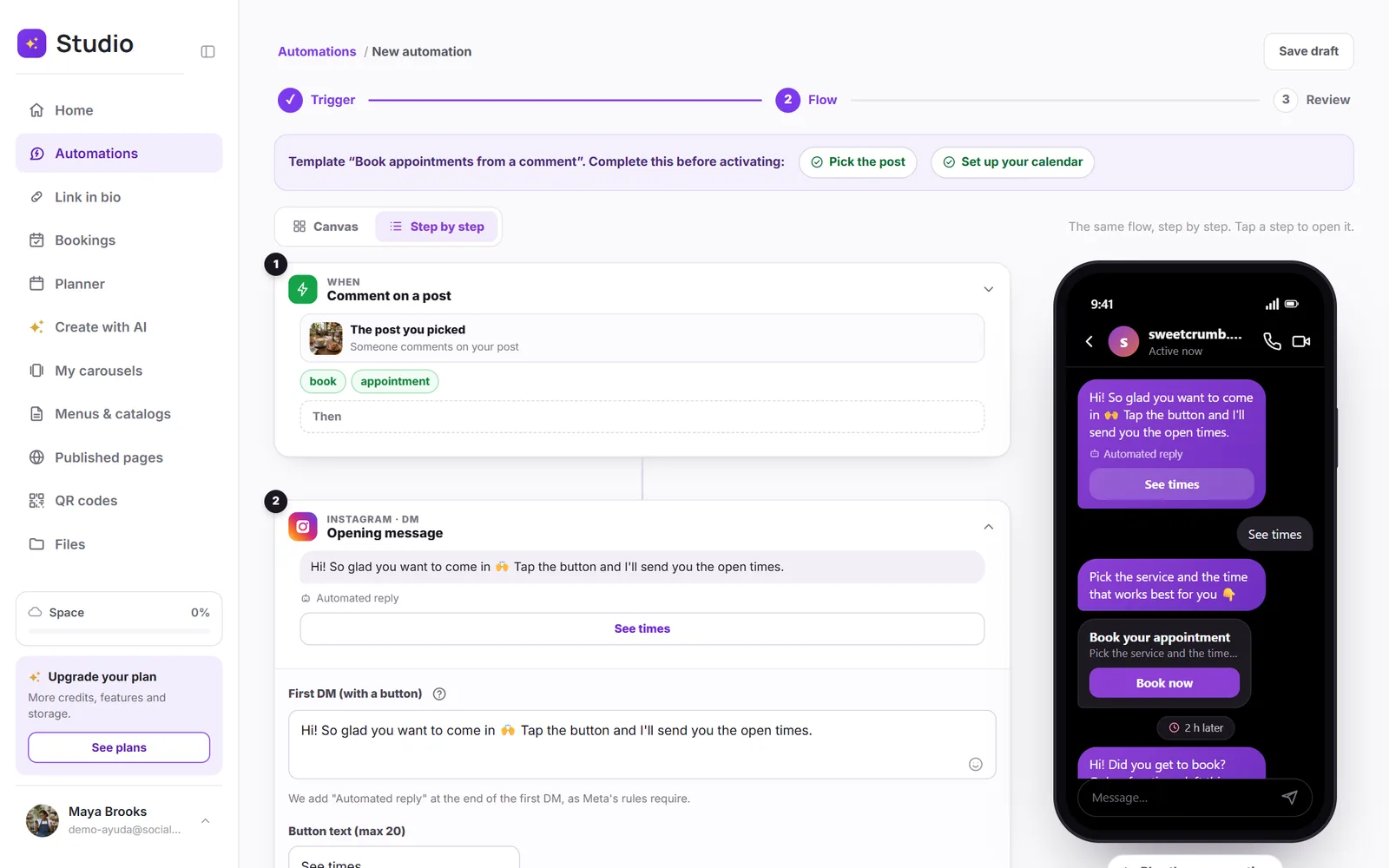
Prefer a list? Use “Step by step”
It's the same flow, one step at a time. The phone next to it shows the conversation exactly as your customer will see it, and it updates as you type.
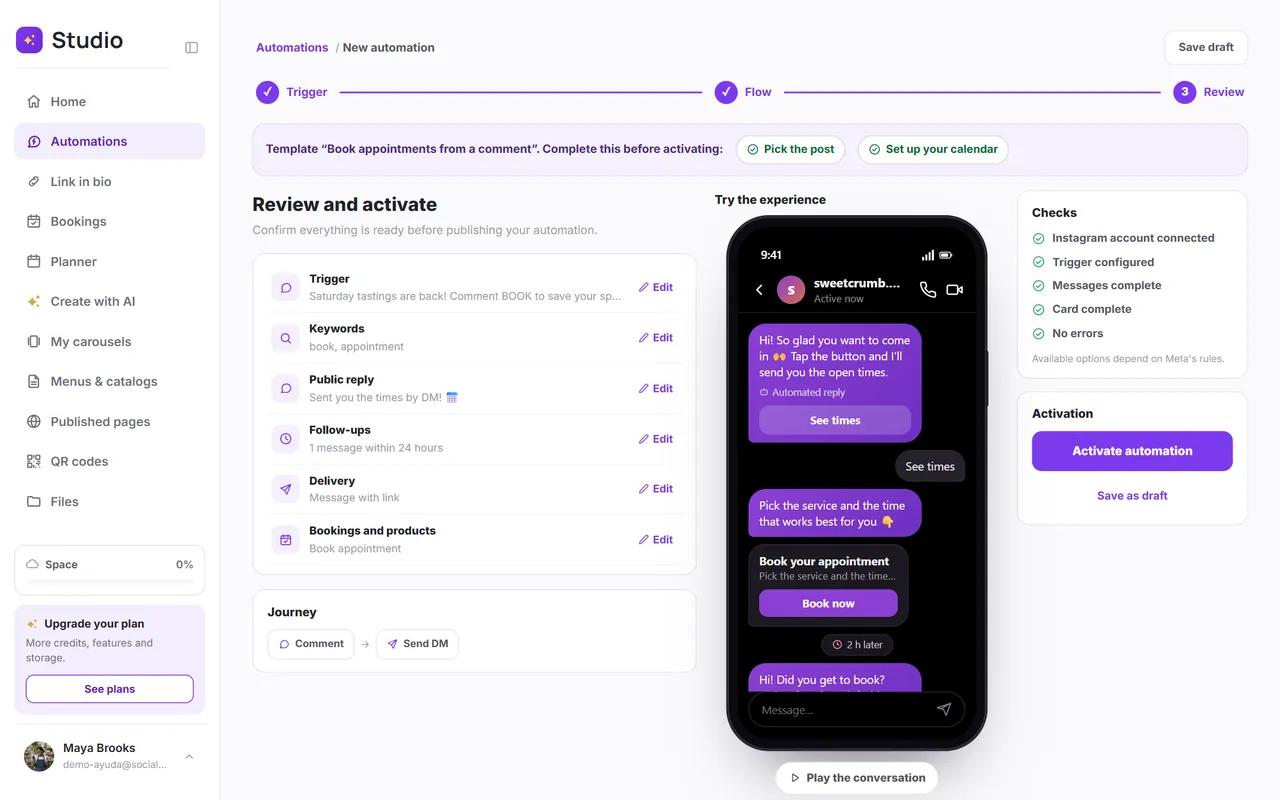
Review and activate
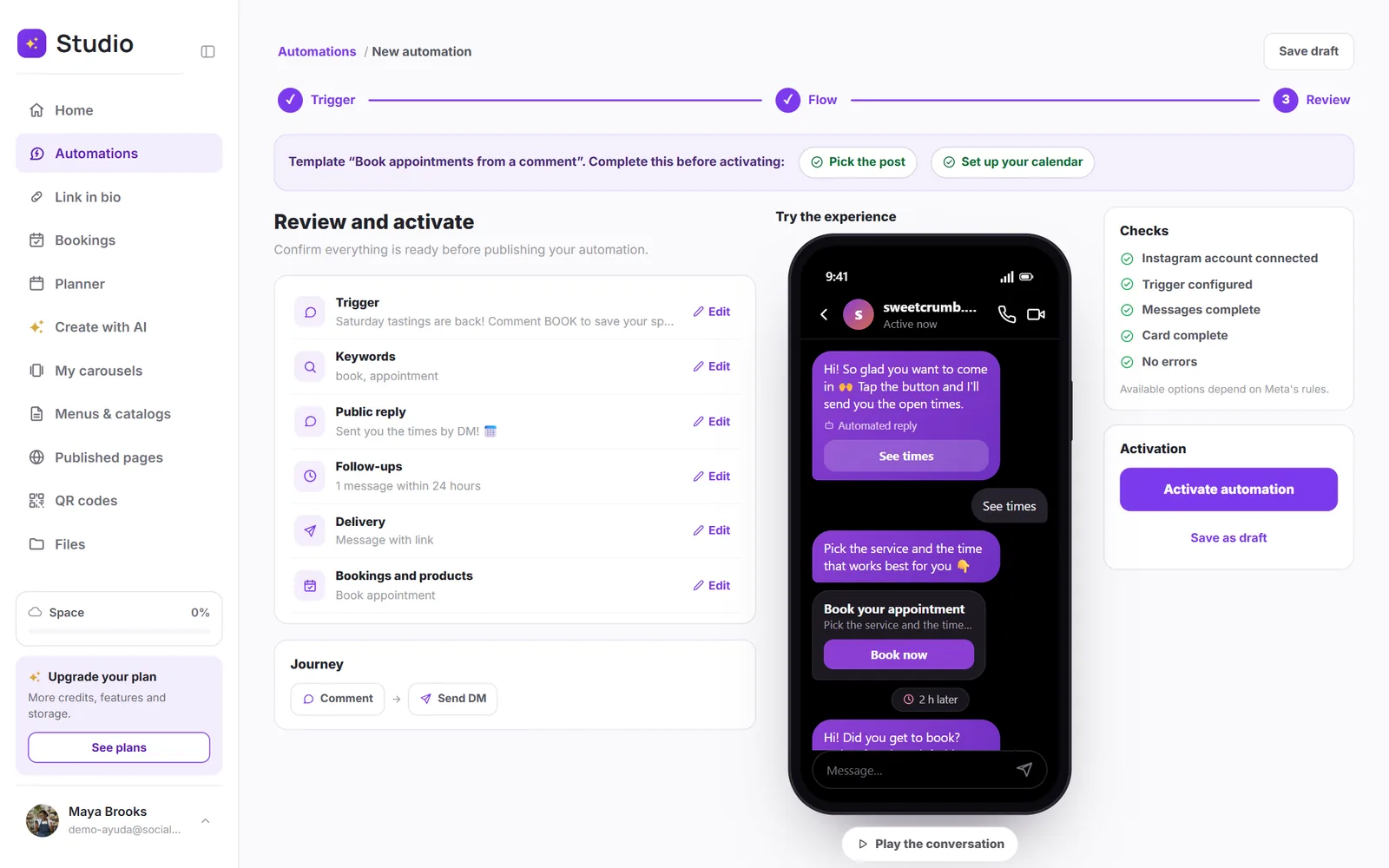
In Review you'll see a summary and the checks. Tap Play the conversation to watch it from start to finish. When everything is green, tap Activate automation: from that moment on, it replies on its own.
Try it out
Ask someone to comment the keyword on your post (or use another account of yours). Within seconds, they should get the public reply and the DM.